
The Mac Dock can hide automatically until the pointer reaches its screen edge. Open System Settings > Desktop & Dock, then turn on Automatically hide and show the Dock. Move the pointer to the Dock's chosen edge to bring it back.
Turn on automatic Dock hiding
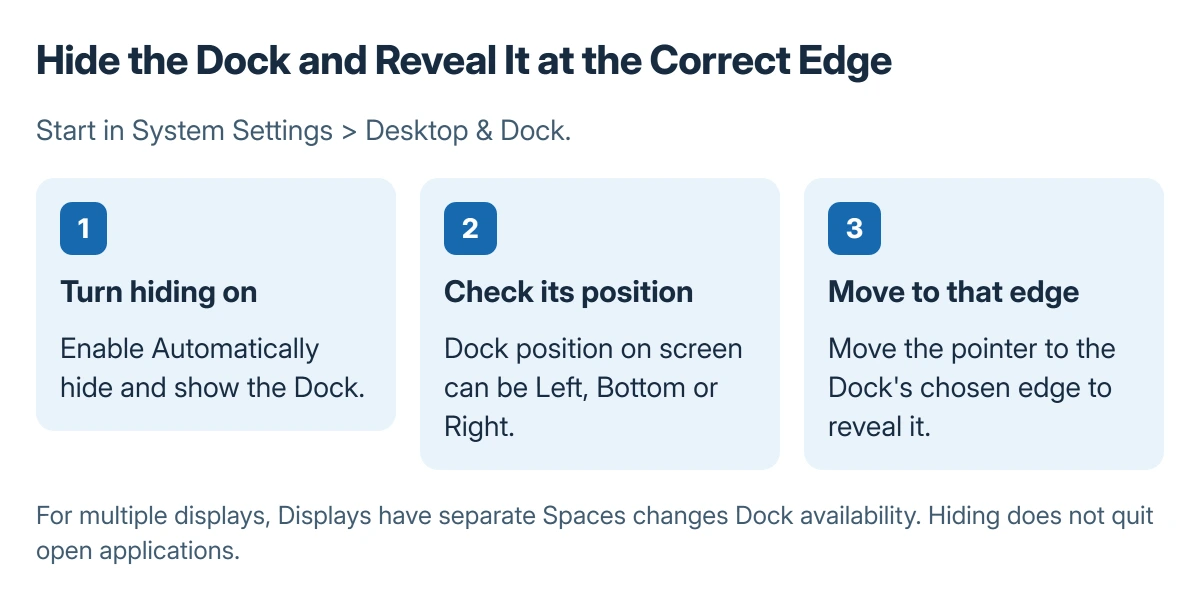
Choose Apple menu > System Settings > Desktop & Dock. In the Dock section, enable Automatically hide and show the Dock. Move the pointer away from the Dock and check that it retreats.
Status: Apple's current Desktop and Dock settings. The picture explains the controls; no Dock or display setting was changed here.
Apple documents automatic hiding in Desktop & Dock settings. Turn that same setting off when the Dock should remain visible. Hiding the Dock does not quit its applications or remove their files.
Bring it back at the edge where it is placed
Check Dock position on screen in the same settings. The choices are left, bottom and right. Apple says the hidden Dock appears when the pointer moves to the edge where the Dock is located.
If its position is Right, moving the pointer to the bottom is the wrong check. Move to the right edge instead, then move away to see automatic hiding work again.
The striped Dock icon guide addresses an application's icon appearance. A damaged-looking or unavailable icon is a separate issue from the whole Dock hiding between uses.
Check a second display separately
Apple states that Displays have separate Spaces affects Dock availability. Enabling that option makes the Dock available across the connected displays. Disabling it restricts the Dock to the main screen.
That control is in the Mission Control section of Desktop & Dock. Inspect its current state before changing it, since it also affects how Spaces and some window features behave across displays.
For a wider second-monitor problem, the Mac menu bar and second display checks explain the related display settings. Automatic Dock hiding alone does not explain a menu bar missing on another screen.
If the Dock still does not appear
Return to Desktop & Dock and turn automatic hiding off, then inspect the configured edge and display.
If the controls are managed or the entire desktop remains unresponsive, seek help for that broader system problem rather than removing Dock applications.
The Short Version
Enable Automatically hide and show the Dock in Desktop & Dock. Reveal it at its selected left, bottom or right edge. On multiple displays, check Displays have separate Spaces as a separate setting.

Isaac Smith is the founder and editor of PC Glance, a website that covers computers, laptops, and technology. He is a tech enthusiast and a computer geek who loves to share his insights and help his readers make smart choices when buying tech gadgets or laptops. He is always curious and updated about the latest tech trends.