
Deleting apps on a Chromebook starts in the Launcher. Right-click the installed app, choose Uninstall or Remove from Chrome, then confirm. Chrome extensions have their own removal list and can be switched off temporarily instead.
Save anything the app keeps only on the device before removing it.
Remove the app from the Launcher
Open the Launcher in the corner of the screen and find the app. Right-click its icon to open the app menu. On a touchpad, a two-finger click opens the secondary-click menu.
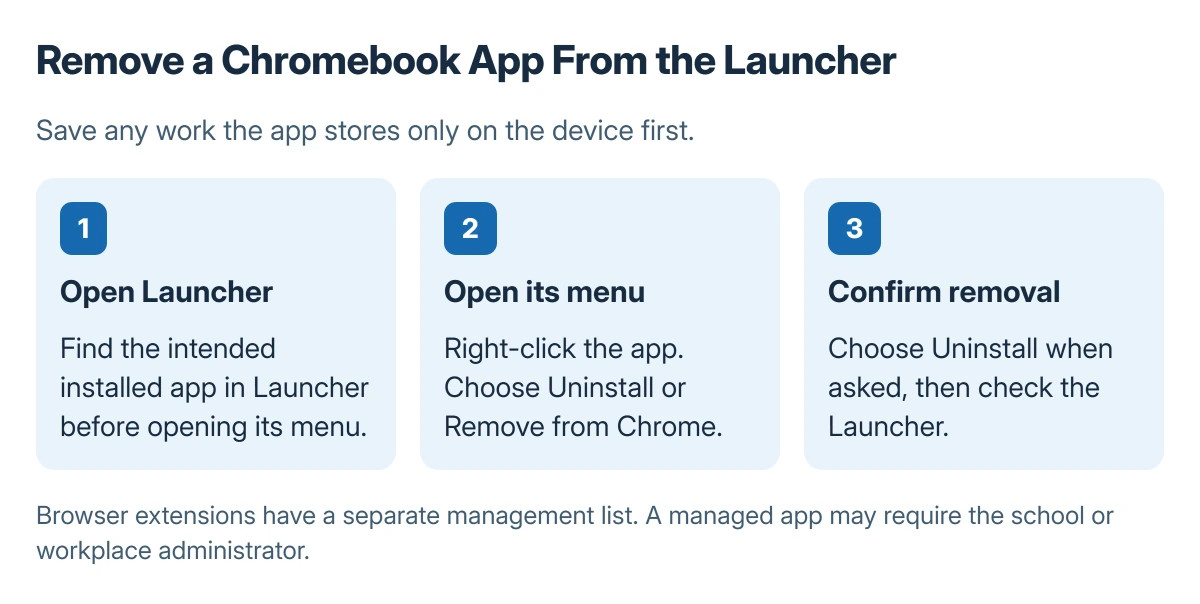
Status: Google's Chromebook app and extension removal instructions checked 23 October 2026. The picture is a procedure diagram, not a captured app menu. No software was removed here.
Removing installed Chromebook apps is documented by Google. Follow the Chromebook uninstall instructions. Select the entry for the app intended for removal, then confirm Uninstall when prompted.
Reopen the Launcher and check that the installed app entry is gone. A browser bookmark or website shortcut with a similar name is not proof that the app remains installed.
Remove or disable a Chrome extension separately
Open Chrome's Extensions management page from its menu. Find the extension by name and choose Remove, then confirm Remove again. A toolbar extension can also offer Remove from Chrome in its right-click menu.
Google says the switch beside an extension temporarily stops it without uninstalling it. This is useful when comparing a browser problem with that extension off, while keeping its entry available to turn on later.
For an extension marked unsupported, the Chrome extension compatibility guide explains that different message. Reinstalling the same unsupported extension does not provide a compatible replacement.
When removal is unavailable
An organization can control the installed apps on its managed Chromebook. Give the administrator the app name and the missing or locked removal control. Do not reset a managed device to bypass its required software.
Google states that the Launcher command can be labeled Uninstall or Remove from Chrome. Read the actual app menu rather than assuming every installed item has the same label.
For a computer that freezes before the menu can be used, try the Chromebook freezing checks first. Removing unrelated software is not a substitute for restoring normal input and saving work.
Check what still belongs to the account
Uninstalling a local app is separate from deleting its online account, cloud files or paid subscription. Review the service's own account and billing controls when those are also intended to change.
If an app keeps reappearing, check whether it is required by the organization or installed again through the signed-in account. Identify that source before repeating the uninstall or considering a device reset.
The Short Version
Remove an installed app from its Launcher menu. Use Chrome's extension list for browser add-ons, and switch an extension off when only a temporary comparison is needed. Ask the administrator about required apps.

Isaac Smith is the founder and editor of PC Glance, a website that covers computers, laptops, and technology. He is a tech enthusiast and a computer geek who loves to share his insights and help his readers make smart choices when buying tech gadgets or laptops. He is always curious and updated about the latest tech trends.