
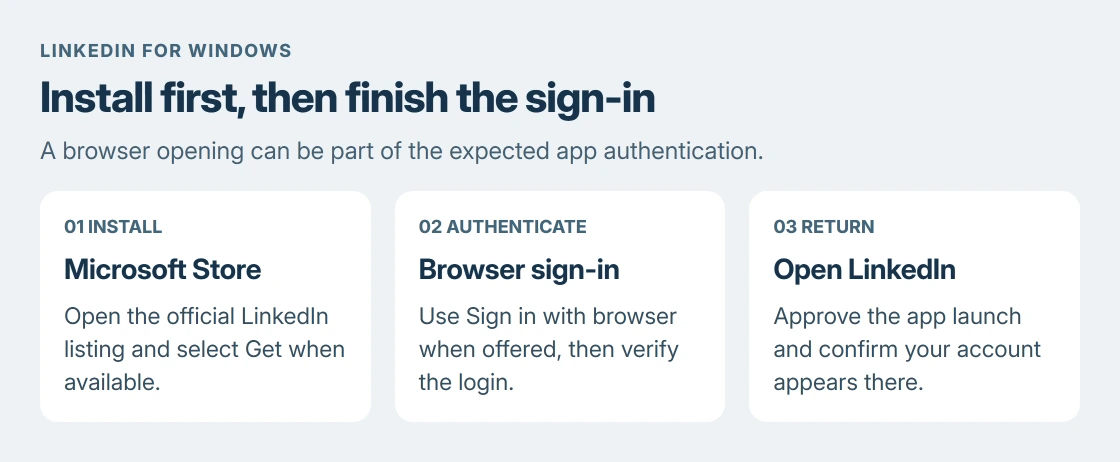
Installing the LinkedIn app for Windows 10 starts in Microsoft Store. Search for LinkedIn, open its listing and select Get. LinkedIn's official help also links directly to the Store listing, which is useful when search does not find it.
After installation, open LinkedIn from Start and complete its sign-in. A browser may open to authenticate the account before handing control back to the app.
Open the official LinkedIn listing
Select Start, type Microsoft Store and open it. Search for LinkedIn and inspect the app's publisher and device requirements before installing. Use the listing linked by LinkedIn's Windows app instructions if the results are unclear.
Microsoft documents getting apps through its Store. This route handles the installation without searching for a separate LinkedIn installer file on an unfamiliar download page.
Status: LinkedIn's Windows desktop instructions and Microsoft's Store and Edge guidance checked 23 October 2026. Store availability is device-dependent; no app was installed on this laptop.
Select Get, or the installation control shown for that listing, and wait for completion. Then search for LinkedIn in Start and open it. Seeing the app open confirms installation; account sign-in is the next stage.
Finish the browser sign-in and return to the app
LinkedIn describes Sign in with browser as an app sign-in option. Choose it when offered, then sign into the intended LinkedIn account in the browser window that opens.
Complete any normal account verification. LinkedIn's documented sequence then uses Verify login, followed by Open to approve launching the desktop app again.
That handoff is expected. A browser opening during sign-in does not establish that installation failed. Check whether the app returns with your account before repeating the installation.
For convenient access, find LinkedIn in Start, right-click it and choose Pin to taskbar or Pin to Start, depending on the options shown. Pinning changes access to the app, rather than creating a second account.
If Get is missing, check availability before repairing Windows
Microsoft says Store can hide an incompatible app or block its purchase control. Region and account restrictions can also affect availability. Read the listing's requirements and the message beside its install control.
A missing button therefore does not prove that the Store cache is broken. Microsoft's app availability checks describe those distinctions.
If the Store itself closes while opening apps, our Store crashing guide covers that separate fault. For an actual 0x80131500 message, use the Store connection-error steps.
Microsoft states that recently installed Windows updates can require a restart before Store apps install. Save work and restart if that applies. An office policy blocking Store access needs the organization's IT team.
Use LinkedIn on the web if the app is unavailable
Open https://www.linkedin.com/ in a supported browser and sign into the same account. This supplies website access without obtaining an unofficial Windows package or changing the Store's region to force availability.
For a separate website window, Microsoft Edge can install a site as an app. Open LinkedIn, then use Settings and more > More tools > Apps > Install this site as an app, as shown in Microsoft's current instructions.
This creates an Edge-managed website app. Manage it through edge://apps; it is a separate installation route from the Microsoft Store listing.
If both the website and the desktop app reject the same login, contact LinkedIn support about the account or verification message. For a download failure affecting several unrelated Store apps, contact Microsoft support instead.
The Short Version
Install LinkedIn from Microsoft Store, open it from Start and complete the account sign-in. Check availability when Get is absent. Use the LinkedIn website if the Store app cannot be installed.
Where to Next
Use the exact message when asking for support. A missing installation control, a Store error and a rejected account login require different help.

Isaac Smith is the founder and editor of PC Glance, a website that covers computers, laptops, and technology. He is a tech enthusiast and a computer geek who loves to share his insights and help his readers make smart choices when buying tech gadgets or laptops. He is always curious and updated about the latest tech trends.