
Learning how to use a tablet starts with opening an app, returning Home and going back inside an app. Practice those first, then try Wi-Fi, typing and an app download on the tablet's own operating system.
The instructions here cover an iPad and a Samsung Galaxy tablet. A Fire tablet or Windows Surface has different software and menus, so check the model before following a route.
Start with power, unlocking and the Home screen
For a new tablet, follow its first-start setup prompts to choose a language, connect to Wi-Fi and sign in to the appropriate account. Keep the screen-lock code somewhere secure and separate from the tablet.
On an iPad, hold the top button to turn it on. On a Galaxy tablet, Samsung's getting-started guide calls this the Side button. A short press after startup locks or wakes the screen.
Status: Apple's iPad gesture guides and Samsung's startup, navigation and Quick panel instructions checked 24 October 2026. The controls were not tested on a tablet.
Unlock the tablet using its configured passcode or biometric method. The Home screen contains app icons. Tap Settings to practice opening an app, then use the Home action for the tablet in the next section.
Learn Home, Back and recent apps before exploring
The Home action leaves the current app and shows the starting screen. It does not mean the tablet has powered off or that the app has been deleted.
| Action | iPad | Samsung Galaxy tablet |
|---|---|---|
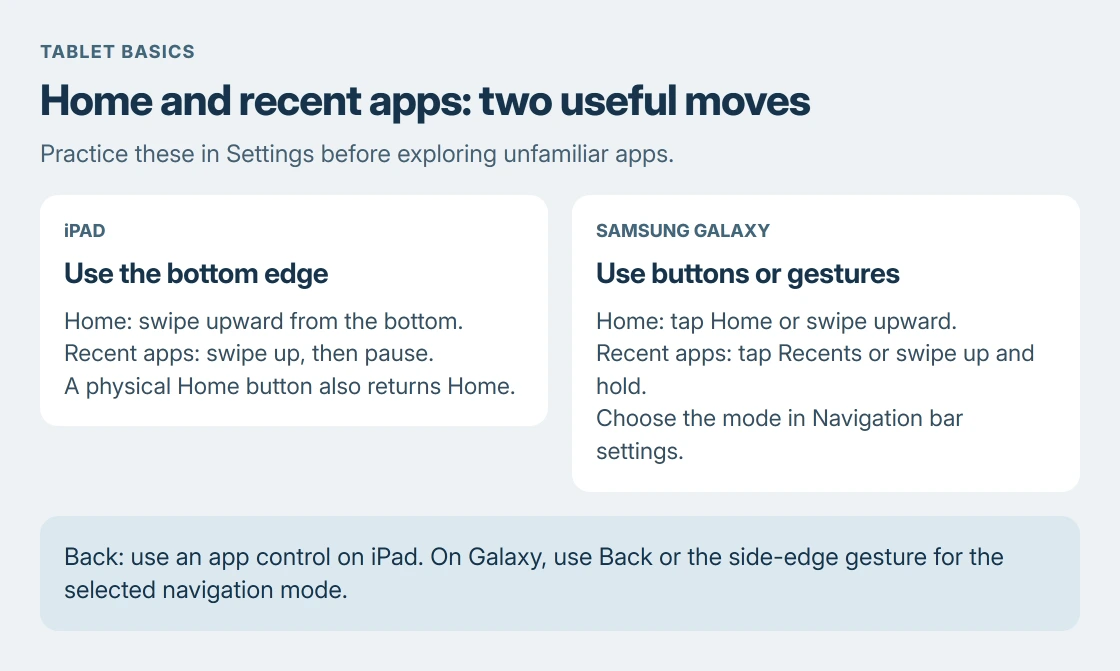
| Home | Swipe upward from the bottom edge, or press a physical Home button if fitted. | Tap Home in the navigation bar, or swipe upward from the bottom in gesture navigation. |
| Recent apps | Swipe upward from the bottom edge and pause near the center. | Tap Recents, or swipe upward and hold in side-and-bottom gesture navigation. |
| Back | Use the app's back arrow or its own navigation control. | Tap Back, or swipe inward from a side edge in side-and-bottom gesture navigation. |
Apple documents iPad's edge swipes in its navigation gesture reference. An iPad has no universal Android-style Back button, so look inside the app for the return control.
Samsung says Settings > Display > Navigation bar selects Buttons or Swipe gestures. Its navigation guide also explains that button order and position can vary.
Use the buttons if they are easier to recognize. When comparing instructions with the screen, identify the function rather than assuming Back is always on one particular side.
Tap to open, drag to scroll and spread to enlarge
Tap an icon once to open its app. Touch and hold an item to reveal available actions. A menu appearing after a hold is different from an ordinary tap.
Apple states in its basic gesture guide that dragging a finger moves through content. On a long page, move a finger upward to reveal the part farther down the page.
Place two fingers on a photo and spread them apart to enlarge it. Bring them together to reduce it. Whether zoom works depends on the app and the content; a fixed-size app screen may not respond.
Practice in a familiar photo or an open webpage. Avoid learning touch-and-hold on an item whose menu could delete or move something important. Dismiss a menu by tapping away from it before trying another action.
Connect to Wi-Fi and check a webpage
On iPad, open Settings > Wi-Fi, turn Wi-Fi on, select the household network and enter its password. On a Galaxy tablet, Wi-Fi is under Settings > Connections.
Open Safari on iPad or Chrome/Samsung Internet on Galaxy and load a familiar webpage. Seeing the page load checks internet access as well as the connection to the router. A Wi-Fi icon alone does not establish both.
A tablet sold as Wi-Fi only does not acquire mobile-data service by signing into an account. Samsung's startup guide explicitly distinguishes these models from tablets with carrier service.
Type a search and install one app
Tap the browser's address or search field. The on-screen keyboard appears when the text field is active. Enter a search, use the keyboard's search or go key, then follow a result.
For another app, use App Store on iPad or Play Store on a Galaxy tablet that includes Google Play. Find the intended app and check its publisher. On iPad, tap Get or its price; on Google Play, choose Install or the price.
Follow any account or purchase confirmation. Apple requires an internet connection and Apple Account for the App Store; use the account set up for the tablet.
Install one app at a time while learning. A store's subscription or purchase prompt can create an ongoing charge, so read what the confirmation authorizes before accepting it.
For Galaxy menus in the wrong language, set the tablet's display and keyboard languages separately. Changing one does not necessarily change the other.
Find brightness and volume, then finish safely
On iPad, swipe downward from the upper-right corner for Control Center. Apple says this panel provides quick controls. Adjust brightness or volume there, then dismiss it to return to the app.
Samsung's current Quick panel instructions distinguish newer One UI layouts from older versions. With a separated layout, swipe down from the upper-right area; older layouts open notifications first.
For One UI 6.1.1 and earlier, Samsung gives a two-finger downward swipe from the top to expand the Quick panel. Find brightness there. The tablet's volume buttons provide another direct way to adjust sound.
Finish by pressing the top or Side button once to lock the tablet. For routine Galaxy maintenance, the Samsung tablet update procedure shows how to check the installed software.
If a control is missing, open the manufacturer's user guide for the exact model and software version. If tapping fails throughout the system, seek device support instead of repeatedly deleting apps or resetting the tablet.
The Short Version
Open Settings and practice returning Home. Then try Back, recent apps, scrolling, Wi-Fi, typing and a store download. Lock the tablet when finished. Use its model's guide when a control differs.

Isaac Smith is the founder and editor of PC Glance, a website that covers computers, laptops, and technology. He is a tech enthusiast and a computer geek who loves to share his insights and help his readers make smart choices when buying tech gadgets or laptops. He is always curious and updated about the latest tech trends.