
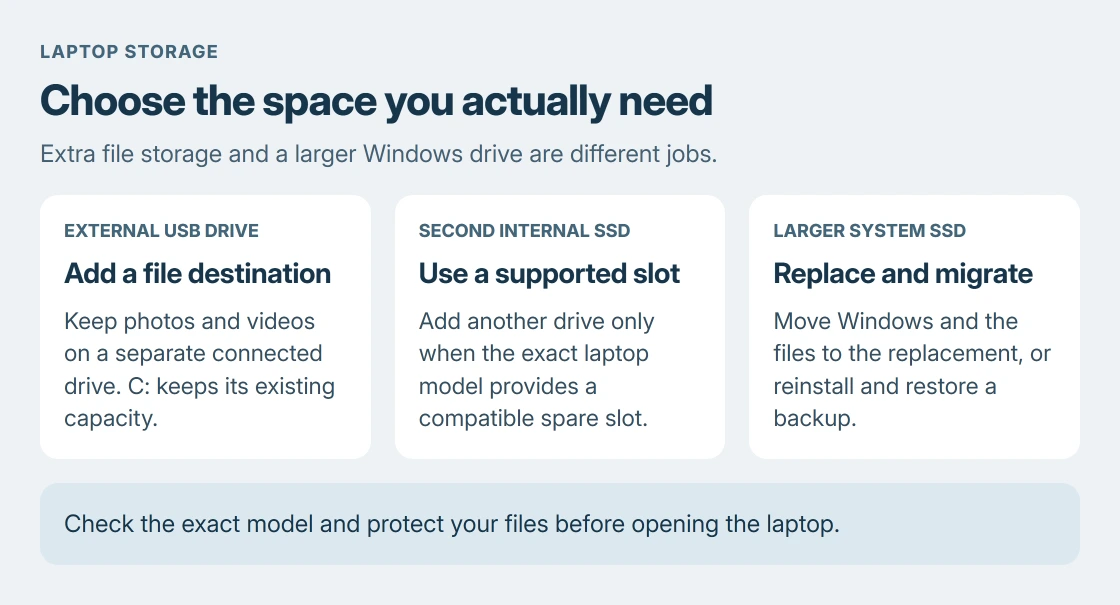
More storage for a laptop can come from an external USB drive, a larger internal SSD, or a second SSD when the model has a spare slot. Start with an external drive for extra file space without opening the laptop.
For a larger Windows C: drive, check whether the internal drive can be replaced. Plugging in a USB drive gives Windows another destination; it does not enlarge C: automatically.
Choose between extra file space and a larger Windows drive
Open File Explorer > This PC and read the capacity and free space for each drive. Decide whether you need somewhere to keep photos and videos, or more room for Windows and installed applications.
Cleanup makes room within the existing capacity. Our disk-space cleanup guide covers that job. Adding a drive is the next option when the files you want to keep already fill the laptop.
Status: Microsoft and HP storage instructions checked 24 October 2026. This guide covers Windows laptops; no drive was purchased, opened or replaced.
Adding RAM does not increase the drive's file capacity. HP's memory and storage guide distinguishes working memory from the SSD that holds saved files.
Add a USB drive for files you do not need inside the laptop
Use a compatible external SSD or hard drive with a cable that matches the laptop's USB port. A preformatted drive should appear under This PC once connected. Open it and make a folder for the files you intend to store there.
Microsoft documents moving personal files to external storage in its drive-space instructions. Those files remain usable while that drive is connected.
I'd copy important files first, open the copies from the external drive, then remove the originals only after checking them. Keep a separate backup before making the external disk the only home of those files.
The initial copy alone will not free C: space because the originals remain. Deleted originals also remain in the Recycle Bin until removed from there. Check the free-space figure after finishing the move.
A disk that asks to be formatted despite already containing files needs diagnosis before any formatting. Use the missing external-drive checks if it never appears in File Explorer.
Direct new files to the added drive
On Windows 11, open Settings > System > Storage > Advanced storage settings > Where new content is saved. Choose the added drive for the content categories you want to redirect.
On Windows 10, open System > Storage and select Change where new content is saved. Microsoft states that the drive must be connected to appear in the choices.
This setting chooses destinations for future content. It does not move the existing photo collection or every installed application. Check the browser's download destination and individual apps' save settings separately.
Keep the external drive connected when saving to it. A missing destination can cause saving to fail, so check the actual folder when the drive has been unplugged.
Check the exact model before choosing an internal SSD
Find the laptop's model on its label or manufacturer's support page, then open its service manual. HP's upgrade instructions describe both replacement and second-drive options.
The manual must establish these points before buying a part:
- Whether the storage is replaceable, and whether a second storage slot exists.
- The supported drive interface, such as NVMe or SATA.
- The physical drive size, mounting hardware and available clearance.
- The manufacturer's opening, power-disconnection and installation procedure.
An M.2 description alone is insufficient. HP lists different M.2 lengths and interfaces in its compatibility guidance. Match the full specification rather than choosing a drive only because its connector looks similar.
A single occupied slot means replacing the old drive. A supported second slot adds capacity while preserving the original Windows disk. Confirm which arrangement the model supports.
Prepare Windows and the files before an internal replacement
Back up important files before replacing the system drive. HP says to plan a clone or fresh Windows installation. A replacement drive arrives without the old operating system.
A compatible Samsung replacement has a documented Magician copying procedure, including target-erasure and encryption checks.
For an encrypted laptop, locate the BitLocker recovery key before hardware work. Keep the key available away from the drive being replaced.
Our M.2 installation guide covers fitting a supported drive. Follow the laptop's service manual for its opening and battery procedure, or use an authorized technician.
A newly added blank secondary disk may need setup before Explorer can use it. Microsoft's new-disk procedure covers initialization and volume creation.
That procedure is for an identified blank disk. A used disk holding files should not be initialized as a shortcut to making it appear. Ask the laptop maker or technician to confirm the disk and migration plan when either is uncertain.
The Short Version
Choose USB for another file destination, a supported second SSD for added internal capacity, or a replacement SSD for a larger system drive. Check compatibility and protect the files before hardware work.

Isaac Smith is the founder and editor of PC Glance, a website that covers computers, laptops, and technology. He is a tech enthusiast and a computer geek who loves to share his insights and help his readers make smart choices when buying tech gadgets or laptops. He is always curious and updated about the latest tech trends.