
NexiGo webcam setup starts by connecting the camera and selecting it in the calling app. The N60 loads drivers automatically. Its optional Webcam Settings app adjusts the picture; it is not a required driver installation.
Check the model label first. Software support, focus controls and resolution options differ across NexiGo cameras, so the N60's instructions cannot establish every other model's features.
Connect the camera and check the live preview
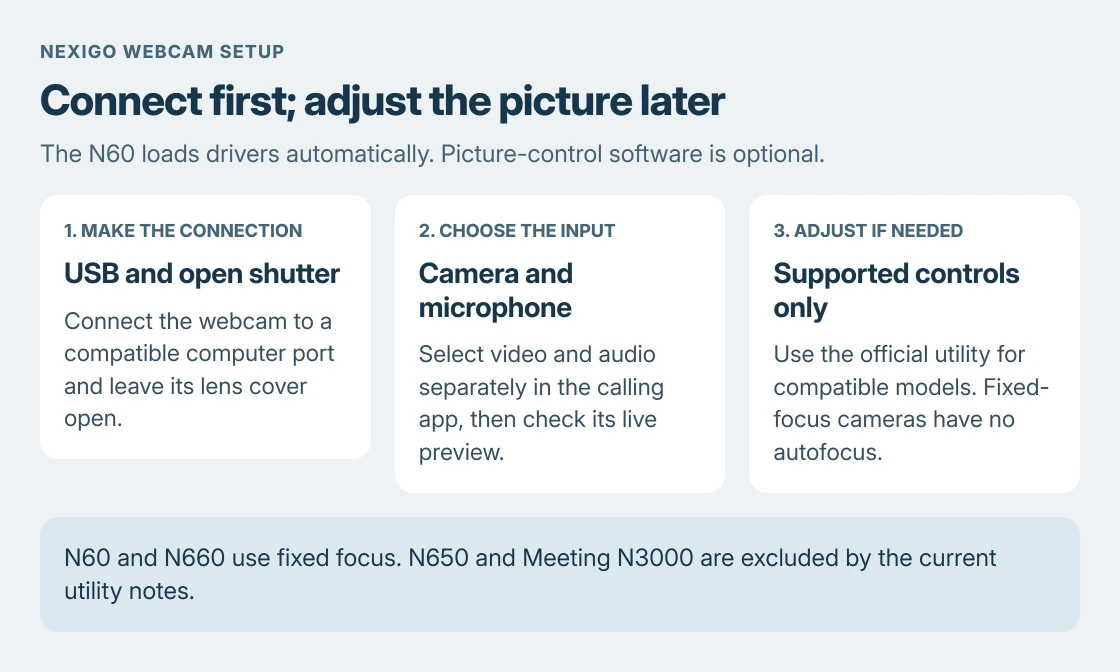
Position the webcam securely, open its privacy cover and connect its USB cable to the computer. For an initial check, use a compatible port on the computer so an uncertain hub is not part of the connection.
NexiGo's N60 product guidance describes plug-and-play use with automatically loaded drivers. Let Windows recognize it before opening the camera app.
Status: NexiGo model and software pages plus Microsoft's Camera guidance reviewed 24 October 2026. No webcam was connected, configured or recorded here.
On Windows, open Camera from Start. If it shows the laptop's built-in camera, use Change camera to select the other input. Microsoft documents that control in its Camera app guide.
A live image from the external webcam confirms that this app is receiving its video. Close the preview after checking it, then open the calling app and select the NexiGo camera in that app's video settings.
Select the microphone separately for a call
A meeting app can use the new webcam for video while continuing to use a laptop microphone or headset. Check the app's microphone selection as well as its camera selection.
The N60 includes a microphone, according to NexiGo. Select that microphone only if it is the input you want, then make a short test in the app before the meeting. A working picture alone does not establish working audio.
Before a longer take, record and replay a short webcam clip to verify the saved picture and speech together.
For a general Windows input check, use the microphone test procedure. Keep speaker playback separate from microphone recording when deciding which part has failed.
Download picture controls only when they are needed
Open NexiGo's official software page and choose Webcam Settings for Windows or Mac. Check its compatibility notes before downloading, because some models do not work with that software.
The page lists N650 and Meeting N3000 as incompatible with the current Webcam Settings app. It also lists separate Meeting Studio software for Meeting 360 Ultra. Match the product rather than installing every download shown.
After installation, open Webcam Settings and select the camera from its device list. Choose Preview to see the result while adjusting. NexiGo's software walkthrough describes these controls.
Change one picture setting at a time. Brightness changes the image's lightness; white balance helps correct a color cast. Start by improving the light falling on the subject rather than compensating for a bright window behind them.
Expect only the controls the model supports
The N60 and N660 are fixed-focus cameras. NexiGo says their focus cannot be adjusted in software. Move the camera or subject into a suitable viewing distance instead of repeatedly looking for an autofocus switch.
The software walkthrough also notes that the N60 lacks some adjustments, including hue and backlight compensation. A missing control is therefore not sufficient evidence that the installation failed.
NexiGo provides Defaults controls for restoring adjustments. Its walkthrough says the adjustment and advanced tabs have separate defaults, so restore the relevant group if a change makes the picture worse.
A working camera still needs the calling app configured
Choose the webcam in the calling app's video menu and inspect its preview. The application's settings, connection and supported output also affect quality. The camera's maximum specification cannot guarantee that quality in every call.
Microsoft says a camera working in one app points to settings in the affected app. Use the Teams camera checks for that application. Reinstalling the optional picture-settings utility does not select the correct input for Teams.
When the preview is blocked in Windows 11, check Settings > Privacy & security > Camera. Microsoft states that desktop apps have a separate access switch.
For a camera absent throughout Windows, try another compatible USB port. If it stays unrecognized, contact NexiGo or the seller with the model, operating system and Camera app result.
The Short Version
Connect the webcam, uncover the lens and choose its video and audio inputs. Use NexiGo software only for supported picture adjustments. Check model compatibility before expecting autofocus or every slider.

Isaac Smith is the founder and editor of PC Glance, a website that covers computers, laptops, and technology. He is a tech enthusiast and a computer geek who loves to share his insights and help his readers make smart choices when buying tech gadgets or laptops. He is always curious and updated about the latest tech trends.