
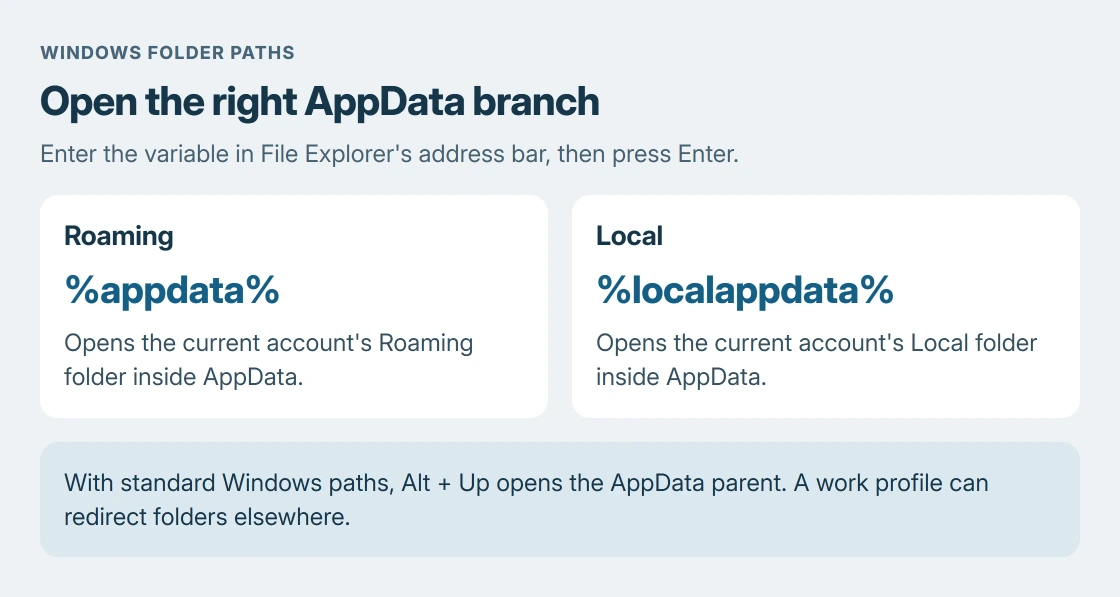
AppData on a Windows PC is inside the signed-in user's profile and is normally hidden. Enter %appdata% in File Explorer's address bar to open its Roaming subfolder. Use %localappdata% when the instructions call for Local instead.
Open the branch your app's instructions name
Press Windows + E to open File Explorer. Select its address bar, enter %appdata%, then press Enter. Use the address bar across the top, rather than the search field for the current folder.
The folder that opens should be Roaming. Microsoft documents %APPDATA% as the Roaming known-folder path. The similar-looking %localappdata% points to Local.
Status: AppData paths and Explorer controls verified on 24 October 2026. An environment check found the Roaming and Local folders; their contents were not opened or changed.
With the standard Windows paths, Alt + Up from either branch opens its AppData parent. The usual children are Local, LocalLow and Roaming. A work profile can redirect folders; follow its administrator's path if different.
The path check was ours: Windows expanded both variables to existing Roaming and Local folders inside AppData. That limited check does not establish where every application stores its data.
Make the hidden folder visible when browsing manually
The direct address works without changing visibility. For manual browsing on Windows 11, choose View > Show > Hidden items in Explorer. Microsoft says this option reveals hidden files and folders in its Explorer help.
On Windows 10, open the View tab and select Hidden items. Browse to your own user folder, then open AppData. This reveals the existing folder without moving it or restoring deleted files.
The Explorer controls guide also covers extensions and folder navigation. Those settings can help identify a file, but a hidden folder and a missing file are different problems.
Local and Roaming are different destinations
An instruction naming %localappdata%\Microsoft means the Microsoft folder inside Local. Entering %appdata%\Microsoft instead opens a different location. Similar folder names do not make their contents interchangeable.
For example, the Office sign-in repair names particular folders inside Local. Follow that repair's exact targets rather than deleting every Microsoft folder found in AppData.
These variables refer to the account running Explorer. Signing in to another Windows account changes the user profile they identify. Running a program under different credentials can therefore lead to a different user's folders.
A missing app folder needs an app-specific check
First verify that the address ends in the correct branch and that Windows is signed in to the intended account. Then compare the remaining folder names with the application's current instructions.
A missing folder is not a reason to create an empty replacement or remove its parent. Some apps use another storage location, and an app that has not created its settings may have no matching folder yet.
Keep any change limited to a named file or folder in a documented repair, with a backup when that repair requires one. AppData can hold settings and locally stored information as well as caches.
If Explorer reports access denied, or the app's documented folder is absent in the correct account, contact that app's support or the PC administrator. Supply the branch and app version, without sharing private folder contents.
The Short Version
Use Explorer's address bar: %appdata% opens Roaming and %localappdata% opens Local. Standard paths share an AppData parent. Hidden items allows manual browsing; it does not make the whole folder safe to delete.

Isaac Smith is the founder and editor of PC Glance, a website that covers computers, laptops, and technology. He is a tech enthusiast and a computer geek who loves to share his insights and help his readers make smart choices when buying tech gadgets or laptops. He is always curious and updated about the latest tech trends.