

EIZO Monitor Test runs in a browser and supplies patterns for checking a screen's pixels, sharpness and uniformity. Start with a clean, warmed-up display at its intended resolution.
The patterns reveal visible problems; they do not repair defective pixels or certify a monitor's color accuracy.
Prepare the screen so the pattern means something
Let the monitor warm up, ideally for 30 minutes, and clean its surface. EIZO's preparation instructions explain that dust can resemble a defective pixel. Use a dim room to judge dark areas more easily.
On Windows, open Settings > System > Display and select the monitor being checked. Microsoft says its resolution control usually works best at the option marked Recommended.
Status: EIZO's browser test, preparation notes and Windows resolution guidance reviewed October 24, 2026. No panel was measured or tested here.
Check that Recommended matches the panel's actual specification. If the correct size is absent, resolve the missing native resolution before judging sharpness. A scaled image can make healthy text look soft.
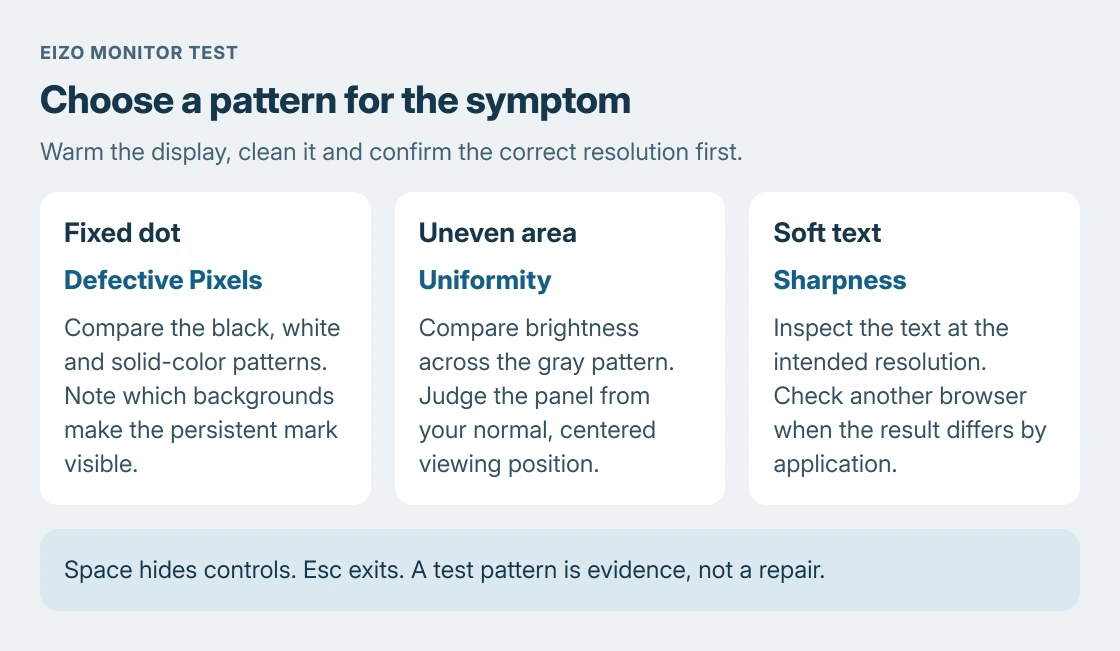
The selection order is ours: choose patterns for the symptom first. A small fixed dot, a broad gray patch and blurred text need different patterns, so running every test is not necessary to begin.
Start the relevant test and hide its controls
Open the official EIZO Monitor Test on the screen concerned. Select Defective Pixels, Uniformity or Sharpness, then choose Start test.
Navigation is documented by the vendor: use the mouse, keyboard arrows or left-side menu to change patterns. Press Space to hide the operating controls. Esc exits the test.
For a fixed dot, compare the solid black, white, red, green and blue patterns. A lit point on black and a dark point on white show different pixel behavior. Record which patterns expose the mark.
Do not press the panel or treat a browser pattern as a repair. If the mark is still present after cleaning, document it for the manufacturer instead of repeatedly rubbing the screen.
Judge patches and soft text with the matching pattern
Choose Uniformity for a large uneven area. Its gray patterns let you compare brightness across the panel. View the screen from the normal seated position before deciding whether one area differs.
Use Sharpness for text that looks doubled or soft. Check the selected screen resolution first. If the pattern looks wrong only in one browser, repeat it in another: EIZO warns that browser color management affects the displayed content.
Keep the comparison meaningful. EIZO's preparation page says to judge the screen within its device category and manufacturer specifications.
A browser impression does not replace an instrument measurement or a model's published pixel policy.
For a new gaming screen, the monitor selection checks cover refresh modes and input limits. Those specifications still matter even when a static pattern looks clean.
Keep evidence for a return or warranty claim
Write down the monitor model, selected input, resolution and the pattern that exposes the problem. Our recommendation is to photograph a persistent panel mark with another device, so support can see the physical display.
A screenshot captures the computer's image rather than a photograph of the panel. It can therefore miss a defect visible only on the screen itself.
Check the seller's return deadline and the manufacturer's pixel policy promptly. EIZO explicitly says pixel warranties vary by maker. A visible defect does not automatically meet every brand's replacement threshold.
If the result remains unclear, send the photographs and pattern details to the monitor maker. Ask whether the observed behavior meets that model's specification; the test provides evidence, not a universal pass or fail certificate.
The Short Version
Clean and warm the display, confirm its resolution, then choose the EIZO pattern matching the symptom. Hide controls with Space. Photograph persistent panel problems and check the actual return terms or pixel warranty.

Isaac Smith is the founder and editor of PC Glance, a website that covers computers, laptops, and technology. He is a tech enthusiast and a computer geek who loves to share his insights and help his readers make smart choices when buying tech gadgets or laptops. He is always curious and updated about the latest tech trends.