
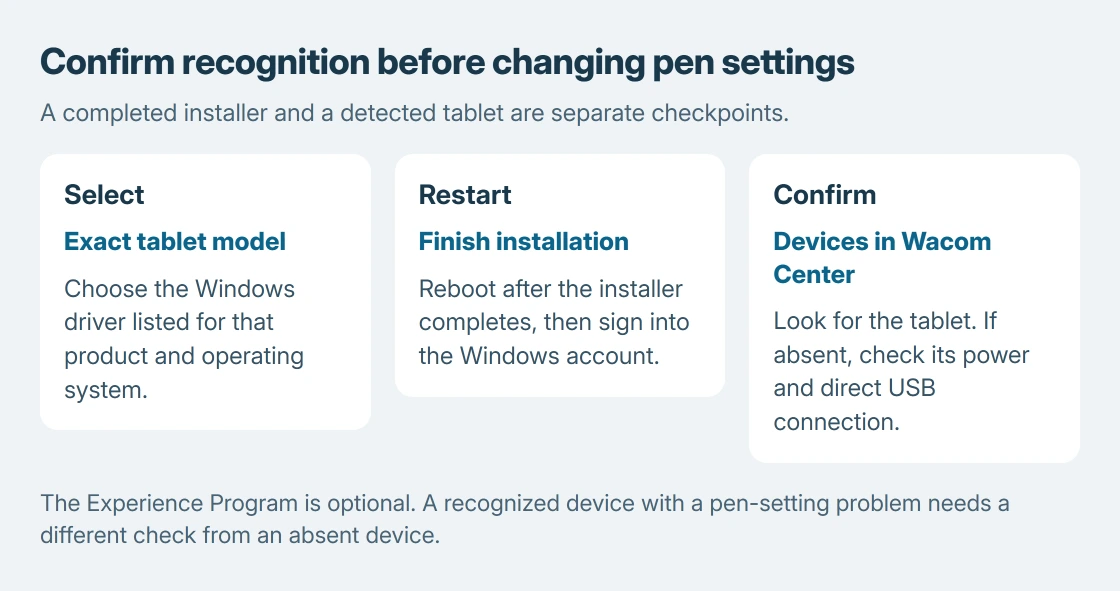
Installing a Wacom tablet driver begins with the tablet's exact model. Download the Windows driver listed for that product, complete the installation and restart, then check whether Wacom Center lists the connected device.
The newest driver is not automatically correct for an older tablet. A picture on a pen display also does not mean its separate pen-input connection is working.
Choose the product before downloading
Find the tablet model on its label or product information, then open Wacom Product Resources. Search for that product and check the operating systems supported by its available Windows driver.
Use the product-specific result rather than an installer from a similarly named tablet. Wacom's own support example says an Intuos 3 needs an older compatible driver instead of the current release.
Status: Wacom's Windows installation and missing-device instructions checked October 25, 2026, alongside Microsoft's pen settings. No driver was installed and no tablet was attached.
If the tablet is already listed and only its controls need changing, open the Wacom pen-settings panel. Reinstalling working software is unnecessary just to adjust a button assignment.
Complete the installation and its restart
Save open work first. The Windows installation steps documented by the vendor include a restart after Wacom's installer finishes.
- Open the downloaded WacomTablet installer for the supported Windows version.
- Read the agreement, accept it if continuing, and let installation finish.
- Restart the computer, then sign back into Windows.
- Respond to the Wacom Experience Program notice. Wacom says participation is optional; leave its checkbox clear and select OK to decline.
- Allow Wacom Center to open and look under Devices for the tablet.
The expected checkpoint is the product appearing there. An installation-complete message confirms the software stage, while the device listing checks that the driver recognizes the connected tablet.
Device absent? Check its USB data path
Wacom's missing-supported-tablet guidance starts with direct USB and tablet power.
Connect the tablet to the computer itself for this check. Wacom advises avoiding hubs, dock ports and keyboard or monitor USB ports because they can cause intermittent operation.
For a wireless model, use its documented wired connection if available.
On a pen display, follow its cable diagram for video and USB data. Wacom's display guidance says video can work without its driver. An image alone does not verify pen input.
Wait for Windows to finish installing its device driver. If that Windows installation fails, Wacom directs users to disconnect the tablet, apply Windows updates and restart, then connect it again.
If the same unsupported-device error remains, return to the exact model's driver listing. Changing a mapping setting cannot make an incompatible driver support an older tablet.
Keep Windows pen preferences separate
Microsoft documents Pen & Windows Ink under Settings > Bluetooth & devices on Windows 11. It handles Windows-level writing-hand preferences and compatible pen shortcuts.
Those controls are separate from Wacom's driver recognition and its model-specific settings. Use Wacom Center for a missing Wacom device; use the appropriate application settings for the drawing tool's pressure behavior.
Finger taps appearing on the wrong display need the Windows touch-screen assignment procedure. They should not be treated as proof that the Wacom installer failed.
Give support the failed checkpoint
The handover check is ours: record the model, Windows version, chosen driver and exact result. An installer error, no power light, missing device and recognized tablet with a pen problem describe different failures.
Contact Wacom if the directly connected tablet remains absent with its supported driver, especially if it has no power indication. Avoid repeatedly replacing the driver without checking whether the failure has changed.
The Short Version
Choose the tablet's supported Windows driver, finish installation and restart. Check Wacom Center's device list. For a missing tablet, verify power and direct USB data before changing pen settings or trying another installer.

Isaac Smith is the founder and editor of PC Glance, a website that covers computers, laptops, and technology. He is a tech enthusiast and a computer geek who loves to share his insights and help his readers make smart choices when buying tech gadgets or laptops. He is always curious and updated about the latest tech trends.