
An ASUS laptop black screen immediately after a BIOS update, battery disconnection or memory change can be memory training. With the power light on, leave the charger connected and allow the training period before forcing another shutdown.
ASUS currently gives 5 to 10 minutes for this process. An ordinary black screen with no recent hardware or firmware work needs a different check, beginning with whether power reaches the laptop and whether Windows ever appears.
After hardware or firmware work, let training finish
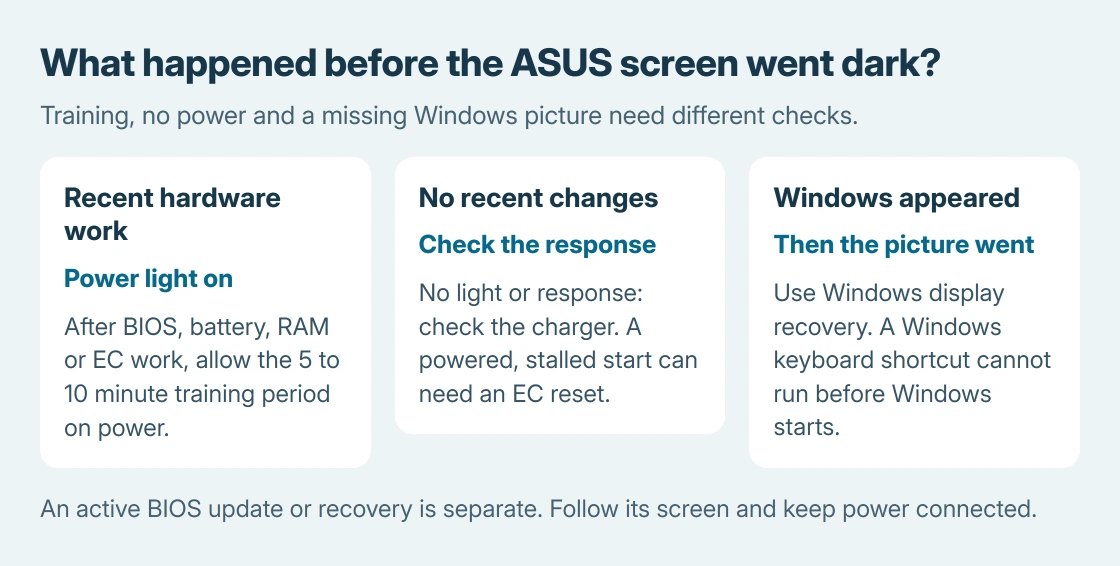
ASUS says the first boot can stay dark while memory trains after a BIOS update, battery work, changed RAM, or an embedded-controller reset. Keep power connected and wait without pressing the power button again.
Some supported configurations show Working on Memory Training. Others show no text. The absence of that message does not, by itself, mean training failed.
Status: ASUS black-screen and EC-reset instructions reviewed October 25, 2026. Current training guidance says 5 to 10 minutes. No laptop reset or BIOS update was performed.
The older ASUS FAQ 1050298 described a shorter 1 to 3 minute wait. Its current boot-failure guide gives the longer period. The advice here follows that current guide.
An actual firmware update or recovery screen is a separate operation. Leave power attached and follow its displayed instructions. The training wait is not a deadline for interrupting an update.
With no power light, check the power connection first
Reseat the charger connections and try a known-working wall outlet. Use an adapter matching the ASUS model's specifications. Stop using a damaged cable, connector or adapter.
Disconnect docks, USB devices and memory cards for the next startup attempt. If the laptop still has no power indicator or response, tell ASUS which charger was used and what its lights did.
The computer power checks cover this no-response case. A dark screen with an illuminated power indicator belongs to the display or startup checks instead.
Use the ASUS controller-reset sequence for a stalled start
ASUS documents an EC reset for hardware and power problems in its controller-reset instructions. The embedded controller manages hardware and power functions.
Save work if the screen is usable, then shut down. Remove external devices. Connect the power adapter and press Power continuously for 40 seconds using ASUS's linked procedure.
Models with a 20-second design behave differently: after about 15 seconds the power light flashes rapidly for roughly 3 to 5 seconds. Release the button when that flashing finishes.
Turn the laptop on afterward. The first startup can require the training period described earlier, so do not repeat the reset simply because the display remains dark briefly.
ASUS's general boot page says to disconnect the adapter before referring readers to the EC procedure; the dedicated procedure explicitly reconnects it for the button hold. Follow that complete sequence and any model-specific instructions.
If Windows is running, recover its display output
A Windows welcome screen followed by black needs Windows troubleshooting. Microsoft says to press Windows + Ctrl + Shift + B in its blank-screen instructions.
A beep or brief flicker can accompany the display reset. It cannot run before Windows starts, so silence on a laptop that never reaches firmware output is not a graphics-driver diagnosis.
With an external monitor available, connect it directly and select its matching input. Use Windows + P to choose a display mode if Windows is responding. A picture there gives access to backup and driver controls.
For black only after sign-in, the Windows desktop recovery steps explain Explorer and Safe Mode. Keep this separate from a laptop that never shows the ASUS logo.
Stop at a model-specific firmware or hardware repair
If the laptop stays dark after the applicable wait, power checks and reset, contact ASUS with its exact model and the last change before the failure. Include whether an external display works and whether the ASUS logo ever appears.
An interrupted BIOS update needs ASUS's matching recovery instructions. Do not choose a BIOS file by a similar-looking model name or attempt a blind flash as another display shortcut.
The Short Version
After battery, RAM, BIOS or EC work, a powered ASUS can show black during training. Allow 5 to 10 minutes. Otherwise check power, use the documented EC reset, and try Windows display recovery only when Windows is running.

Isaac Smith is the founder and editor of PC Glance, a website that covers computers, laptops, and technology. He is a tech enthusiast and a computer geek who loves to share his insights and help his readers make smart choices when buying tech gadgets or laptops. He is always curious and updated about the latest tech trends.