
Dell monitor display problems are easier to narrow down when the monitor generates its own picture. A defect in a built-in test points toward the monitor. A normal test sends the next checks toward the computer and video connection.
Start with power, the selected video input and brightness. Then use the test instructions for the exact Dell monitor model. Dell's stand-alone monitor tests differ from the key combinations used on a Dell laptop.
Check the monitor's own controls first
Open its on-screen menu using the monitor's buttons or joystick. Confirm the selected input matches the cable's socket, and raise brightness if the picture is barely visible. Check both ends of the video and power connections.
If neither the menu nor a power indication appears, try a working outlet and check the power connection before changing Windows settings. A menu that appears shows the monitor can display that menu; it does not clear every possible fault.
Status: Dell monitor self-test and video troubleshooting instructions checked October 25, 2026. Test controls depend on model. No monitor or graphics hardware was tested.
Dell says an extremely low brightness setting can make a working screen seem blank in its monitor troubleshooting instructions. Retest the picture before moving on.
Find the test procedure for the exact Dell model
Read the model number on the monitor's rear label. Visit Dell Product Manuals, identify that monitor and open its User Guide under Documentation.
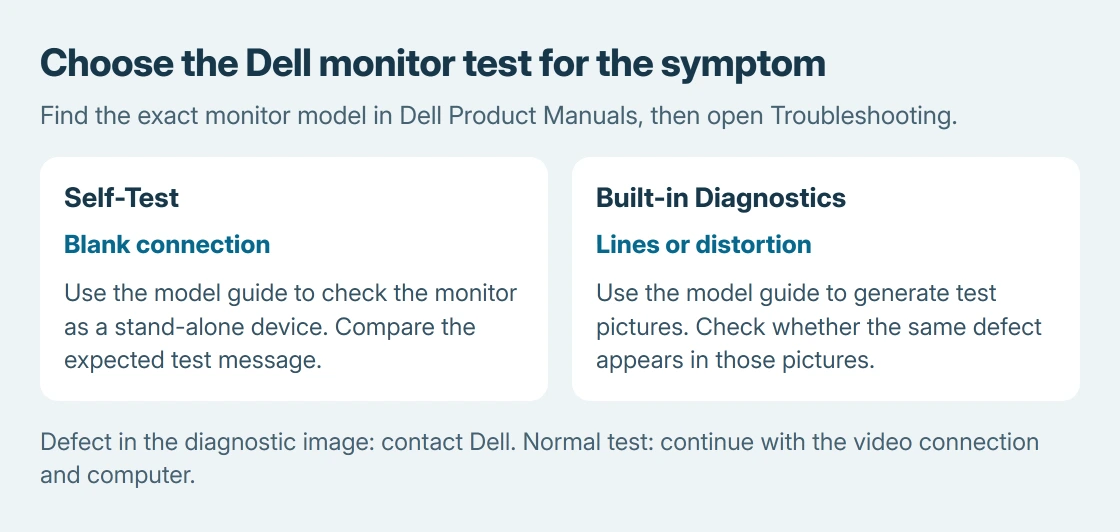
In Troubleshooting, look for Self-Test and Built-in Diagnostics. Dell states that its diagnostic test guide covers two distinct tests.
Self-Test Feature Check (STFC) checks the monitor as a stand-alone device when the connected computer produces a blank screen. Follow the manual's cable and power sequence and compare the displayed result with its example.
Built-in Diagnostics (BID or BIST) checks picture abnormalities such as lines, distortion or unusual colors. Use the manual's buttons or joystick sequence, then inspect the test screens for the same defect.
Button positions and test entry methods vary, including on some Dell D-series models. A sequence copied from another monitor may open a different control. Keep the guide for this exact model beside the test.
Follow the result without declaring every component healthy
If the same stripe, patch or distortion appears in the monitor-generated diagnostic picture, contact Dell about the monitor. Take a clear photo of the defect and record the test and model name for the service request.
If the test looks normal, reconnect the computer and compare the ordinary picture. Continue with the video source, cable and Windows settings. A clean test does not establish that an intermittent fault can never recur.
Try a compatible replacement video cable or another available input. If possible, compare this monitor with another computer and the original computer with another screen. Keep track of which connection actually changes the symptom.
For repeated brief blackouts with several screens, use the multi-monitor blanking checks. Their refresh-rate comparison addresses a different result from a defect visible in a built-in screen test.
Use Windows fixes after the monitor test looks normal
For a picture of the wrong size or soft text across the desktop, open Settings > System > Display. Select this monitor and choose the Recommended resolution and scale values when offered.
For a running Windows session that goes blank, Microsoft says Windows + Ctrl + Shift + B can reset the graphics driver in its blank-screen guidance.
A flickering Windows picture needs the Task Manager comparison to choose between an app and a display driver. That comparison is useful after checking whether the monitor itself draws a stable test picture.
If the fault began with a driver update, check Device Manager > Display adapters > the adapter > Properties > Driver > Roll Back Driver. Dell includes this option when a previous driver is available.
When the monitor still needs service
Give Dell the monitor's model, warranty details and diagnostic result. Explain whether the symptom appears in its own test, with another cable, and with another computer.
Those results help distinguish a monitor repair from computer support.
Avoid opening the monitor enclosure to reach an internal cable or power board. External tests provide useful evidence without exposing its internal power components.
The Short Version
Check input, power and brightness, then open the model's guide. Use Self-Test for a blank connection and Built-in Diagnostics for picture defects. Report a defective test image to Dell. Otherwise continue with the cable and computer.

Isaac Smith is the founder and editor of PC Glance, a website that covers computers, laptops, and technology. He is a tech enthusiast and a computer geek who loves to share his insights and help his readers make smart choices when buying tech gadgets or laptops. He is always curious and updated about the latest tech trends.