
A MacBook's battery menu is the clearest place to check whether the Mac is charging.
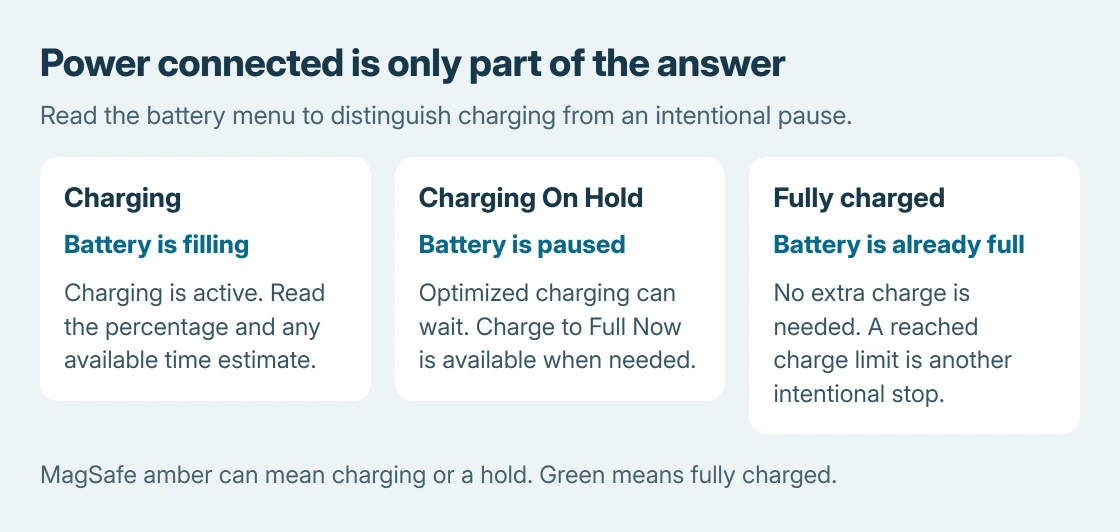
Click the battery icon and read its charging status along with the power source. A connected adapter can power the computer while battery charging is paused.
MagSafe adds a useful light: green means fully charged. Amber can mean charging or charging on hold, so the cable light alone does not prove that the battery percentage is increasing.
Read the battery menu after connecting power
Connect a compatible charger and cable, then click the battery icon in the menu bar. Apple says the Battery Status menu shows the charge percentage, power source and full-charge information.
Allow a few minutes for charging-time information to appear. Reading both fields together is ours: power source identifies the electricity supply, while charging status describes battery activity.
Status: Apple's Mac charging and battery-menu documentation checked October 26, 2026. Menu paths vary with macOS. No adapter wattage or battery charge was measured.
If the icon is missing on current macOS, open System Settings > Menu Bar and select Battery. Under Battery Options, Show Percentage adds the charge level. Apple documents those controls in its battery-monitoring guide.
Older macOS releases can place battery menu controls under Control Center instead. Use System Settings search for Battery if Menu Bar is not available. Showing a percentage is optional; the menu's status is still the useful check.
Interpret the MagSafe light correctly
Apple's Mac charging instructions explain the light on the MagSafe connector. Green indicates a full battery. Amber covers both charging underway and charging on hold.
For amber, read the menu before deciding that the battery must be gaining charge. A USB-C charging connection does not provide this MagSafe connector light, so use macOS status rather than expecting an equivalent lamp.
Macs with both compatible MagSafe and USB-C charging use one charging port at a time. Attaching two power sources is not a way to combine them for faster charging.
Understand a hold or a charge limit
Charging On Hold can be part of Optimized Battery Charging. If a full battery is needed sooner, Apple says Charge to Full Now is available from the battery menu.
On Macs offering Charge Limit, the menu can instead report Charged to [%] Limit or Charging to [%] Limit. Reaching the chosen limit is an intentional stop, not evidence that the cable suddenly failed.
Apple notes that an estimated time is not displayed when the charging limit is set under 100%. A missing estimate alone cannot confirm a charging fault.
Leave an intentional hold or limit in place unless you need the extra charge. Repeatedly reconnecting the cable cannot make a selected battery-management limit disappear.
Follow the status when the battery is not filling
Slow Charger means the charging solution delivers too little power for the Mac model. Apple documents this message on macOS Tahoe 26.4 and later.
Check the model's recommended adapter and cable wattage rather than choosing by connector shape alone.
Battery Is Not Charging needs a separate charging check. Our MacBook battery troubleshooting guide covers that fault; this page helps interpret the current indicators.
If the computer will not start enough to show macOS, use the MacBook power-on checks. A black display cannot provide a battery-menu reading.
For a persistent failure with a suitable power supply, contact Apple with the exact status, Mac model, macOS version and charger details.
Report whether the percentage falls during use, remains at a chosen limit or never registers external power.
The Short Version
Click the battery menu and read the status, power source and percentage together. MagSafe green means full; amber also allows a charging hold.
A selected limit or missing time estimate needs different interpretation from a charger that supplies insufficient power.

Isaac Smith is the founder and editor of PC Glance, a website that covers computers, laptops, and technology. He is a tech enthusiast and a computer geek who loves to share his insights and help his readers make smart choices when buying tech gadgets or laptops. He is always curious and updated about the latest tech trends.