
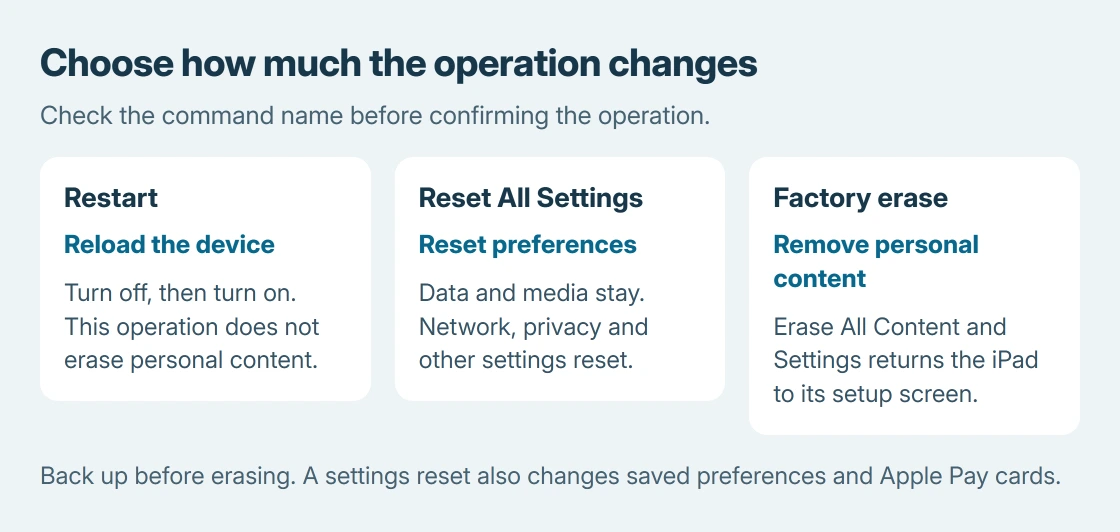
An iPad reset can mean returning settings to their defaults or erasing the whole device. Reset All Settings keeps data and media. Erase All Content and Settings removes personal content and returns the iPad to setup.
For a frozen iPad, try the restart procedure first. For a deliberate factory reset, make a backup and confirm access to the device passcode and Apple Account before opening the erase controls.
Compare a preferences reset with a complete erase
Open Settings > General > Transfer or Reset iPad. This page contains two different routes. The Reset submenu offers settings resets; the separate Erase All Content and Settings command removes content.
Apple documents the difference in its iPad settings-reset guide. Check the operation's name before confirming anything.
Status: Apple's iPad settings and factory-reset procedures checked October 26, 2026. Erase removes personal content; settings reset has narrower effects. No iPad was reset.
If the device does not respond to touch, use the frozen iPad procedure. The factory-reset menu cannot help while the screen will not accept a selection.
For storage pressure alone, check iPad app storage and Safari cleanup before deciding to remove everything. An erase is a much larger operation than clearing one app's data.
Reset preferences while keeping photos and other content
Go to Settings > General > Transfer or Reset iPad > Reset. Choose Reset All Settings if the intention is to restore preferences without deleting data or media, then follow the confirmation prompts.
Apple says this resets or removes network settings, the keyboard dictionary, location and privacy settings, and Apple Pay cards. Keeping photos does not mean keeping every preference or saved payment card.
A narrower reset may match the problem better. Reset Network Settings concerns network configuration; Reset Keyboard Dictionary removes words added to that dictionary. Choose the affected category rather than clearing unrelated settings.
Afterward, check the function that failed and reconfigure the preferences you need. Apple's guide recommends backing up first when preserving the old settings matters, since a backup may be needed to restore them.
Back up before a factory reset
The backup check is ours: confirm that the saved copy completed and includes the content you need. Check important app data and files with no other copy before continuing. A reset cannot recover information that was never saved elsewhere.
Have the iPad's passcode and the associated Apple Account password available. Apple's factory-reset instructions request those credentials during the process.
For a school or work iPad, ask its administrator about the approved reset and re-enrollment procedure. Do not start an erase merely to test whether a management restriction disappears.
Erase the iPad from Settings
Open Settings > General > Transfer or Reset iPad > Erase All Content and Settings. Review the removal summary and tap Continue. Complete the requested passcode, backup and Apple Account prompts.
On a cellular iPad with an eSIM, read the choice to keep or delete it. Apple says deleting the eSIM requires contacting the carrier to reactivate the cellular plan. Confirm the correct choice with the carrier if moving that plan is unclear.
Allow the erase to finish. Apple's completion screen is Hello. That means the iPad is ready for setup, not that the earlier personal content has been restored.
For an iPad you are keeping, proceed through setup and choose the intended backup when offered. For a handoff, leave setup for the next owner after completing Apple's transfer requirements.
When Settings or the passcode is unavailable
Apple also provides a computer erase route: connect the iPad, select it in Finder on a modern Mac or in the Windows Apple Devices app, then use Restore iPad.
That is a destructive factory restoration. It is different from restoring an existing backup. Apple's manual says a device signed in to Find My must be signed out before the normal Restore control can be used.
A forgotten passcode needs Apple's separate iPad passcode-recovery procedure. Check its available recovery choices before erasing; a reset does not supply a forgotten Apple Account password.
If erasing stops with an error, keep the exact message and contact Apple. For a managed device, return to its administrator. Avoid repeating an erase when the unresolved problem is account access or enrollment.
The Short Version
Use Reset All Settings to reset preferences while retaining data and media. Use Erase All Content and Settings for a factory reset, after backing up and checking account access.
An unresponsive screen or forgotten passcode requires its own recovery route.

Isaac Smith is the founder and editor of PC Glance, a website that covers computers, laptops, and technology. He is a tech enthusiast and a computer geek who loves to share his insights and help his readers make smart choices when buying tech gadgets or laptops. He is always curious and updated about the latest tech trends.