
An Acer laptop that won't turn on despite a blue light needs its power state and display checked. Check for the Acer logo, startup sounds or video on another screen. If startup remains stuck, follow Acer's power-reset procedure.
First note which light is blue and whether it is steady or flashing. Indicator meanings depend on the model and the light's location; one color cannot prove that the battery, display or motherboard is healthy.
Separate a powered blank screen from a silent laptop
Connect the correct charger directly to a working outlet and disconnect docks, USB drives and other accessories. Press Power once. Watch for the logo and listen for a fan or Windows startup sound.
A light with no logo can still mean that startup has not completed. If there is a logo followed by darkness, record that timing. It moves the next checks toward the display or Windows rather than a completely unresponsive machine.
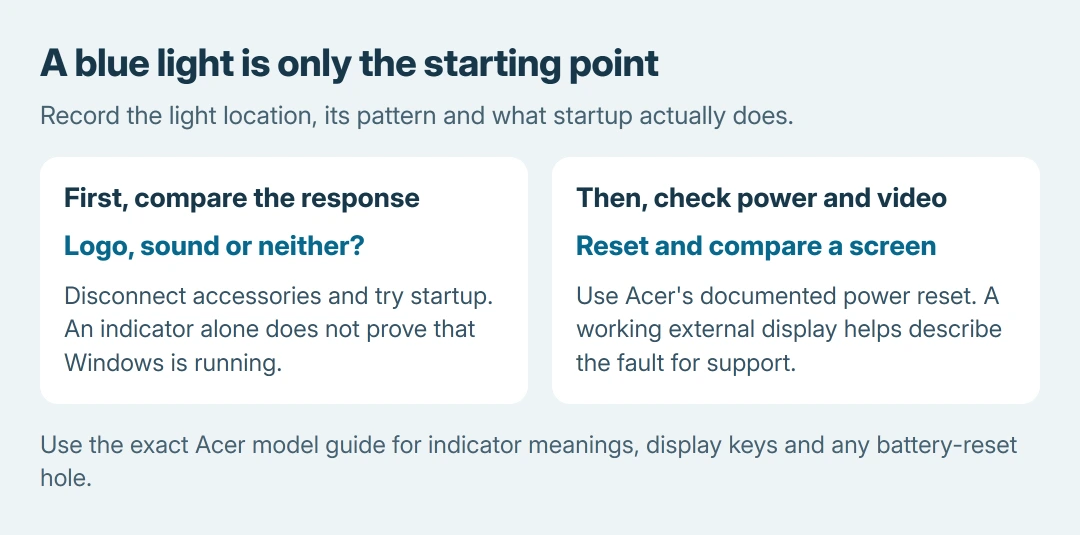
Status: Acer's battery-reset and powered-blank-screen instructions checked October 26, 2026. Light meanings and display keys require the model guide. No physical fault was reproduced.
If the laptop becomes completely unresponsive, use the general no-power checks. A blue indicator alone is not evidence that Windows is running behind the screen.
Follow Acer's power-button reset in the correct order
Acer's internal-battery reset instructions provide a power-button method that does not erase Windows or stored files. A forced shutdown can still discard unsaved work. Allow any visible update to finish first.
- Hold Power for 10 seconds, or until the laptop shuts off completely.
- Disconnect its charger and all peripherals, including any monitor or dock.
- With those disconnected, hold Power for at least 30 seconds.
- Reconnect AC, press Power once and observe the next startup.
Check whether the logo or desktop returns. If it does, reconnect accessories individually and note any recurrence. If the display stays dark, compare another screen before concluding that the laptop has no power.
Use a battery-reset hole only when the model identifies it
Some Acer models provide a reset button through a small hole underneath. Check the model's user guide and the Battery Reset label before inserting anything. Do not probe an unidentified opening.
For a confirmed reset hole, Acer's current general battery guide says to turn off, unplug AC, press the internal button gently with a paperclip and hold 10-15 seconds. Follow a different timing if the exact model's manual specifies it.
Acer's other symptom guides contain different reset holds. The sequence here comes from its current battery-reset article; do not combine timings from unrelated models or keep repeating every variation.
Compare another display, then use Windows checks if it responds
With the laptop off, connect a compatible external monitor or TV and select that screen's connected input. Start the laptop and compare the outputs. Acer documents this comparison in its powered-but-blank notebook guide.
Acer lists Fn + F5 for display selection, but confirm the key in the model manual. A working external picture shows that the laptop produces video. That result alone does not identify an internal replacement part.
If Windows seems responsive, Microsoft says its graphics-reset shortcut is Windows + Ctrl + Shift + B. Listen for a beep or watch for flicker, then check whether the picture returns.
Microsoft documents display-mode cycling in its blank-screen guidance: press Windows + P, press P again, then Enter. These are Windows actions and cannot repair a machine stuck before it starts.
If the Acer logo appears normally and the problem begins at sign-in, use the Windows dark-desktop procedure. Microsoft states that blank-screen causes differ before login, at login and after an update.
Give Acer the startup results if both screens remain dark
Contact Acer with the model or SNID, the indicator's location and pattern, and the reset and external-screen results. A continuing blue light with no picture on either output needs further assessment, rather than a blind factory reset.
Avoid a firmware flash on a laptop that cannot maintain power or provide a usable display. Ask Acer whether a model-specific update or hardware service is appropriate after it reviews the symptoms.
The Short Version
Note the lamp and startup response, perform Acer's power reset, then compare an external screen. Windows controls need a responsive Windows session. Persistent darkness needs assessment by Acer.

Isaac Smith is the founder and editor of PC Glance, a website that covers computers, laptops, and technology. He is a tech enthusiast and a computer geek who loves to share his insights and help his readers make smart choices when buying tech gadgets or laptops. He is always curious and updated about the latest tech trends.