

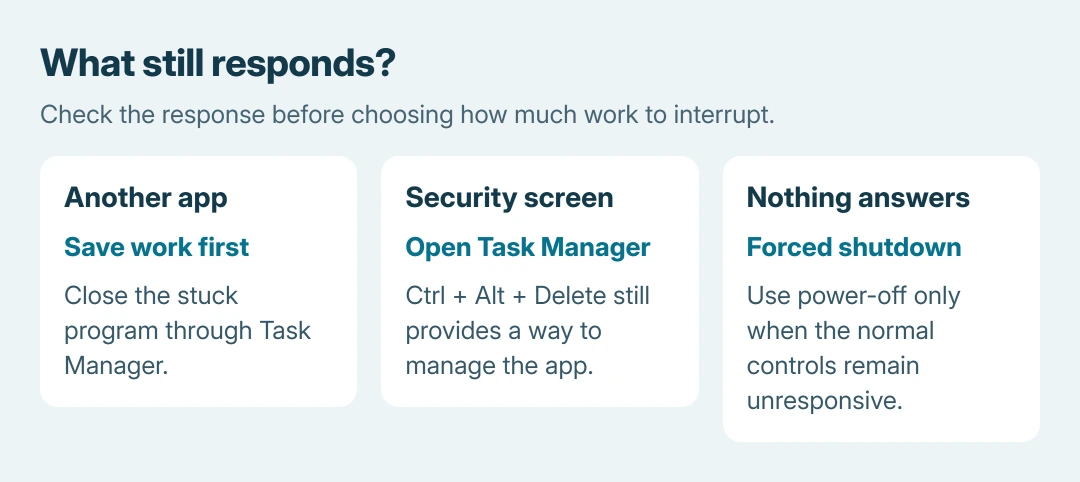
A computer freezing randomly can be stuck in one application or across Windows itself. Press Ctrl + Alt + Delete once. If its security screen answers, open Task Manager to close the affected app without forcing the whole PC off.
Repeated system freezes need a different approach: check what changed, update the relevant driver, then compare operation with background startup software disabled. A freeze alone does not identify a failed part.
Check the response before forcing a shutdown
Try switching to another application. If it responds, save its work before dealing with the stuck program. Open Task Manager from Ctrl + Alt + Delete, select the unresponsive app and choose End task. Its unsaved work can be lost.
Microsoft documents checking the Ctrl + Alt + Delete response in its Windows freeze troubleshooting reference. Pointer movement alone cannot establish whether Windows will accept other input.
Status: Microsoft's freeze, driver and clean-boot guidance checked October 26, 2026. No single cause is confirmed for all random freezes; no PC settings were changed.
If every control remains unresponsive, a forced power-off may be the only way out. Hold the computer's power button until it turns off, then start it normally.
This loses unsaved work and should not become the routine response to a recurring fault.
After restarting, copy important files to a separate destination while the PC works. If a particular application alone keeps hanging, update that app and give its developer the file or action that triggers the hang.
Match the freeze to a recent change
Write down the time, the task being performed and any newly connected device. Disconnect a recent nonessential accessory while the computer is off, then compare the same work without it. A changed result narrows the next support request.
Use the Windows reliability timeline to compare the first bad day with software installations. A failure entry is a record of what stopped, not proof that the nearest update caused it.
Microsoft states that System and Application logs should be reviewed after a freeze. Press Windows + R, enter eventvwr.msc, and inspect Windows Logs > System and Application around that time. Save relevant error details for support.
For a machine that consistently freezes a few minutes after every start, check the Secure Boot update freeze reports. Apply that page only to its matching pattern, rather than switching off boot protections for an unspecified hang.
Update the driver associated with the failing task
Microsoft says Windows Update is the preferred route for driver updates. Check Settings > Windows Update on Windows 11. Windows 10 places its update page inside Update & Security.
If the problem points to a specific device, open Device Manager, expand its category, right-click the device and choose Update driver > Search automatically for drivers.
Microsoft's driver instructions also direct readers to the manufacturer when Windows finds no newer driver.
Use the computer maker's page for the exact model. Avoid changing several unrelated drivers together: another freeze then gives little information about which change helped or failed.
Compare a clean boot with ordinary startup
Microsoft's clean-boot procedure temporarily disables background startup software. Use an administrator account; on a managed PC, ask IT to make this comparison.
- Search Start for msconfig and open System Configuration. Record which services and startup apps were enabled before changing them.
- On Services, select Hide all Microsoft services first. Then choose Disable all > Apply.
- Open Startup > Open Task Manager. Disable the currently enabled startup entries, keeping the record for restoration.
- Close Task Manager, confirm OK in System Configuration, and restart. Leave advanced boot options alone.
Repeat the task associated with the freeze. If the problem stops, re-enable the disabled services in halves, restarting and checking after each group, then do the same for startup apps. This can narrow the conflict to one item.
If freezing continues, the comparison has not identified a startup-app conflict. A clean boot is not a hardware test.
After testing, open System Configuration > General > Normal Startup. Restore the recorded service selections and re-enable the startup apps disabled for the comparison. Restart to confirm ordinary operation.
For an identified problem service or app, ask its developer for a fix and leave that item disabled until resolved. Return the other entries to their recorded state.
Take persistent freezes to the PC manufacturer
A freeze recurring after the driver and startup comparisons needs model-specific help. Supply the PC model, Windows version, timing, relevant log entry and whether another app or the security screen still answered.
Ask the manufacturer about its hardware diagnostics and repair options. Do not replace RAM, the drive or the graphics card solely because a random freeze occurred.
Microsoft's advanced crash-dump collection belongs with a support specialist when ordinary checks cannot explain it.
The Short Version
Check whether another app or Ctrl + Alt + Delete responds, then recover only what is stuck. Compare changes and relevant drivers.
Use a clean boot to check background conflicts, restore the disabled items, and seek model-specific service for continuing freezes.

Isaac Smith is the founder and editor of PC Glance, a website that covers computers, laptops, and technology. He is a tech enthusiast and a computer geek who loves to share his insights and help his readers make smart choices when buying tech gadgets or laptops. He is always curious and updated about the latest tech trends.