
Turning on Developer Mode on a Chromebook starts from its recovery screen, reached with Esc + Refresh + Power on many keyboard models. Ctrl + D then begins the mode change.
Back up local files first: entering or leaving this mode erases the device's local user data.
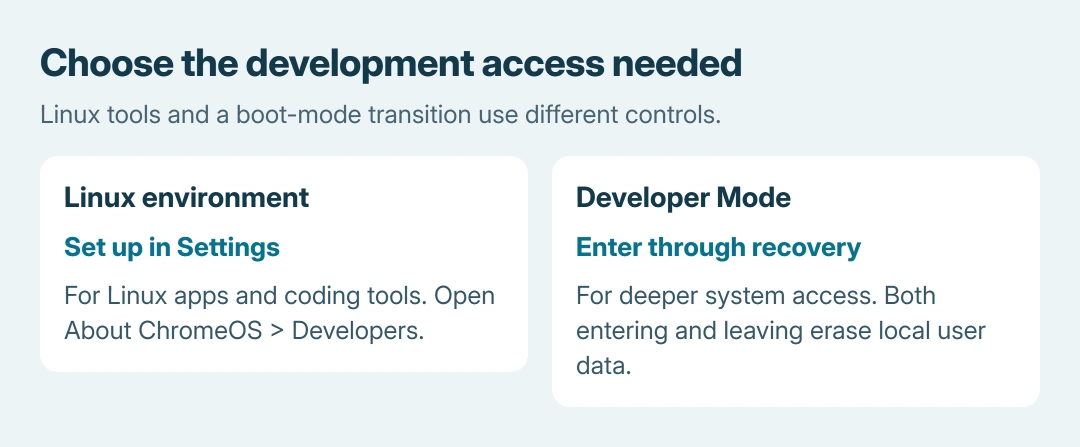
Developer Mode changes boot verification and permits deeper system access. For ordinary Linux applications and coding tools, check the Linux development environment in Settings before choosing a mode change.
Decide whether the task needs a boot-mode change
Google says the Linux development environment provides command-line tools, code editors and development tools through Settings. Its Linux setup guide uses Settings > About ChromeOS > Developers > Linux development environment > Set up.
That environment is separate from Developer Mode. The latter permits custom operating-system images and root-shell access, with weaker boot protection.
It is also different from choosing ChromeOS's Developer update channel or enabling a Chrome flag.
Status: ChromiumOS firmware and Developer Mode instructions checked October 26, 2026, with Google's Linux and management guidance. No Chromebook mode was changed.
For an input shortcut, the Chromebook touchscreen toggle uses an available debugging flag. A boot-mode transition is unnecessary for that procedure.
Preserve local work and check device management
Copy required files from Files > My files, including Downloads, to external storage or a cloud destination. Preserve Linux files separately if that environment is already installed. Keep the backup outside the Chromebook's internal storage.
The preparation check is ours: open important copies at their destination before proceeding. Signing in to Chrome is not proof that every local file or app project has another copy.
The Chromebook reset preparation explains local and Linux backup considerations. Its Powerwash shortcut resets user data; it is not the shortcut for enabling Developer Mode.
Google states that administrators can block Developer Mode on managed devices through forced re-enrollment. Contact the administrator if an organization's Chromebook shows a block. A mode change cannot remove organization ownership.
Enter recovery on a Chromebook with a keyboard
Shut the Chromebook down. Hold Esc + Refresh, then press Power and release Power. Release the held keys once the recovery screen appears.
The ChromiumOS firmware keyboard guide documents this combination, with Esc + Full screen + Power used on some models. Use the key's symbol and the manufacturer's model instructions if the usual combination fails.
Recovery is the entry point here. Do not start reinstalling ChromeOS or insert recovery media merely because the recovery screen has appeared.
Confirm Developer Mode and let the transition finish
From recovery, press Ctrl + D. The keyboard-interface procedure then uses Enter to accept the confirmation. Read the actual warning and confirm only after the backup is ready; firmware presentation can vary by model.
ChromiumOS documents a Mode Transition Wipe when moving into or out of Developer Mode. Let the transition complete and follow setup afterward. Do not interrupt it to try to preserve files that remained on internal storage.
A developer warning appears on later starts. On the documented keyboard interface, Ctrl + D continues booting from the internal disk. That warning is expected behavior for this mode, rather than proof that ChromeOS needs recovery.
These instructions cover keyboard Chromebooks. A detachable or tablet without its keyboard uses a different physical-button and firmware-menu procedure.
Follow the model's instructions rather than translating this key sequence into volume-button guesses.
Leave the mode or resolve a blocked transition
Back up new local work before returning to normal mode. ChromiumOS's mode guide documents Space at the keyboard firmware warning screen for restoring normal verification. Read the confirmation because this transition also wipes local data.
If the operating-system files were modified, recovery may be necessary to restore normal operation. Follow Google's recovery instructions only for that separate reinstall task.
For a persistent management block on a secondhand Chromebook, Google directs the user to the administrator for deprovisioning or support with proof of purchase.
Its blocked-mode guidance does not offer a key sequence that bypasses enrollment.
If the documented keys never reach recovery on an unmanaged device, contact the manufacturer with the exact model and screen shown. Repeating a wipe cannot repair a failed keyboard or recover an unsaved project.
The Short Version
Check whether Settings' Linux environment meets the need first. For Developer Mode, preserve local files, enter recovery, then use Ctrl + D and the confirmation on a supported keyboard Chromebook.
Expect a wipe and a startup warning; leaving the mode wipes local data again.

Isaac Smith is the founder and editor of PC Glance, a website that covers computers, laptops, and technology. He is a tech enthusiast and a computer geek who loves to share his insights and help his readers make smart choices when buying tech gadgets or laptops. He is always curious and updated about the latest tech trends.