
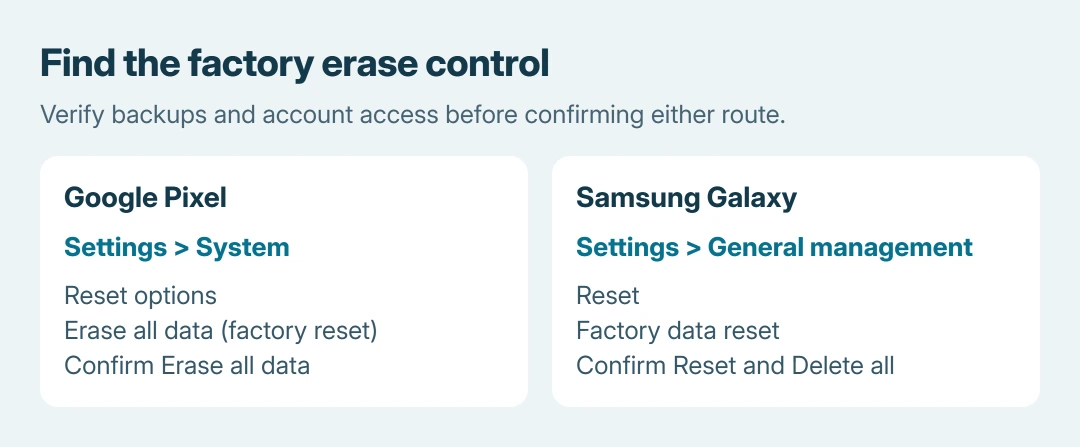
To factory reset Android, open the phone's erase control in Settings after checking backups and account access. Pixel uses System > Reset options; Samsung Galaxy uses General management > Reset.
The factory option removes local personal data and returns the phone to setup.
A restart or network reset does a smaller job. For a single faulty app, try that app's troubleshooting first rather than erasing the whole phone.
Confirm what is saved before choosing erase
Check the Android backup contents and verify the copies needed after setup. Include photos, Downloads, app-specific work and account-recovery information. An enabled backup switch alone does not establish that each item was saved.
Google says a factory reset uninstalls apps and their data. Information already saved to the Google Account may be restored, but a reset does not create a missing backup. Read its Android reset preparation before proceeding.
Status: Google's Android and Pixel reset instructions and Samsung's Galaxy procedure checked October 26, 2026. Factory erasure is destructive; no phone was reset.
Confirm the Google Account already on the phone and test its password on another device. Have the phone's current PIN, pattern or password ready.
Google states that a recently changed Google Account password requires a 24-hour wait before a factory reset.
Charge to at least 70%, as Google's preparation recommends, and have Wi-Fi or cellular data available for sign-in afterward. On a managed phone, confirm the approved reset and re-enrollment plan with its administrator first.
Erase a Pixel through System settings
Google's Pixel factory-reset procedure provides this sequence for an unlocked phone:
- Open Settings > System > Reset options.
- Choose Erase all data (factory reset). Review the removal information before continuing.
- Tap Erase all data, enter the requested PIN, then confirm Erase all data when prompted.
- Allow the erase to finish. Choose the restart option if offered, then continue through the initial setup.
For a trade-in, Google directs Pixel owners to the reset in Settings. For software repair alone, its Update and Software Repair tool may offer an update without erasing; read the selected operation before accepting it.
An ordinary Settings factory reset keeps the installed Android version. It does not return the phone to the version originally supplied in the box.
Use Factory data reset on a Samsung Galaxy
Open Settings > General management > Reset > Factory data reset. Read the listed data and accounts, tap Reset, complete the security prompts and confirm Delete all. Samsung's Galaxy reset guide notes that prompt order and menu wording vary.
Samsung says resetting can require the password of the Samsung account signed in on the phone, with an internet connection for sign-out. Confirm that access before reaching the final prompt.
If the phone has an encrypted microSD card, decrypt it before resetting. Samsung warns that otherwise its encrypted data may become unreadable. Copy needed card files separately and use the model's Decrypt SD card instructions.
Reset all settings on that Reset page is a different operation. Choose Factory data reset only when removing personal content is the intended result.
Check setup and any continuing fault
The successful erase ends at initial setup, rather than the previous personalized Home screen. Sign in with the required account information and choose an available backup if keeping the device.
For troubleshooting, check the original fault before reinstalling every optional app. If it returns after one app is added, give that sequence to its developer.
If it persists before restoration, ask the phone manufacturer about software repair or hardware service.
If the screen lock is forgotten, the Settings method cannot supply that code. Use the Samsung forgotten-lock options for an eligible Galaxy, or the manufacturer's model-specific recovery procedure elsewhere.
Account verification can still be required after a reset. Resolve an unavailable account with Google, Samsung or the administrator; repeated erasures do not recover its password.
The Short Version
Verify backups, passwords and charge first. Use Pixel's Erase all data or Galaxy's Factory data reset and complete the confirmations. Expect initial setup afterward, with restored content limited to the backups actually available.

Isaac Smith is the founder and editor of PC Glance, a website that covers computers, laptops, and technology. He is a tech enthusiast and a computer geek who loves to share his insights and help his readers make smart choices when buying tech gadgets or laptops. He is always curious and updated about the latest tech trends.