
Android FRP turns off when you remove your Google Account before resetting the phone. Do this while you can still unlock it and open Settings; erasing it first can leave setup asking for the previous owner's account.
FRP means Factory Reset Protection, the ownership check after certain resets. Your Google Account, Gmail address and online data remain available elsewhere after you remove the account from this phone.
Check your backup before removing the account
Unlock the phone and check that your photos, contacts and files are on the replacement device or in a backup you can access. Finish that check before removing accounts, rather than doing it halfway through a transfer.
Review what an Android backup includes, especially app-specific content and files saved only on the phone. A factory reset later removes local data that wasn't copied elsewhere.
Have the screen PIN, pattern or password ready. Removing the only Google Account can ask for that code, and a Galaxy may ask for another identity check before signing the account out.
Check the email addresses in the phone's account list. It can have your personal Google Account as well as one for work, school or a family member. Note which accounts are on the phone you're handing over.
If your employer manages the phone, ask its administrator how to return it. Work profiles and company controls can need extra steps beyond removing your personal account.
Remove Google accounts from Android Settings
Open Settings > Passwords & accounts. Depending on the phone and Android version, the account page may instead be called Users & accounts, Passwords, passkeys & autofill, Password, passkeys & accounts or Manage accounts.
Under Accounts, select your Google Account by its email address. Choose Remove account and confirm the removal. Complete the screen-lock prompt if one appears.
Google says removing the account turns off device protection. You don't need to permanently delete your account to prepare a phone for its next owner.
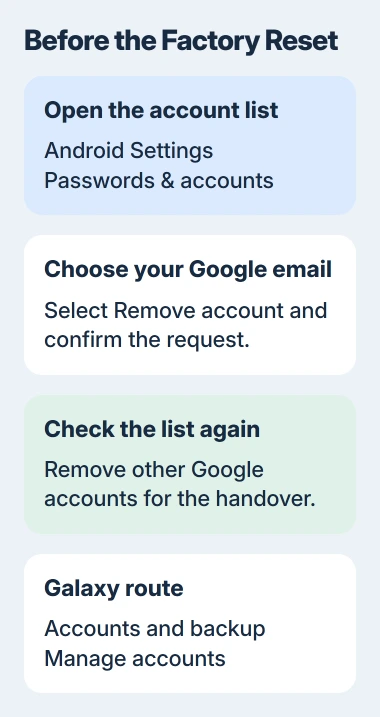
Return to the account list and check that the address has disappeared. Repeat the removal for any other Google accounts you're removing for the new owner.
Email, contacts and settings for that account are removed from the phone too. Those items can disappear before the final reset, while your account still exists online.
If removal stops at a prompt, complete the verification it asks for. Turning off contact or email syncing leaves the account on the phone; you need to remove the account itself.
I'd check the account list once more before erasing the phone. It's easier to remove a missed account while you can still open Settings than after the phone returns to setup.
Follow the Galaxy account menu
On a Galaxy, open Settings > Accounts and backup > Manage accounts. Select the Google email address, tap Remove account and confirm Remove account again.
Complete any identity check the phone shows. Following the Galaxy account-removal instructions takes the account off this phone without permanently deleting it.
Check the list for any other Google accounts. Signing out of your Samsung account doesn't remove your Google Account; they're separate accounts.
Your Samsung account has its own removal and sign-out controls on the same Manage accounts page. Have its password ready when preparing the phone for a factory reset, which may ask you to confirm that sign-in.
If you're keeping the phone and only trying to fix an app, leave the handover steps for later. Removing every account and erasing the phone changes much more than that one app.
Reset only after the accounts are removed
Once you've checked your backups and account list, reset the phone through Settings. Our Pixel and Galaxy factory-reset steps walk through the erase and its confirmation screens.
On Pixel, look under System > Reset options > Erase all data (factory reset). On Galaxy, use General management > Reset > Factory data reset. Review what the final confirmation says will be removed.
The reset deletes personal content stored on the phone and returns it to setup. Removing an account leaves unrelated files in place, so you'll still need the reset before selling the phone.
Stick with Settings when preparing a working phone for handover. A reset using recovery buttons can still ask for the previous account if device protection is active.
If you've just changed your Google Account password, wait at least 24 hours before resetting the phone, as the Android reset preparation directs.
Leave the erased phone at its welcome screen for the recipient to set up with their own account. Signing your Google Account back in would put it back on the phone you've just prepared.
If the phone was already reset and asks for an account
You can't remove the account through Settings at this stage. Verify ownership with a Google Account previously added and synced to this phone, or use the previous screen lock if that option appears.
A new Google Account won't satisfy the check for the previous account. For a secondhand device, ask the seller to verify their account and remove it properly before handing the phone over.
If you've forgotten your own credentials, open Google Account recovery on another device. Enter your account's email or phone number, then answer the ownership questions.
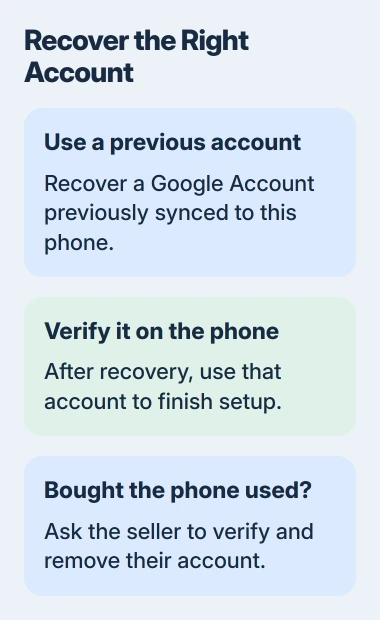
Enter your own recovery details and follow the prompts to regain access to the account. Once it's recovered, you'll still need to verify it on the reset phone.
If you can't verify ownership of a locked Galaxy, contact an authorized Samsung service center with proof of purchase. For another brand, ask its support team which ownership documents it needs.
Leave developer controls out of the handover procedure
The protection guide also lists OEM unlocking, a developer setting, for Android 14 or older. That option applies to those versions; it isn't an FRP switch that works on every current Android phone.
On the unlocked phone you're preparing, remove the account in Settings. If removal or the ownership check fails, use account recovery or ask the seller or manufacturer for help before trying another reset.
The Short Version
Check backups, remove Google accounts in Settings and recheck the list before erasing. If setup already demands a previous account, recover that account or get the seller or manufacturer to help resolve ownership.
Checked November 5, 2026.

Isaac Smith is the founder and editor of PC Glance, a website that covers computers, laptops, and technology. He is a tech enthusiast and a computer geek who loves to share his insights and help his readers make smart choices when buying tech gadgets or laptops. He is always curious and updated about the latest tech trends.