

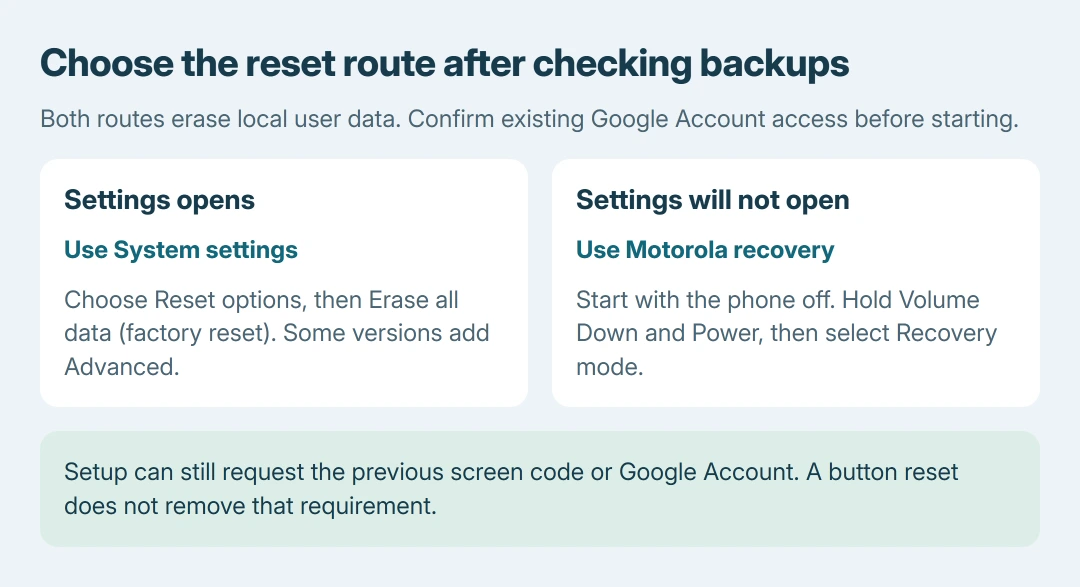
Factory resetting a Motorola phone erases local apps, settings and personal files. When it unlocks, use Settings > System > Reset options > Erase all data (factory reset). Motorola's buttons provide another route when Settings cannot open.
Confirm backups and Google Account access first. A button reset can remove the screen lock while still requiring the previous account during setup.
In this guide
Prepare the data and account needed after erasure
Check that needed photos, files and app data have usable copies. The Android backup guide explains what can be saved separately; a factory reset does not make a missing backup.
Google says to identify the phone's existing account and verify its password through another device. Keep the screen PIN, pattern or password available. Creating a new account does not satisfy the previous-account requirement.
Status: Motorola's Settings and external-reset instructions checked October 26, 2026, alongside Google's account-verification rules. Model menus vary; no phone was erased.
After changing the Google Account password, wait 24 hours before resetting, as Google's Android reset preparation specifies. Google recommends charging to at least 70% and having an internet connection for setup.
If giving the phone to another person, Motorola directs owners to remove their screen lock and Google accounts before erasure. Complete that preparation on the unlocked phone so the recipient can set it up with their own account.
For privacy while keeping this phone, hide apps in its locked Motorola folder rather than erasing everything.
Erase through System settings when the phone unlocks
Motorola's reset instructions use Settings > System > Reset options > Erase all data (factory reset). Some versions put Advanced between System and Reset options.
Read the removal screen, then complete its erase confirmations and requested security code. Button captions differ across Android versions. Check the model's manual if the displayed options do not match.
The Pixel and Galaxy erase menus use different manufacturer instructions. Follow the route for the phone actually being reset rather than assuming another brand's buttons apply.
The successful phone erase leads to initial setup. It does not recover files that were stored only locally or create new copies in the Google Account.
For a frozen app, try a Motorola restart without erasing data before choosing the factory-reset controls.
For several recurring complaints, match the Motorola problem to its repair before treating a full erase as the answer.
A reset also leaves a carrier network lock in place; opening the Motorola line needs the original carrier's approval.
Use Motorola's buttons when Settings cannot open
Motorola's recovery procedure is documented by the vendor, with a minimum 30% battery requirement. The 70% preparation target also satisfies that minimum.
If the handset seems dead rather than merely locked, check Motorola power and charging first before choosing an erase.
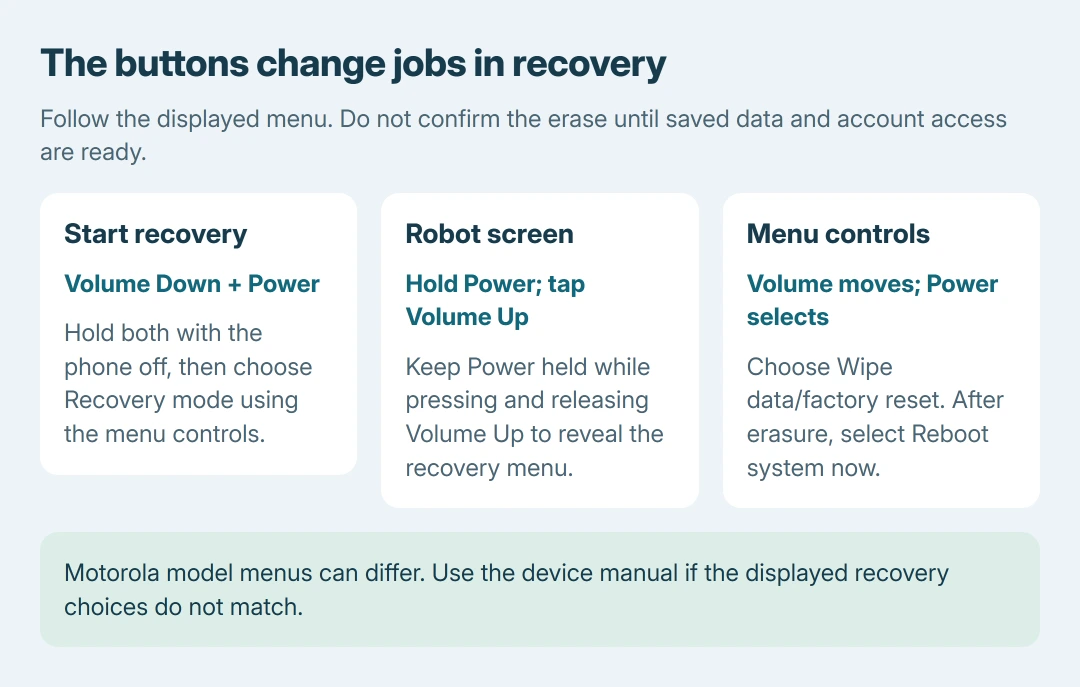
- Turn the phone off. Hold Volume Down + Power until it turns on.
- Use Volume Down to highlight Recovery mode, then press Power to select it.
- If an Android robot with an exclamation mark appears, hold Power, press and release Volume Up, then release Power to reveal the recovery menu.
- Select Wipe data/factory reset with the volume buttons and confirm with Power. Choose Factory data reset or the model's displayed erase confirmation.
- When erasure finishes, select Reboot system now. Let the phone complete its restart instead of interrupting it during the reset.
Older models can offer different userdata choices. Use their model-specific Motorola instructions rather than guessing which item preserves personal files; both factory-reset routes erase user data.
Before choosing erasure to reach files, check the locked Motorola debugging limits, including a previously approved computer and repair for a damaged display.
A partly working Edge 2023 display deserves a touch-area and safe-mode check while your files are still accessible.
Complete setup or get help with verification
Google states that button resets can require the earlier screen code or a previously synced Google Account. Recover that account if needed. Another erase does not supply the missing sign-in information.
For an app-related fault, Motorola recommends adding apps individually and checking between additions. The comparison is ours: test before restoring the entire setup so a returning fault has a useful sequence to report.
Contact Motorola if recovery cannot open, erasure fails or the original fault persists before app restoration. Supply the model, Android version and failed stage.
For missing sign-in information, use Google Account recovery. A paid promise to bypass verification does not restore that account's password.
The Short Version
Verify saved data, account credentials and charge. Erase through Settings when possible, or use Motorola's Power and Volume Down recovery route. Expect initial setup and possible verification of the previous account.






