
Changing iPhone wallpaper starts at Settings > Wallpaper > Add New Wallpaper. Pick an image, tap Add, then choose whether both screens should use it or the Home Screen should have a separate background.
For an existing wallpaper, use its Customize control instead. That keeps the task focused on the screen being changed, rather than creating another wallpaper every time.
Add a photo or a built-in background
Open Settings > Wallpaper, then tap Add New Wallpaper. Choose Photos for an image from the photo library, or select a built-in category such as Color or Weather & Astronomy.
Select the image and inspect the preview. Finish any adjustments offered for that wallpaper, then tap Add. Apple's wallpaper instructions document the creation procedure and the two choices that follow.
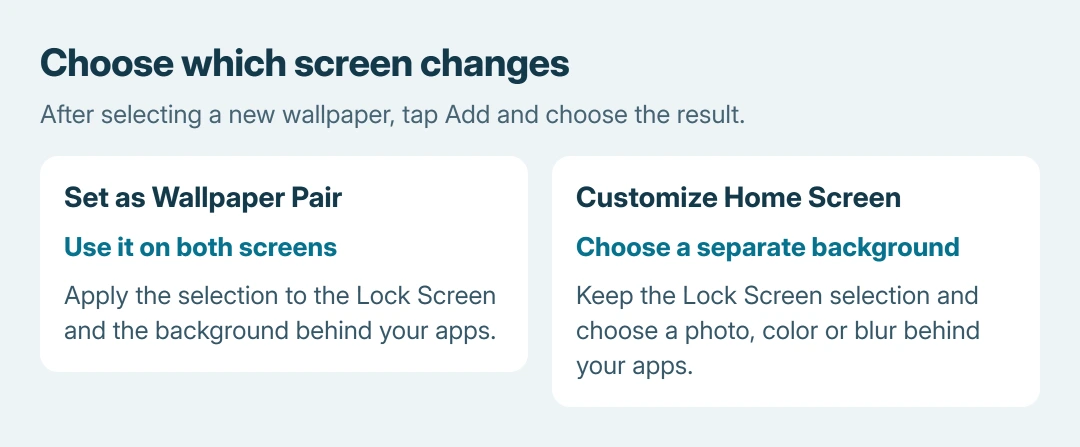
Status: Apple's wallpaper controls checked October 26, 2026, against its support article and iOS 27 guide. The picture explains choices; no iPhone screen was captured.
For one fixed photo, choose Photos rather than Photo Shuffle. Shuffle is intended to rotate a collection and adds frequency controls that a single-image setup does not need.
Decide what appears behind the apps
Choose Set as Wallpaper Pair to apply the selection to the Lock Screen and Home Screen together. Choose Customize Home Screen to give the screen behind your app icons a different background.
Apple documents photo selection, color choices and Blur in its Home Screen wallpaper guide. Blur softens that background so the app icons stand out; it does not sharpen the source photo.
After finishing, return to the Home Screen, then lock and wake the phone. The two-screen check is ours: confirm each background separately before assuming that the preview changed both.
A Lock Screen that dims has separate display controls. Check the Always-On wallpaper controls when the image looks correct while awake but disappears or darkens after locking.
Change an existing wallpaper without adding another
Open Settings > Wallpaper and use Customize under the preview for the screen being edited. For a different background behind the apps, choose the Home Screen preview and select the offered photo or color controls.
For the Lock Screen, another route is to keep a finger pressed on it until the gallery opens. Swipe to the intended wallpaper and tap Customize. Tapping a wallpaper selects it; Customize opens its editing controls.
Apple says that if Face ID does not unlock the wallpaper gallery, hold a finger against the Lock Screen again and enter the passcode. Authentication is required before editing; pressing an app icon will not open this gallery.
When changing only the Home Screen, check that the Lock Screen still has the picture and clock arrangement intended. A new wallpaper and an edit to an existing one are different choices in the gallery.
Check automatic switching and readability
A wallpaper that changes later may have a linked Focus or Photo Shuffle schedule. The unexpected wallpaper switching guide covers those triggers. Recreating the same image does not remove a Focus schedule.
For hard-to-read app labels, try the Home Screen's Blur option or a simpler color background. Check the result with the actual icons visible rather than judging only the empty preview.
If Add or Customize will not complete, record the iOS version and which control fails, then contact Apple Support. A missing optional effect does not prevent choosing an ordinary photo or color wallpaper.
The Short Version
Create a wallpaper in Settings, then choose a pair or a separate Home Screen background. Use Customize to edit the current selection. Check both screens afterward, and inspect Focus or Shuffle if the image changes later.

Isaac Smith is the founder and editor of PC Glance, a website that covers computers, laptops, and technology. He is a tech enthusiast and a computer geek who loves to share his insights and help his readers make smart choices when buying tech gadgets or laptops. He is always curious and updated about the latest tech trends.