
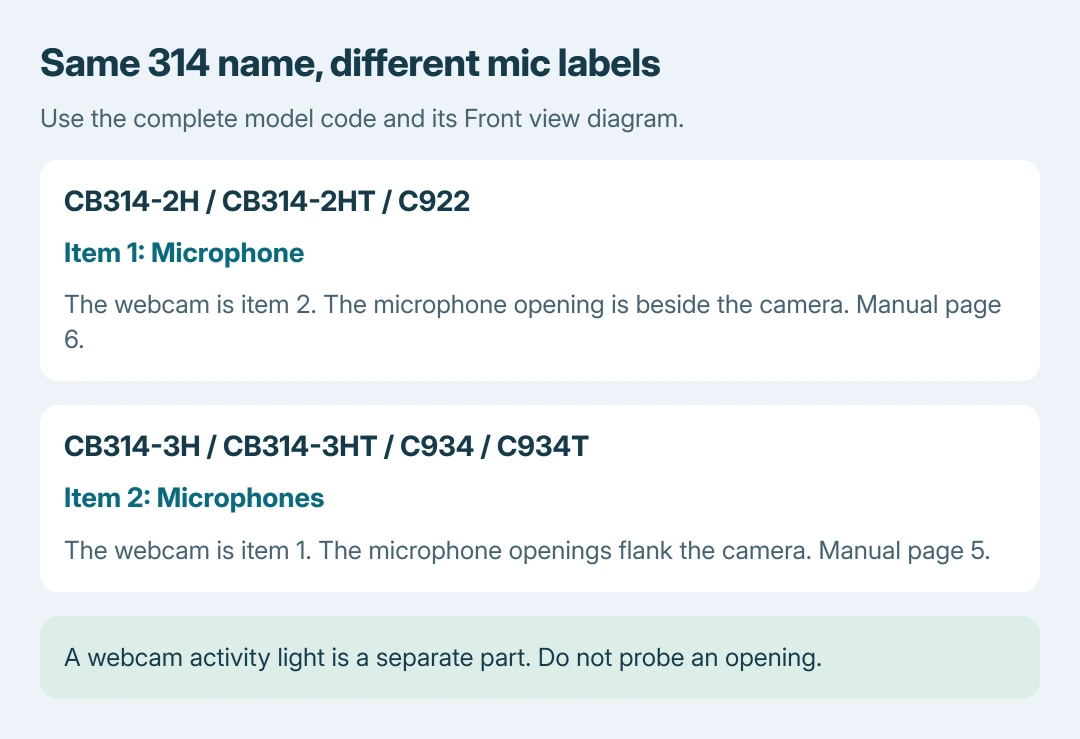
Acer Chromebook microphones sit near the webcam on the two Chromebook 314 families checked here, but their number and manual labels differ. The CB314-2H guide lists a microphone as item 1; the CB314-3H guide lists microphones as item 2.
Match the complete model code before following a diagram. If the aim is to fix silent calls, locating the opening is only the physical check; ChromeOS must also be using the internal microphone.
Read the model code before following a callout
Check the underside label for the full model designation. A product name such as Chromebook 314 is insufficient: Acer uses that name across different hardware families.
In the matching user manual, find Your Acer Chromebook tour > Front view. The microphone label is separate from the webcam label and its activity light.
Status: Acer's CB314-2H and CB314-3H family manuals checked October 26, 2026, including their front-view drawings. Google supplies the audio-test route; no microphone was tested.
| Acer manual family | Microphone callout | Printed page |
|---|---|---|
| CB314-2H / CB314-2HT / C922 | 1, Microphone | 6 |
| CB314-3H / CB314-3HT / C934 / C934T | 2, Microphones | 5 |
The linked CB314-2H manual places its microphone beside the central webcam.
The CB314-3H manual depicts microphone openings on either side of the camera.
Those positions apply to these manual families. For a Spin, another 314 generation or a different Acer Chromebook, obtain its own manual through Acer Support rather than transferring these callout numbers.
Keep stickers and clip-on accessories clear of the identified opening. Our recommendation is to leave the opening untouched; that precaution is ours, and pushing a pin into it is not a microphone test.
Which microphone is ChromeOS actually using?
Open Settings > Device > Audio. Under Input, inspect Device and select the internal microphone. A connected USB or Bluetooth headset can provide a different input source.
Google says this page includes a Mic test control in its Chromebook audio instructions. Speak normally while running that test, with the selected input unmuted.
To adjust input level quickly, select the clock, open Audio settings beside the volume slider, and use the microphone slider under Input. The speaker slider changes playback volume rather than microphone pickup.
A successful test establishes that the selected microphone captured sound for that test. It does not establish that a particular meeting website has permission or uses the same source.
For a spoken demonstration, choose microphone sound in the Chromebook recorder's audio settings before starting. Inspect a short sample before recording a long session.
A meeting stays silent after the system test passes
Review the meeting app's selected input, then open Chrome Settings > Privacy and security > Site settings > Microphone. Check the site's permission and selected device, and grant access only where needed.
For websites, Google states that microphone permission is required separately from ChromeOS volume settings. Retry the site after correcting its permission or input choice.
If this is a different brand's computer, the Dell Chromebook microphone locations use different hardware diagrams. Their callout numbers do not identify Acer parts.
For a managed Chromebook, ask the administrator about unavailable permissions. If the internal input fails across apps and the system test, give Acer the model, serial number and test result for hardware assessment.
The Short Version
Find the complete model code and read its Front view diagram. On the checked 314 families, the microphone sits near the webcam, but item 1 and item 2 exchange roles between the manuals.
Select and test the internal input in ChromeOS, then check website permission if only one call or recording remains silent.

Isaac Smith is the founder and editor of PC Glance, a website that covers computers, laptops, and technology. He is a tech enthusiast and a computer geek who loves to share his insights and help his readers make smart choices when buying tech gadgets or laptops. He is always curious and updated about the latest tech trends.