
Moving Android data to iPhone uses From Android during the iPhone's setup. Choose Transfer with App, then use Apple's Move to iOS app on Android to connect the phones and select the content.
An iPhone already in use needs a decision first: erase it and repeat setup, or keep its current contents and move supported data manually. Do not erase a working phone before preserving the data that is already on it.
Choose the route before resetting anything
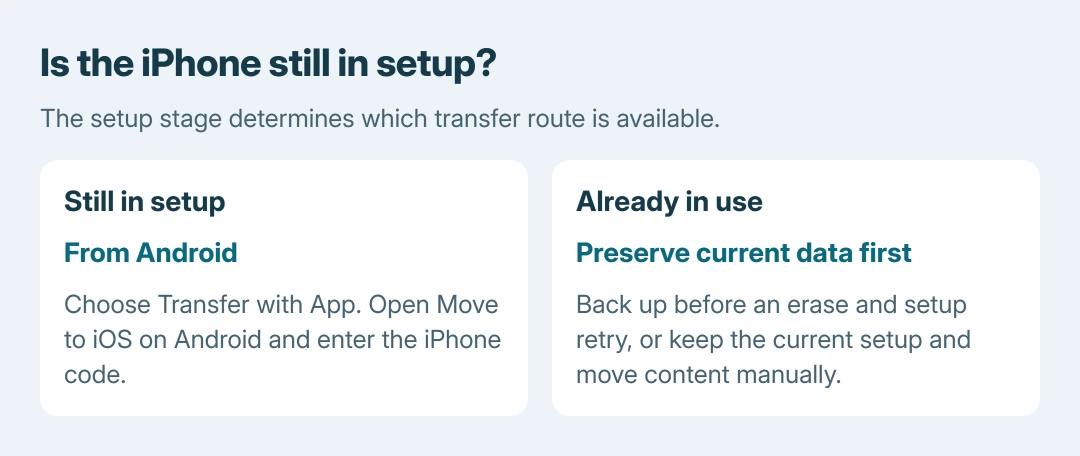
For an iPhone still in setup, continue to Transfer Your Apps & Data > From Android > Transfer with App. Apple's Android migration instructions place the app-based transfer at this stage.
For an iPhone already set up, back up any needed iPhone data before considering an erase. Apple's alternative is a manual move when erasing is unwanted; it does not merge a full Move to iOS migration into a finished setup.
Status: Android-to-iPhone setup checked October 26, 2026. Apple's current page includes a separate compatible-Android-17 option; this guide follows Move to iOS. No transfer was performed.
The current Apple page also offers Transfer without App for supported devices running a compatible version of Android 17 or later. Availability depends on the Android manufacturer, so an Android version number alone is insufficient.
1. Prepare the two phones and available space
Turn on Android Wi-Fi and connect both phones to power. Keep them near each other. Make sure the selected Android content, including any microSD content being moved, fits in the iPhone's available space.
Download Move to iOS from Google Play. Update Chrome on Android first if its bookmarks should be included. Apple also documents a direct USB-C cable option; follow any Android USB prompt when using that connection.
Preserve a separate Android backup before beginning. The new-phone preparation guide covers keeping access to app-specific accounts and authenticators while both devices still work.
2. Enter the iPhone's code in Move to iOS
Start the iPhone setup and choose the manual setup option on Quick Start. Continue to the Android transfer route described earlier. Open Move to iOS on Android and complete its agreement and requested permission prompts.
On the iPhone's Move from Android screen, tap Continue. Enter the displayed six-digit or ten-digit code on Android. This code connects the transfer session; it is not the Apple Account password.
For the wireless route, join the temporary Wi-Fi network created by the iPhone when Android asks. Apple says a weak-internet warning during this connection can be ignored; the temporary network is serving the transfer.
Select the offered data categories on Android, then start the move. Leave Move to iOS onscreen. Switching to another app or answering a call before completion can interrupt the migration.
3. Wait for the iPhone's progress bar
Do not finish merely because Android says its part is complete. Apple documents the iPhone's loading bar as the completion point for this stage.
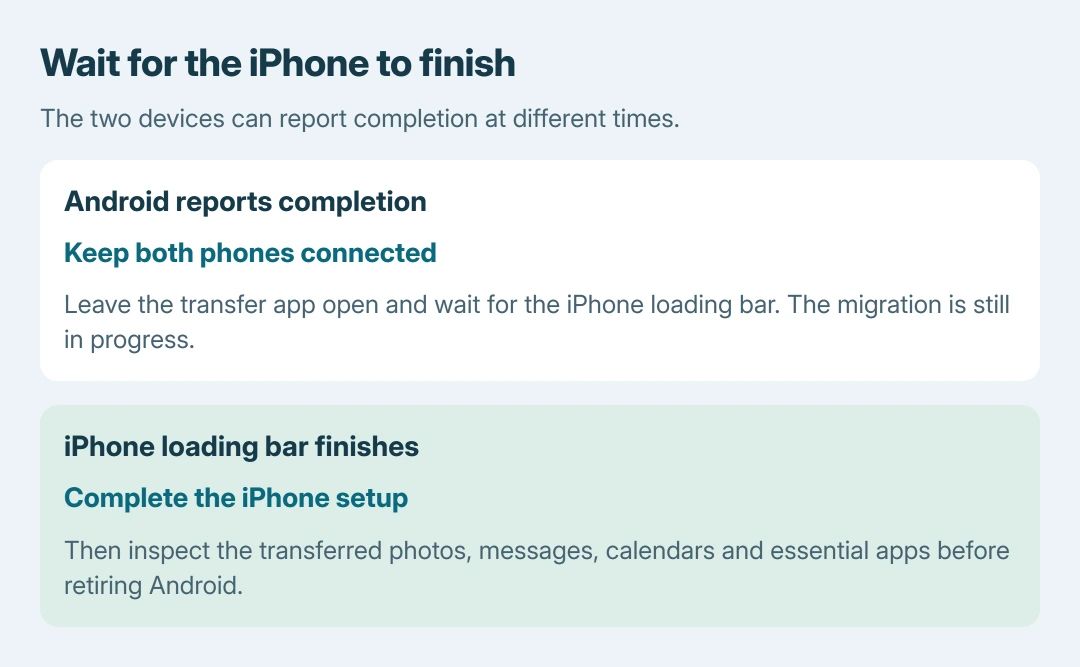
Once that bar finishes, tap Done on Android and continue the iPhone setup. Complete any phone-number or eSIM instructions shown; the carrier may need to finish activation.
Contacts, messages, camera photos and videos, calendars and WhatsApp messages and media are among the supported categories. Some eligible free apps can be matched, but not every app or its private data is guaranteed to move.
Download missing available apps from the App Store. The missing-app checks explain the separate download stage, although their iPhone-backup examples are a different migration route.
Already set up, interrupted or missing content?
Apple's manual transfer guide covers adding existing mail accounts, accessing cloud documents, and copying photos with a computer. Music, books and PDFs need separate attention even after the automatic move.
Our acceptance check is to open representative photos, messages, calendars and essential apps before retiring Android. That check is ours; a completed progress bar does not verify every app-specific login or local file.
For an interrupted move, Apple recommends restarting both devices and trying again, with Android cellular data turned off. Review settings that automatically switch Wi-Fi networks, and keep the transfer app in the foreground.
If the iPhone fills up partway, preserve any needed data before erasing it for a smaller retry. Contact Apple Support for a repeated migration failure; use the app developer for content that the app itself must export or restore.
The Short Version
Use From Android during iPhone setup, connect with the displayed code and keep Move to iOS open. Wait for the iPhone to finish, then inspect the transferred content.
A finished iPhone setup requires either a backed-up erase-and-retry decision or the manual transfer route. Keep Android intact until essential data and account access are verified.

Isaac Smith is the founder and editor of PC Glance, a website that covers computers, laptops, and technology. He is a tech enthusiast and a computer geek who loves to share his insights and help his readers make smart choices when buying tech gadgets or laptops. He is always curious and updated about the latest tech trends.