
Excel formulas that keep an old answer after their input cells change often point to Manual calculation. Open Formulas > Calculation Options > Automatic first.
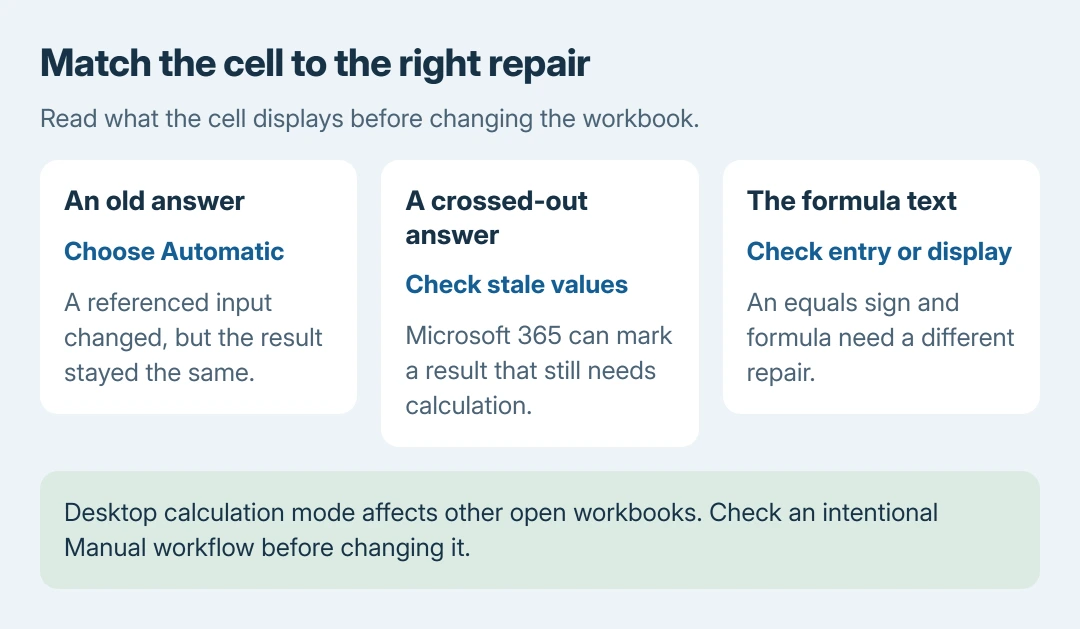
A formula displayed as text needs a different repair from a numeric result that stopped updating.
Check the result in a copy of the workbook before relying on its totals. Calculation settings in desktop Excel can affect other workbooks open in the same session.
Turn automatic calculation back on
On Excel for Windows, choose Formulas > Calculation Options > Automatic. The longer route is File > Options > Formulas, then Automatic under Workbook Calculation.
Microsoft documents this as the default mode: changes to a formula's inputs trigger recalculation. Manual leaves that work for an explicit calculation command.
Status: Microsoft calculation, stale-value and formula-error instructions checked October 26, 2026. Research used documentation without inspecting a spreadsheet.
Use Microsoft's calculation controls for the setting. On desktop Excel, Microsoft states that changing these options affects all open workbooks.
In a disposable copy, change a cell that the formula actually references. The answer should update without another command. If it updates now, the calculation mode explains the stale result; undo the sample edit afterward.
Manual mode can be intentional in a large workbook. Our recommendation is to ask its author before changing a shared calculation workflow. The save-prompt guide explains why someone might have selected Manual deliberately.
Recalculate once and read what happens
On Windows, Formulas > Calculate Now or F9 recalculates changed formulas and their dependents across open workbooks.
If that refreshes the answer, calculation was pending; the next input change still needs Automatic mode for an automatic update.
For a fuller Windows calculation, Ctrl + Alt + F9 recalculates every formula in open workbooks, including formulas Excel has not marked as changed. Let a large workbook finish before judging the result.
The recalculation procedure is documented by Microsoft. If the updated cell shows an error, read that error rather than repeatedly pressing the calculation key.
In Excel for the web, open Formulas > Calculation Options > Automatic. Its setting applies to the current workbook, unlike desktop Excel's wider scope. Use Calculate Workbook when a manual calculation is needed.
A crossed-out answer can mean it is stale
Microsoft 365 can mark an uncalculated value with strikethrough in Manual or Partial calculation modes. Microsoft says its stale-value formatting warns that the displayed answer is not current.
Select the affected cell and use its warning menu to calculate or select Automatic. When the calculation completes, the stale-value marking clears. This behavior is separate from applying an ordinary font effect.
Turning off Format Stale Values only hides the warning. It does not update the arithmetic. A clean-looking number can still be old, so keep the warning enabled while fixing the calculation problem.
A visible formula or wrong reference needs another repair
If the cell literally shows an equals sign and formula instead of a number, use the formula-as-text checks. Automatic calculation cannot turn a text entry into a working formula.
If calculation runs but the answer is wrong, select the result and inspect its references in the formula bar. Confirm that the edited input belongs to that formula's range. A cell outside the referenced range cannot change its answer.
Microsoft's formula repair guide separates calculation settings from formula mistakes. A displayed error or an incorrect range needs its own correction.
If a valid formula still fails in Automatic mode, send Microsoft Support a small copy that reproduces it, with sensitive data removed. Include the Excel version, calculation mode and the input that should change the answer.
The Short Version
Choose Automatic for results that stopped updating. Recalculate once to check pending work, keep stale-value warnings visible, and treat formulas displayed as text separately. Verify the changed answer before using the workbook's totals.

Isaac Smith is the founder and editor of PC Glance, a website that covers computers, laptops, and technology. He is a tech enthusiast and a computer geek who loves to share his insights and help his readers make smart choices when buying tech gadgets or laptops. He is always curious and updated about the latest tech trends.