
Recording video on a Mac with its camera starts in QuickTime Player > File > New Movie Recording. Select the camera and microphone, record the clip, then use File > Save to give it a name and destination.
This captures the camera's view. To demonstrate an app or capture the desktop, use the separate Mac screen recorder instead.
1. Open a movie recording and choose its inputs
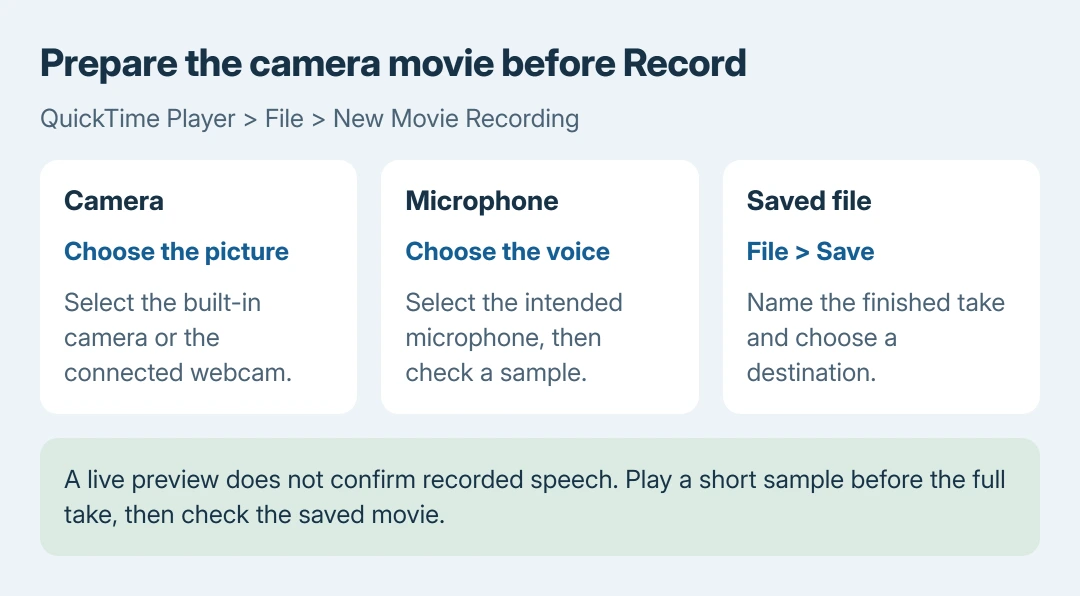
Open QuickTime Player from Applications or Spotlight. Choose File > New Movie Recording. A Mac with a built-in camera should show its preview; a Mac without one needs a connected camera.
Apple documents the Camera, Microphone and Quality choices in the small options menu beside the recording control. Select each input deliberately when more than one is available.
Status: QuickTime movie capture, saving and Mac camera guidance checked October 26, 2026. Instructions are from Apple; no camera, microphone or video recording was tested here.
Apple's movie recording guide covers that menu. A working camera preview establishes the picture source, not which microphone will supply the sound.
For a USB webcam, connect it before choosing the camera in QuickTime. Apple's external-camera instructions explain selecting an available camera from this recording menu.
If the intended result is a still image, use the Photo Booth photo controls. A still photo and a movie are different capture tasks even when they use the same lens.
2. Record a sample before the full take
For an ordinary clip, start with High quality. Apple says Maximum recordings can occupy substantially more storage. Select the quality before recording rather than discovering the file is unwieldy afterward.
Click the recording button, speak a sentence and move within the picture. Click Stop when finished. Play the sample and confirm that the chosen camera image and voice are both present.
The sample check is ours: it catches an unintended input before a longer take. If the voice is missing, recheck the Microphone selection before making the final recording.
Apple also documents pausing by Option-clicking the recording control, then clicking again to resume. Use that when a pause belongs inside one recording, rather than assuming every press of Stop creates a pause.
3. Name the recording and choose where it goes
After the take, select File > Save. Enter a name in Export As, choose the destination, and click Save. Apple states that recordings initially receive a placeholder name such as Untitled.
The saving instructions also explain choosing a different local or iCloud location. Save somewhere recognizable instead of relying on the placeholder window title.
Open the saved file from that location and replay its beginning and end. Confirm that speech survived the save before attaching the clip or discarding an earlier take.
No camera preview or no voice? Check that input
Select the camera again after reconnecting a USB webcam. Then compare its preview in Photo Booth. Failure in both apps gives Apple or the camera maker a useful connection or hardware symptom.
For another installed recorder, check System Settings > Privacy & Security > Camera. Apple says bundled apps already have camera access; QuickTime need not appear in that list.
Check Privacy & Security > Microphone separately. If the recorder is listed, check its switch and reopen the app if requested. This permission does not choose the recorder's audio input.
Those controls are covered by Apple's camera permission guide and microphone permission guide.
If the intended camera or microphone still fails across apps, report its model, macOS version and the working comparison to Apple Support or the device maker. A new movie file cannot repair an input the Mac never receives.
The Short Version
Choose New Movie Recording for a camera video, verify both inputs, and review a short sample. Record the full take, save it under a useful name, and check the saved file's picture and sound before sharing.

Isaac Smith is the founder and editor of PC Glance, a website that covers computers, laptops, and technology. He is a tech enthusiast and a computer geek who loves to share his insights and help his readers make smart choices when buying tech gadgets or laptops. He is always curious and updated about the latest tech trends.