
A MacBook backup needs a copy outside the Mac's own storage. Connect an external drive, then open System Settings > General > Time Machine > Add Backup Disk. Select the drive and complete setup to start the first backup.
Before agreeing to erase a drive, check what it already holds. Save its needed files elsewhere first, and keep the backup password if encryption is enabled.
Choose the backup destination before connecting it
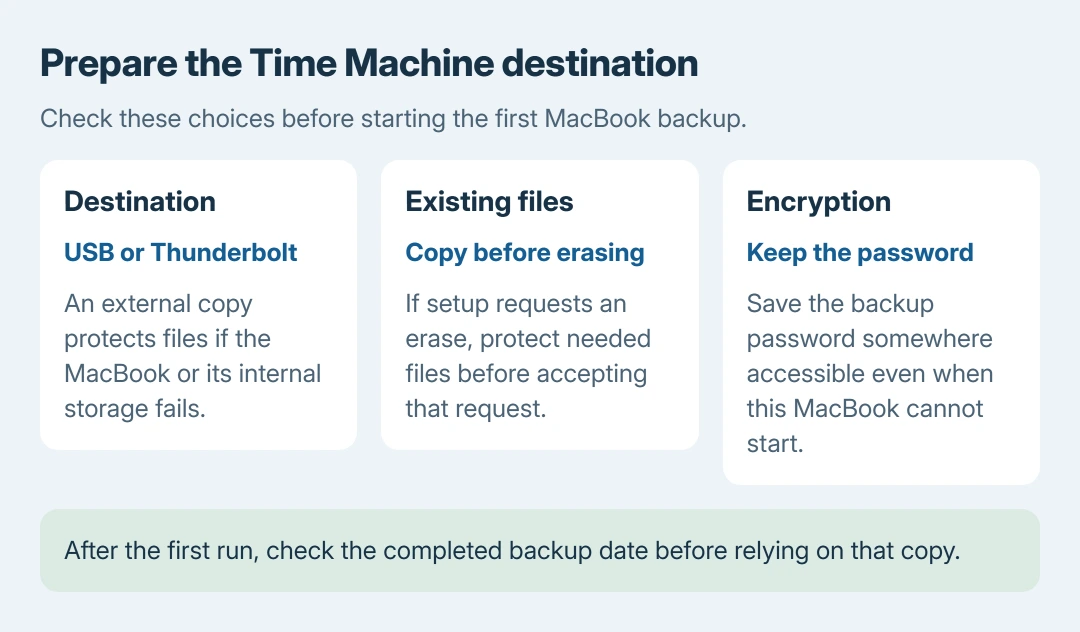
Use a USB or Thunderbolt storage device with room for the backup history. Apple recommends capacity at least twice the Mac's storage: a MacBook with 1 TB of storage ideally gets a 2 TB backup drive.
Apple documents that sizing in its Time Machine setup instructions. That is Apple's sizing advice, not a hard limit.
Status: Apple's current Time Machine setup, disk-format and backup-content guidance checked October 26, 2026. No MacBook or storage device was backed up here.
Keep the Time Machine volume for backups. Apple's supported disk guide prefers APFS or APFS Encrypted. A Windows-formatted disk may need erasing and reformatting.
A separate APFS volume can hold other files on the same physical drive, but it does not create a second independent device. Failure of that drive can affect every volume on it.
Set up the connected drive in Time Machine
These steps apply to macOS Ventura 13 and later, including current macOS versions. Connect the external drive to a suitable port before opening Time Machine settings.
- Open System Settings using the Apple menu.
- Select General > Time Machine.
- Click Add Backup Disk, or the Add button if disks are already configured.
- Select the intended external storage device and choose Set Up Disk.
- Read any erase request before continuing. Choose another destination if the selected volume contains the only copy of files that must stay.
- If enabling Encrypt Backup, create a password and save it somewhere accessible without this MacBook. Finish the setup prompts.
Apple says that encrypted backups need that password when files are restored. Do not assume signing into the Mac automatically supplies it after the computer has failed or been replaced.
Time Machine starts using the destination after setup. If the drive is missing from the selection, check its connection and whether Finder sees it before accepting an erase instruction for another device.
Let the first backup finish and check the date
Open the Time Machine menu in the menu bar to check progress. Use Back Up Now when a manual run is needed. The menu shows current progress or the date and time of the latest completed backup.
If the menu is hidden, Apple's Time Machine guide provides System Settings > Control Center > Time Machine > Show in Menu Bar.
The first backup can take a while; later ones save only changed files, so they run faster. Keep the drive connected until completion. Our recommendation is to check that the completed date has advanced before relying on the copy.
To adjust the automatic schedule, open Time Machine settings, select Options, and choose Back up frequency. The backup drive needs to be available when scheduled backups are expected to run.
Before unplugging it, eject the drive or shut down the Mac. Reconnecting it lets Time Machine resume the configured backup schedule, as Apple describes.
Know what this copy covers
Time Machine protects files stored on the Mac, including personal documents and installed apps. Apple states that it excludes system files and apps supplied during the macOS installation. It is not a bootable clone of the internal drive.
Local snapshots are different from the external copy. They live on the same internal storage as the originals, so they cannot protect against losing that storage or the MacBook itself.
Do not assume cloud-only files have become part of the external backup. If another backup service is involved, the iCloud Drive backup limits show why a file's local availability matters.
A failed run needs its actual message
If the first run reports unavailable files, follow the Time Machine unavailable-files checks rather than erase the new destination immediately.
For a different failure, record the full message, macOS version and drive model for Apple Support or the storage maker. An absent disk and a disk that is visible but cannot finish a backup need different next steps.
The Short Version
Prepare an external destination, add it in Time Machine, and keep any encryption password. Wait for a completed backup date, reconnect the drive for future runs, and remember that internal snapshots cannot replace an external copy.

Isaac Smith is the founder and editor of PC Glance, a website that covers computers, laptops, and technology. He is a tech enthusiast and a computer geek who loves to share his insights and help his readers make smart choices when buying tech gadgets or laptops. He is always curious and updated about the latest tech trends.