
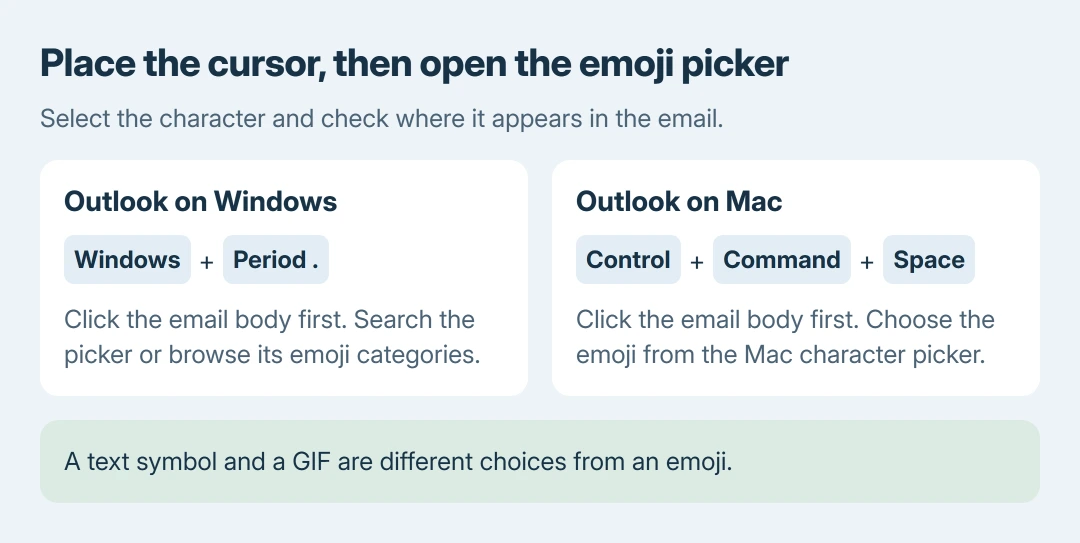
Adding emojis in Outlook starts with the message's text cursor. Click where the emoji should appear, then press Windows key + period (.) on Windows. On a Mac, use Control + Command + Space.
Choose an emoji from the picker and it goes into the draft. The keyboard route avoids depending on which Outlook version has which buttons in its ribbon.
Windows: open the picker from the message
Create an email or open a reply. Click inside the message body at the intended position, then press Windows key + period (.). Microsoft documents this route for both classic and new Outlook.
When the picker opens, browse its emoji categories or type a search term such as present. Select the result to insert it. Close the picker with its close control when finished.
Status: Microsoft's Outlook emoji, Mac shortcut and Windows symbol guidance checked October 26, 2026. No email was composed or sent during this review.
Microsoft's Outlook emoji instructions describe searching and selecting the character. An emoji add-in is unnecessary for this built-in procedure.
Check the draft before continuing. If the emoji appears in the wrong field, delete it there, click the intended text position and reopen the picker. The insertion point decides where the selected character goes.
Mac: use Outlook's emoji shortcut
In Outlook for Mac, place the cursor in the draft and press Control + Command + Space. Microsoft's Mac shortcut reference lists this specifically as the insert-emoji command.
Select the emoji in the character picker. Return to the message and check that it appears beside the intended words. The Mac shortcut uses Control and Command together; Command with Space alone opens a different system function.
For a saved sign-off, edit the Outlook signature rather than adding the same character to every new message manually. Review the signature in a new draft after saving it.
Need a symbol rather than an emoji?
A copyright mark, a trademark mark and a mathematical character are symbols. They do not require an emoji picture or a downloaded extension.
In new Outlook for Windows, open the Windows picker and choose Symbols. Microsoft says the ribbon's Symbol option is currently unavailable in that version.
In classic Outlook, the separate route is Insert > Symbol > More Symbols. Microsoft's symbol instructions distinguish these two interfaces.
Choose the category that matches the intended result. A GIF is different again: if that part of the Windows picker fails, use the Windows emoji-panel GIF checks for that service problem.
When the character picker does not open
First confirm that the draft has an active text cursor. Then try the operating system's picker shortcut in another editable text field. That comparison is ours, to separate an Outlook-only failure from a shortcut that fails across apps.
If it works elsewhere, record whether Outlook is classic, new or Mac, along with its version, for Microsoft Support. If it fails across apps, report the operating system and keyboard shortcut as well.
A typed smiley is only a fallback for a few characters; it is not the complete emoji collection. Use the picker when a specific emoji must be selected deliberately.
The Short Version
Click the email body first. Windows uses Windows key plus period, and Outlook for Mac uses Control plus Command plus Space. Choose an emoji, check its placement, and use Symbols when the intended character is a text symbol instead.

Isaac Smith is the founder and editor of PC Glance, a website that covers computers, laptops, and technology. He is a tech enthusiast and a computer geek who loves to share his insights and help his readers make smart choices when buying tech gadgets or laptops. He is always curious and updated about the latest tech trends.