
A Samsung tablet that won't turn on can have a drained battery or frozen software, even with a completely black screen. Check the charger and cable, then give it an uninterrupted hour of charging before judging the battery.
For a tablet that stopped responding during use, hold Power (Side) and Volume down together to force a restart. This restarts the device without performing a factory erase.
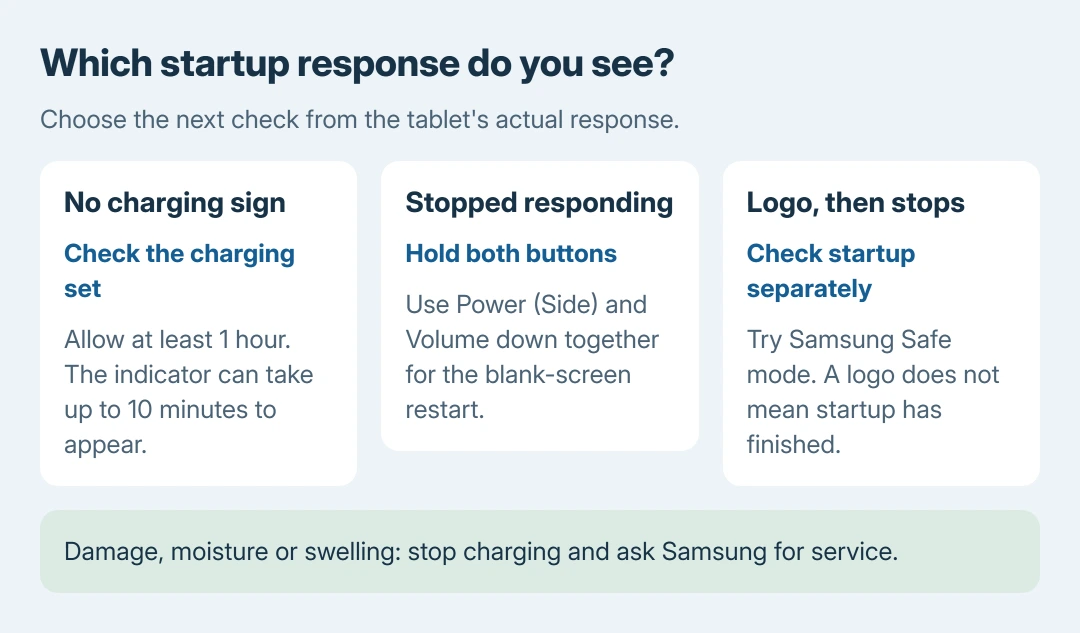
A wet, damaged or swollen tablet needs service before another charging attempt.
1. Check the power connection before waiting
Unplug the charger and look for a damaged cable, bent connector pins or moisture in the tablet's port. Remove a case that prevents the plug seating fully or blocks the buttons. Do not push tools into the connector.
Samsung recommends a Samsung-approved charger and cable in its tablet power guidance. Use a working wall outlet and an undamaged charging set appropriate for that Galaxy Tab.
Status: Samsung's tablet power, black-screen and Safe mode instructions checked October 27, 2026. No Galaxy tablet was tested or reset.
Try another compatible charging set if the first produces no response. A loose connection or failed adapter can look exactly like an empty battery. Continued silence does not establish which internal part has failed.
For a handset rather than a Galaxy Tab, use the Android phone startup checks. The timing here comes from Samsung's blank-screen procedure, which explicitly covers tablets.
2. Allow the battery an uninterrupted hour
Connect the tablet and leave it charging for at least one hour. Samsung says the charging symbol can take up to 10 minutes to appear when the screen is blank. An immediate lack of an icon does not prove charging has failed.
After the hour, disconnect the cable. Hold Power (Side) for 15 to 20 seconds and watch for the Samsung logo. These timings come from Samsung's blank-display procedure.
If the screen starts, let the tablet finish charging before normal use. If it stays black, try the restart in the next section. Stop charging if the device is damaged, the case is separating or unusual heat develops.
3. Restart a tablet that froze during use
Press Power (Side) and Volume down at the same time. Keep both held for 20 seconds for the blank-screen case. Release them as the Samsung logo signals startup.
Samsung's general power page gives a minimum of seven seconds for a temporary freeze; its blank-screen page specifies 20 seconds.
Those are different instructions for different symptoms, rather than a reason to keep trying random combinations.
If the volume slider or power menu appears, both buttons were not held together properly. Remove an obstructing case and repeat the simultaneous hold. Keep the screen-lock PIN available: a restart can require it instead of a fingerprint.
A successful restart reaches the lock screen and then the Home screen. A brief logo followed by another black screen is still an unresolved problem. Note whether it happens with the cable connected, disconnected or both.
4. A Samsung logo appears, but startup stops there
A logo means the tablet can begin startup. Charging advice alone does not address a device that repeatedly restarts or stops before the lock screen.
Samsung advises using Safe mode to check downloaded apps. With the tablet powered off, turn it on; when the Samsung logo appears, hold Volume down until startup completes.
Look for Safe mode at the lower-left corner. If it starts and remains usable there, remove a recently installed or updated app associated with the failure. Restart normally to leave Safe mode and check whether the fault returns.
Safe mode does not identify the responsible app by name. Our recommendation is to remove suspect apps individually, checking the effect after each change. A tablet that never reaches Safe mode needs Samsung's model-specific assistance.
5. Keep the data when arranging service
Do not select recovery-menu erase commands merely because the tablet is dark. A forced restart and a Samsung tablet factory reset have different effects on stored data.
If the tablet becomes usable, copy important files before further troubleshooting. If it remains black after Samsung's charging and restart procedure, contact Samsung Support or an authorized service center.
Give them the Galaxy Tab model, charger tried and exact response: no symbol, a charging symbol, vibration or a repeating logo. Ask about data preservation before authorizing an erase or replacement.
The Short Version
Check the charging equipment, allow an hour, then attempt startup. Use the simultaneous Power and Volume down hold for a freeze. A repeating logo calls for Safe mode or service; a factory erase is a separate decision.

Isaac Smith is the founder and editor of PC Glance, a website that covers computers, laptops, and technology. He is a tech enthusiast and a computer geek who loves to share his insights and help his readers make smart choices when buying tech gadgets or laptops. He is always curious and updated about the latest tech trends.