
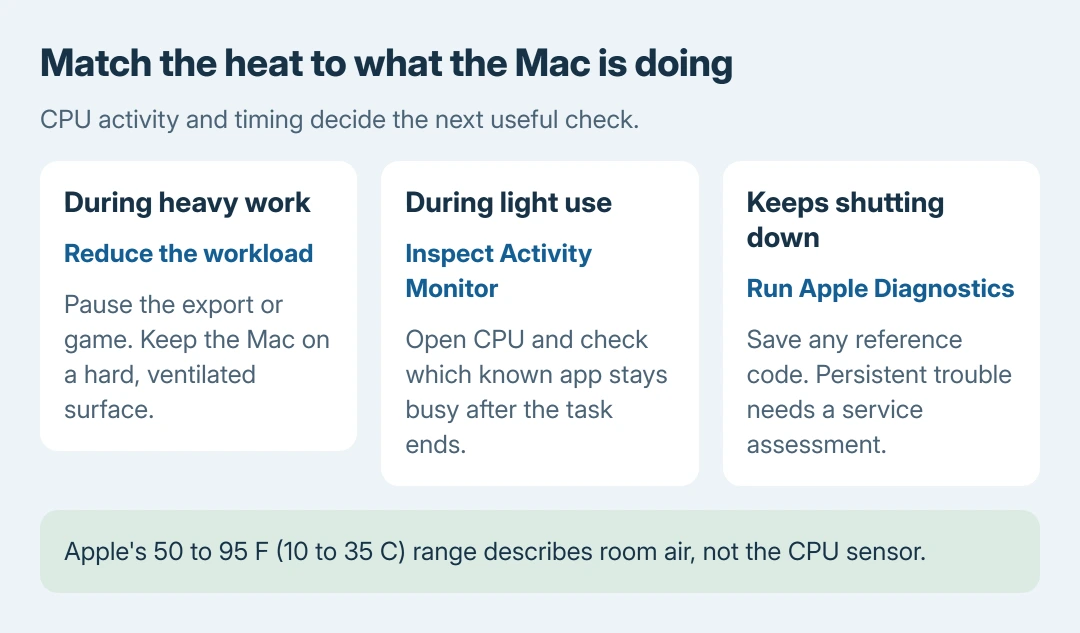
MacBook overheating during a video export can reflect the workload. Move it onto a hard, ventilated surface and pause the task. If heat continues during light use, check Activity Monitor > CPU.
Warm metal or a fast fan alone does not establish a fault. Repeated shutdowns, persistent heat during light use or unexpected fan activity call for closer checks. A screen that goes black also needs attention as a display or power symptom.
Give the Mac room to cool
Save work and pause the task making the Mac hot. Place it on a stable desk with its ventilation openings clear. Keep bedding away and leave the keyboard uncovered. If normal use is uncomfortable, shut down and let it cool.
Apple says the supported room-temperature range is 50 to 95 F (10 to 35 C) in its Mac temperature guidance. That is the surrounding air temperature, not a CPU sensor limit.
Status: Apple's Mac temperature, fan, Activity Monitor, SMC and diagnostics guidance checked October 27, 2026. No Mac temperature or repair was tested here.
A parked car, direct sun or a soft surface can defeat otherwise normal cooling. Do not insert anything into the vents. Avoid setting a target fan speed before checking why the processor is busy.
For a Windows machine, the laptop overheating procedures use different monitoring and power controls. Task Manager instructions do not apply to this Mac walkthrough.
Find the app using the processor
Press Command + Space, type Activity Monitor and open it. Select CPU, then choose View > All Processes. Click the % CPU heading to place the largest users first.
Watch which process stays busy after the demanding task ends. Apple's CPU activity guide also explains the System, User and Idle totals at the bottom.
Save documents and quit a recognizable app normally before checking again. If CPU activity falls and the Mac starts cooling, deal with that app: update it, reduce its workload or contact its developer if the same fault returns.
For an unresponsive app, select its process and use Activity Monitor's stop control. Choose Quit first. Apple documents that Force Quit ends it immediately and can lose unsaved changes; use it when the normal Quit fails.
Do not end unfamiliar system processes just because they rank highly. Record the name and the task underway instead. Our comparison is whether closing the known workload reduces both CPU activity and the continuing heat.
Separate expected fan noise from unexpected heat
Apple states that intensive work and Spotlight indexing after a migration can make fans accelerate. Its fan-noise guidance also explains that warmer surrounding air makes fans respond sooner.
Check again after that activity finishes. A fan settling as processing ends is a different result from a fan racing through a light session.
A Mac without a fan will not provide fan noise as a warning, so identify the model before comparing symptoms.
Install offered macOS updates through System Settings > General > Software Update once the Mac is stable. An update that cannot finish belongs in the macOS installation failure checks.
Use the restart procedure for the right chip
Open Apple menu > About This Mac. The Chip field names the Apple silicon processor; an Intel model instead lists its Intel processor. Do this before following a keyboard reset intended for another model.
On Apple silicon, connect power and restart, or shut down and turn the Mac on again. Apple's SMC instructions say the controller resets automatically; there is no extra Intel-style key sequence to perform.
For an Intel Mac with unexpected fan behavior, use the SMC procedure on that same Apple page for the exact hardware. T2-equipped laptops and earlier Intel models use different key combinations.
A reset does not repair a blocked vent or failing fan.
A black screen or repeated shutdown needs a separate check
Do not assume that every screen failure while the case is warm was caused by overheating. Note whether audio continues, the Mac restarts or only the display stops. That distinction is our recommendation for describing the fault accurately.
For continued heat during light use, start Apple Diagnostics after shutting down and disconnecting unnecessary accessories. Keep power connected and the Mac ventilated.
On Apple silicon, keep power pressed while the startup options load, release it, then hold Command + D. On Intel, turn it on and immediately hold D; Apple's fallback is Option + D if D does not work.
Follow the prompts and save any reference code. Ask Apple Support for a service assessment if the problem persists, including when the test reports no fault.
A diagnostic result does not explain every intermittent shutdown or display failure.
The Short Version
Improve ventilation and stop the heavy task first. Continuing heat calls for CPU activity checks, then the chip-appropriate restart or SMC route.
Persistent light-use heat, shutdowns or screen failures need diagnostics and a service assessment.

Isaac Smith is the founder and editor of PC Glance, a website that covers computers, laptops, and technology. He is a tech enthusiast and a computer geek who loves to share his insights and help his readers make smart choices when buying tech gadgets or laptops. He is always curious and updated about the latest tech trends.