
Enabling Secure Boot in Windows 11 means changing the PC's firmware setting, then checking the result in System Information. First run msinfo32 and read BIOS Mode and Secure Boot State.
A PC already using UEFI needs a different next step from one showing Legacy.
Before changing firmware, save your work and locate any BitLocker recovery key. Do not switch a working Legacy installation to UEFI blindly: Windows may stop starting.
Secure Boot should be enabled only after the installed system is ready for that boot mode.
Read the two fields before changing anything
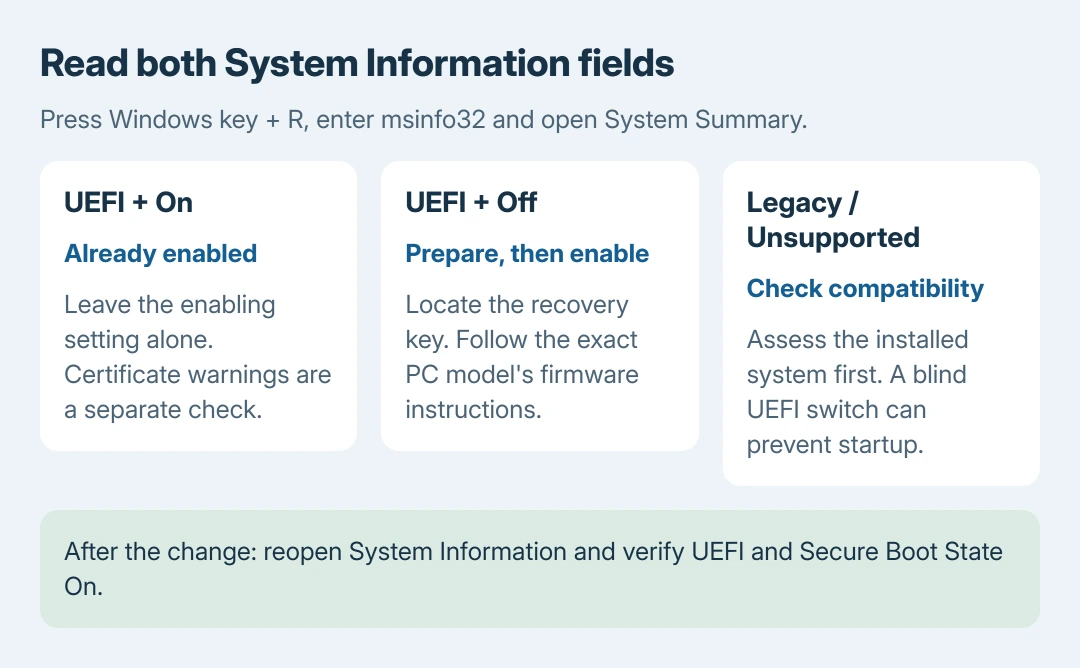
Press Windows key + R, enter msinfo32 and press Enter. Select System Summary. Find BIOS Mode and Secure Boot State in the right-hand list.
Dell documents this check in its Secure Boot setup guide. Read both fields together rather than treating every Off or Unsupported result as the same problem.
Status: Microsoft's Windows 11 Secure Boot and recovery-key guidance and Dell's firmware instructions checked October 27, 2026. No firmware or encryption setting was changed.
- UEFI and On: Secure Boot is already enabled. A certificate warning is a separate issue.
- UEFI and Off: Continue with preparation and the manufacturer's firmware instructions.
- Legacy or Unsupported: Check the PC's UEFI support and current Windows installation before changing boot mode.
The existing Secure Boot warning guide explains certificate messages. Enabling the feature and confirming certificate updates are different tasks.
Keep the recovery key accessible outside the PC
Microsoft says startup security or hardware changes can trigger a BitLocker recovery-key request. If device encryption or BitLocker is enabled, find the key before restarting into firmware.
Use Microsoft's recovery-key instructions to check the relevant Microsoft account, work account, printout or saved copy. It is a 48-digit key, not the Windows sign-in PIN.
Keep it accessible from another device or a paper copy. A key stored only on the drive that may lock is no help during startup. For an organization-managed PC, let IT handle the firmware change and recovery arrangements.
Back up important files too. Our stopping rule is simple: if the recovery information is unavailable or the model's instructions are unclear, resolve that before altering startup security.
Enter UEFI settings from Windows
Microsoft's Windows 11 and Secure Boot instructions give this route:
- Open Settings > System > Recovery.
- Under Advanced startup, select Restart now after saving work.
- Choose Troubleshoot > Advanced options > UEFI Firmware Settings.
- Select Restart to open the firmware setup screen.
If UEFI Firmware Settings is absent, use the PC maker's documented startup method. On Dell's supported models, tapping F2 when the Dell logo appears opens setup. Other makers use different keys and menus.
An absent Windows button does not establish that enabling Secure Boot is safe or that hardware lacks UEFI. Check the exact model's support information instead of following a menu for an unrelated motherboard.
Enable the option shown in the model's manual
For a PC already starting Windows in UEFI mode, find Secure Boot in firmware. Follow the manufacturer's procedure to change it to Enabled, then apply the change and save before exiting.
Dell's documented example uses Secure Boot > Enabled, followed by Apply or Save and Exit, depending on the model. It explicitly notes that BIOS layouts vary, so this is an example rather than a universal menu path.
Do not clear the TPM, delete Secure Boot keys or change storage-controller settings while looking for the switch. Those are separate actions.
If the option is grayed out or requires unfamiliar key-management changes, stop and ask the PC maker or IT.
After Windows starts, reopen msinfo32. Check that BIOS Mode still reads UEFI and Secure Boot State now reads On. That is the enabling result to verify.
Legacy mode needs preparation, not a quick toggle
Dell warns that changing Legacy to UEFI can leave the current installation unbootable. A Windows system disk using MBR needs an appropriate migration plan before the firmware switch.
The MBR-to-GPT conversion procedure covers Microsoft's separate validation and conversion tool. Do not run conversion merely because an online instruction says to disable CSM.
Microsoft states that the Windows 11 upgrade requirement is Secure Boot capability through UEFI, while enabling it provides additional protection. Turning on one switch does not establish that the PC meets all Windows 11 requirements.
If Windows no longer starts after a change, restore only the setting changed using the maker's instructions, provided no disk conversion was performed. For a recovery-key prompt, match the key ID and enter the corresponding saved key.
If that does not recover startup, contact the manufacturer or IT with the original two field values and changes made. Avoid repeated key deletion, disk erasure or random boot-mode changes.
The Short Version
Check BIOS Mode and Secure Boot State, prepare the backup and recovery key, then follow the exact PC's firmware procedure. Verify UEFI and On afterward. Legacy installations need their own migration assessment before changing the boot mode.

Isaac Smith is the founder and editor of PC Glance, a website that covers computers, laptops, and technology. He is a tech enthusiast and a computer geek who loves to share his insights and help his readers make smart choices when buying tech gadgets or laptops. He is always curious and updated about the latest tech trends.