
Windows Security on your PC shows a yellow or red mark on Secure Boot, and the words under it sound serious. That is worrying when the PC seems to run fine. I would read the exact message first, because each one has a different answer.
The marks are new this year, and they come from Microsoft's work to replace the Secure Boot certificates from 2011 before they run out.
Where the warning comes from
Microsoft added the status in April. In its words: "Starting in April 2026, the Windows Security app displays additional information about the status of Secure Boot certificate updates on your device".
The reason is a deadline, since Microsoft says the "Secure Boot certificates, originally issued in 2011, are approaching expiration in 2026".
The colors follow a simple rule. Microsoft says "A yellow icon means that there is a safety recommendation for you", and "A red icon indicates something that needs your immediate attention".
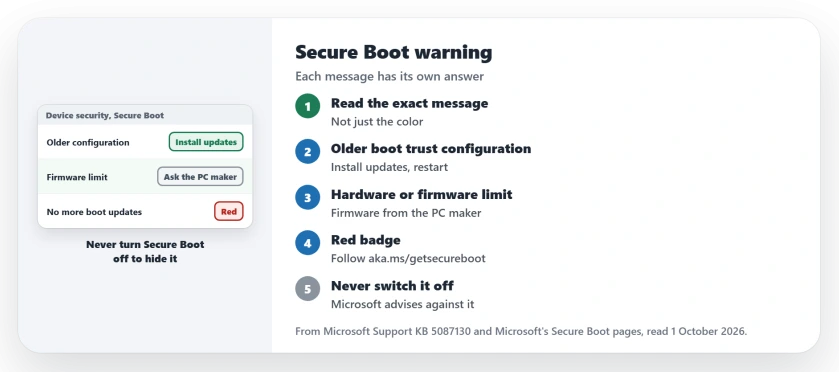
Status: checked 1 October 2026. Microsoft says most PCs get the new certificates through Windows Update. A yellow badge points to a hardware or firmware limit, which the PC maker must fix.
1. Read the message, not just the badge
Open Windows Security, then Device security, and look at the Secure Boot section. The words there matter more than the color.
Even green needs a second look. Microsoft warns: "A green checkmark alone does not confirm your certificates are updated".
The line you want to see starts "Secure Boot is on and all required certificate updates have been applied". If yours says that, you are done.
An adviser on Microsoft's forum gave a worried owner the same advice. In their words: "The correct steps depend entirely on which message appears".
2. Older boot trust configuration: install updates
This message asks the least of you. It reads: "Secure Boot is on, but your device is using an older boot trust configuration that should be updated".
Microsoft's answer is short: "Make sure your device has the latest Windows updates installed. Restart if prompted". Then read the message again after the restart.
You may also see that updates are paused for a known issue. Microsoft says to leave that one: "The certificates update will resume automatically once the issue is resolved".
3. Hardware or firmware limit: ask the PC maker
A yellow badge can mean the PC itself is the block. The message says your device "does not support the automated Secure Boot certificate update due to hardware or firmware limitations".
Microsoft explains why only the maker can help. It says Secure Boot "is designed so that only the original equipment manufacturer (OEM) can authorize changes to your PC at this root level".
So look up your model on the maker's support site and check for a firmware or BIOS update. Microsoft adds that "Some devices require a firmware update from the PC manufacturer before you can install the necessary Secure Boot updates".
4. Red: the PC can no longer get boot updates
The red message reads: "Secure Boot is on, but this device can no longer receive required updates for the Windows boot experience". Microsoft points you to aka.ms/getsecureboot for the next step.
It is not an emergency on day one. Microsoft says: "Your device will continue to work normally for some time".
The risk grows over time. Microsoft says that later, "your device might not be able to receive security updates that protect the Windows startup process".
5. Do not turn Secure Boot off to silence it
Turning the feature off makes things worse, not better. Microsoft's page for blocked updates says: "Disabling Secure Boot is not recommended".
You can dismiss a warning, but Microsoft advises against it before the update lands: "If your device has not yet received the updated certificates, dismissing the warnings is not recommended".
Ours, for a sense of what done looks like: this Windows 11 Home PC reads Updated in its UEFICA2023Status registry value. Microsoft uses that word once "all new keys and the new boot manager have been deployed".
For the background on the expiry itself, the Secure Boot certificate page covers it. And if your maker offers a firmware update, the BIOS update page helps you decide.
What does the yellow Secure Boot badge mean in Windows Security?
Microsoft says it means an actionable issue, such as a hardware or firmware limit that blocks the automatic certificate update. Contact your PC maker.
Will the Secure Boot certificates update by themselves?
In most cases, yes. Microsoft says the update arrives through Windows Update, so install updates and restart when asked.
Should I turn off Secure Boot to stop the warning?
No. Microsoft says disabling Secure Boot is not recommended, because it leaves the PC less protected than before.
The Short Version
- The warning is about certificates from 2011.
- Read the exact message under Secure Boot.
- A green tick alone does not prove it is done.
- Older boot trust configuration means install updates.
- A firmware limit means asking the PC maker.
- Red means the PC can no longer get boot updates.
- Never turn Secure Boot off to hide it.
Where to Next
Go to Windows Security now and write down the exact Secure Boot message. Then run Windows Update and restart if it asks.
If your message is not one of these, copy it into a comment with your PC model. I will add the answer for each new message to this page.

Isaac Smith is the founder and editor of PC Glance, a website that covers computers, laptops, and technology. He is a tech enthusiast and a computer geek who loves to share his insights and help his readers make smart choices when buying tech gadgets or laptops. He is always curious and updated about the latest tech trends.