
HP laptop display issues can begin before Windows starts or appear only after sign-in. Restart once and watch the HP logo.
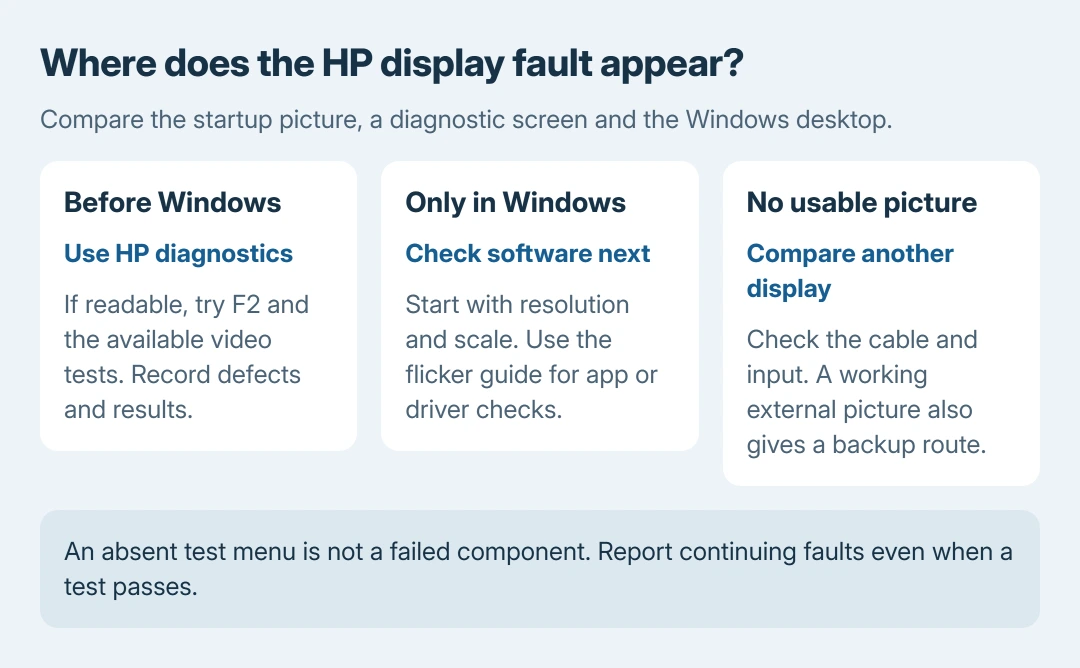
A line, distorted picture or dark panel during startup needs different attention from text that becomes blurry only in Windows.
If the screen remains readable, use HP's startup diagnostics to check the available video tests. If it is completely dark, compare an external display before trying settings that cannot be seen.
Compare the startup picture with the Windows desktop
Save open work, restart and look for the same defect on the HP logo. Then note whether it changes when Windows loads. Avoid pressure on the glass and twisting the lid to change a stripe.
HP says its UEFI hardware diagnostics runs outside the operating system. That makes it useful when a display fault must be checked without relying on the Windows desktop.
Status: HP's diagnostics page and service manual, plus Microsoft's Windows display guidance, checked October 27, 2026. Test availability varies by model. No HP laptop was tested.
A fault visible before Windows loads cannot be explained solely by an app running on the desktop. A clean startup picture, however, does not prove the panel is healthy under every workload or at every refresh rate.
If the laptop has no power response at all, use the HP power and adapter checks. A silent machine that never powers on cannot run an on-screen display test.
Open HP's available video tests during startup
Shut the laptop down, then switch it on and immediately tap F2 repeatedly. If HP PC Hardware Diagnostics UEFI opens, look for Component Tests > Video.
This route is documented by HP in its maintenance and service guide, in the video-troubleshooting section. The manual is an example of the supported route; test menus differ between HP models and diagnostic versions.
When offered, run Video Memory Check and Palette Check, following the displayed instructions. The former tests video memory; the latter checks the red, green and blue color components.
Watch for the original picture defect during the test.
Record the result and any failure ID. HP states that a 24-digit failure ID, together with the product number, can start its repair process through the diagnostics support page.
If this menu is absent, that is an unavailable test, not a failed panel. Check HP's official diagnostics page for the tool supported by the model, or ask HP Support. Do not change boot security settings just to chase a missing menu.
A failed test or the same distortion outside Windows is a reason to give HP the result. A passing result still leaves the possibility of intermittent cable or panel trouble.
Use an external display when the built-in screen is dark
Connect a working monitor or TV using a video-capable port and compatible cable. Select that cable's input on the external screen. If Windows is running and visible there, press Windows + P to choose the needed display mode.
Microsoft documents checking connections and display modes in its blank-screen instructions. A USB-C socket is useful only if that model's port supports video output.
If the external picture is usable, back up important files before arranging repair. The built-in display path needs assessment; the comparison does not name a particular cable, panel or graphics component as conclusively faulty.
If both displays stay blank, report that too. It can reflect a wider startup or graphics problem, rather than two failed screens. Record any repeating beep or light pattern and use the code information for this exact HP model.
For a separate Dell monitor that shows its own picture defect, the Dell monitor self-tests check that monitor independently. Those monitor controls are not HP notebook startup keys.
Correct Windows-only size, blur or flicker
For oversized elements or soft text across Windows, open Settings > System > Display. Select the affected display and use the Recommended resolution and scale where offered.
Check whether the desktop becomes sharp before changing drivers.
For a Windows session that suddenly turns black, Microsoft says Windows + Ctrl + Shift + B can reset the graphics driver. A brief screen response is possible; the shortcut does not repair physical display damage.
If Windows flickers while HP's startup picture stays stable, use the Task Manager flicker comparison. It provides the driver-versus-app checks without applying random firmware changes to every flicker.
A Lenovo notebook has different firmware controls and display features. The Lenovo screen troubleshooting explains those differences; do not apply its Novo-button or Vantage instructions to an HP.
Take persistent lines or distortion to HP
Photograph the fault and collect the product number, test result and external-display result. Explain whether it began after an impact, update or repair, and whether it appears before Windows starts.
Ask HP about warranty coverage and an inspection. A persistent crack, dark region or line in a diagnostic picture has no settings-based repair established by the sources used here. Avoid opening the lid assembly or pressing on its glass.
Our recommendation is to keep a usable external display for backup while the service decision is made. Continued access to files matters more than repeatedly reinstalling Windows for a defect already visible outside it.
The Short Version
Compare startup and Windows, run the available HP video tests, and record any failure ID. Use an external screen for comparison and backup. Fix Windows-only display settings separately; persistent startup distortion needs HP's assessment.

Isaac Smith is the founder and editor of PC Glance, a website that covers computers, laptops, and technology. He is a tech enthusiast and a computer geek who loves to share his insights and help his readers make smart choices when buying tech gadgets or laptops. He is always curious and updated about the latest tech trends.