

To split cells in Excel, separate their contents with Text to Columns, or use TEXTSPLIT for results linked to the source.
Excel cannot cut one ordinary worksheet cell into smaller independent cells like a Word table.
Choose a separator that actually marks the data fields, such as a comma. Keep the source and leave an empty output area before starting, so a successful split does not overwrite other work.
Choose between a one-time split and a formula
For a fixed list of comma-separated codes, the desktop Text to Columns wizard produces separate values. For results that should recalculate as the source changes, a supported Excel version can use TEXTSPLIT in another cell.
Microsoft says splitting a cell means distributing its contents, rather than dividing the grid position itself. If the cell was previously merged, use the Excel unmerge instructions for that layout change.
Status: Excel splitting, TEXTSPLIT and Flash Fill documentation checked October 27, 2026. Formula examples are explanatory, not results from a local Excel test.
Our recommendation is to copy a few representative rows to a spare sheet first. Include an entry with extra separators or a multiword name. Check the resulting fields before applying the method to the full list.
Split a desktop column with Text to Columns
Leave enough empty columns for every resulting field. Select the source cells in a single column, then open Data > Text to Columns. Microsoft's walkthrough explains that sequence in the wizard instructions.
- Choose Delimited, then Next.
- Select the actual delimiter, such as Comma, and clear unwanted choices. Inspect Data preview for the intended breaks.
- Select Next. Set Destination to an empty starting cell, such as B2, rather than overwriting the source.
- Select Finish, then compare the output against the original rows.
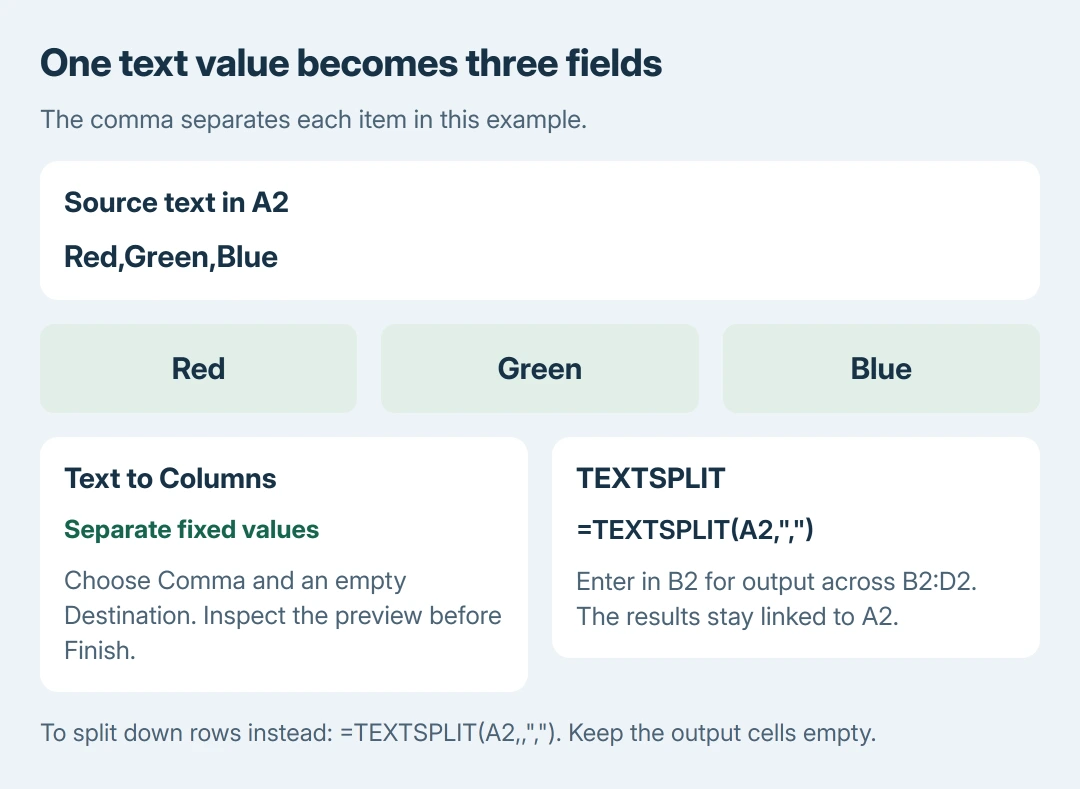
For example, Red,Green,Blue with Comma selected should produce three separate fields. Selecting Space as well is unnecessary for that input and can split multiword text that belongs together.
For codes with leading zeros, compare output with the original text after Finish. Undo if identifiers changed. The TEXTSPLIT route keeps the source available for a safer comparison.
Cancel if the preview is wrong. The delimiter is a rule applied to all selected entries; it cannot know which space belongs inside a person's surname or an address.
If later pastes begin splitting unexpectedly, use the remembered-delimiter fix. That separate behavior does not mean this intentional conversion failed.
Use TEXTSPLIT to keep the original linked
For Red,Green,Blue stored in A2, enter this in an empty B2:
=TEXTSPLIT(A2,",")The output spreads across B2:D2. A2 stays the source, so changing its text changes the calculated output. Keep that surrounding area empty for the formula's results.
Microsoft states in its TEXTSPLIT reference that the function supports column and row separators. Its desktop compatibility list includes Microsoft 365 and Excel 2024, including Mac editions.
Microsoft's split-cell page also documents TEXTSPLIT for Excel for the web, which lacks the desktop wizard. Excel 2021, 2019 and 2016 do not gain this function simply because the wizard exists there.
Some web layouts offer Data > Split Text to Columns instead. Microsoft's column-distribution guide describes selecting the delimiter and choosing Apply there. That simpler panel differs from the desktop wizard.
To put the same comma-separated items into rows instead, leave the column-separator argument empty:
=TEXTSPLIT(A2,,",")Entered in B2, that example returns the three items down B2:B4. Use the horizontal formula when fields belong beside one record; use the vertical formula when the items should occupy separate rows.
The formulas shown use English function names and comma argument separators. Some regional Excel settings require semicolons between arguments. Keep the quoted comma unchanged because it represents the separator inside the source text.
Use Flash Fill when examples express the pattern better
For a list of full names in column A, type the intended first result in B2, then begin the next example in B3. Excel can offer a preview of the detected pattern; inspect it before accepting with Enter.
Microsoft documents Data > Flash Fill when the automatic preview does not appear. Its Flash Fill guide uses examples to extract first and last names into different columns.
Check compound surnames, missing parts and unusual punctuation manually. Flash Fill's filled values are not a formula connection to the originals. A changed source needs the extraction reviewed again.
Check the first, last and unusual rows before replacing data
Confirm that each output field contains the intended information and that identifiers retain their zeros. Keep the original sheet until the downstream sort, import or formula still works with the new columns.
For #SPILL!, inspect the intended output area for existing content or merged cells before changing the formula. If TEXTSPLIT is unrecognized, check the Excel edition and use the desktop wizard when supported.
If the available command differs from the documented screen, give Microsoft Support the Excel version, platform and a made-up example with the same separators.
That supplies the structure needed for help without sharing private worksheet records.
The Short Version
Text to Columns creates separate values; TEXTSPLIT supplies linked results across columns or down rows. Check the separator and destination first.
Use the linked guides for unmerging or unwanted splitting during a paste.

Isaac Smith is the founder and editor of PC Glance, a website that covers computers, laptops, and technology. He is a tech enthusiast and a computer geek who loves to share his insights and help his readers make smart choices when buying tech gadgets or laptops. He is always curious and updated about the latest tech trends.