
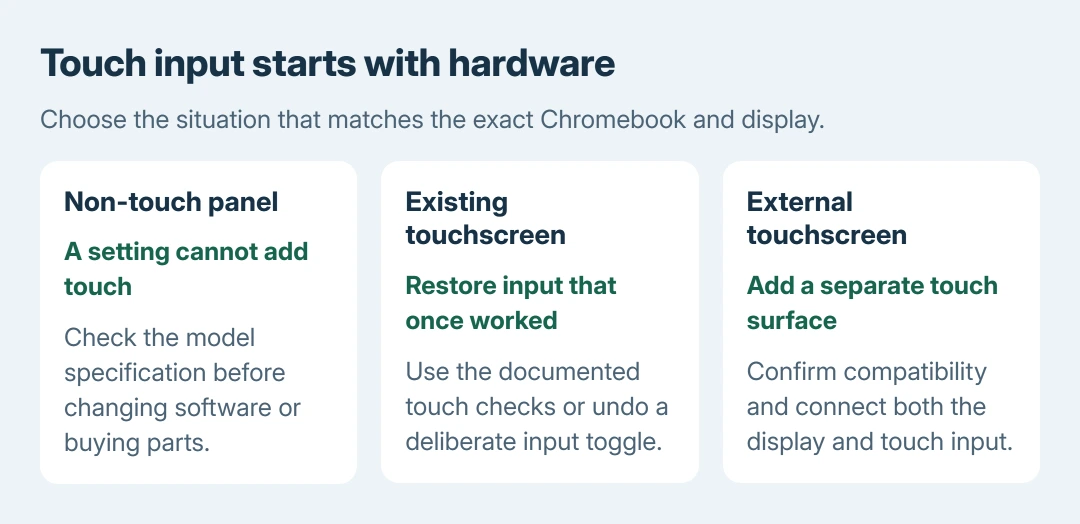
A Chromebook without touch hardware cannot become touchscreen through a setting, keyboard shortcut or extension. Check the exact model's display specifications first.
A compatible external touchscreen is a separate way to add touch input without replacing the laptop's own panel.
An existing touchscreen that stopped responding needs troubleshooting instead. Those are different situations, even when both leave taps doing nothing.
Check whether the exact display supports touch
Find the full model or product number on the Chromebook's label, then open that configuration's specifications on the manufacturer's support site. Look for an explicit touchscreen or touch-enabled display description.
Do not rely on the family name alone. A product family can have several configurations. A screen that folds around is also a different specification from the presence of touch input.
Status: Google's touchscreen, external-display and on-screen keyboard instructions checked October 28, 2026. No Chromebook or monitor was connected or modified.
Google's touchscreen instructions apply to Chromebooks that already have a touchscreen. Their tap, scroll and pinch gestures do not add a sensing layer to an ordinary display.
If the specifications say non-touch, stop looking for an enable switch. Ask the manufacturer about supported hardware options before buying a replacement panel; a panel fitting the lid does not establish electrical compatibility.
Use a compatible external touchscreen for a separate surface
For an external touchscreen, use the calibration procedure documented by Google. Confirm ChromeOS compatibility with the monitor maker before purchasing or connecting one.
Follow that monitor's connection instructions for both the picture and touch input. A visible picture alone does not establish that its touch connection is working. Keep the laptop's keyboard and touchpad available during setup.
Open Settings from the bottom-right time panel. Under Device, open Displays and select the external touchscreen. Choose Calibrate touchscreen, then tap the indicated circles on that screen if calibration is needed.
Google says calibration has no effect on a non-touch display. Press Esc to leave the tool if it was opened for the wrong screen. Calibration corrects alignment on supported hardware; it does not convert a monitor.
Use the Chromebook orientation controls if the external picture is sideways. Rotation and touch alignment are separate adjustments.
When a touchscreen used to work
Start with the model's cleaning instructions and remove dust or dirt from the screen. Test an ordinary tap afterward. Google states that its touchscreen troubleshooting continues with a hardware reset, then a factory reset if necessary.
Before either reset, read its data warning and preserve local files. A factory reset is an erase operation and cannot add missing touch hardware. For a known touch model that remains unresponsive, contact its manufacturer.
If touch was deliberately disabled with a debugging control, use the existing touchscreen toggle procedure to restore it where that experimental control remains available.
That toggle changes input from an installed touchscreen. A failed shortcut on a non-touch Chromebook is not evidence that ChromeOS needs reinstalling.
An on-screen keyboard does not change the display hardware
Google's on-screen keyboard guide places the control under Settings > Accessibility > Keyboard and text input > On-screen keyboard. It displays keys that can be selected onscreen.
Enabling it does not make the panel detect a finger. Likewise, tablet behavior is intended for a Chromebook designed for that mode, rather than a conversion for every laptop.
Our advice is to make the hardware decision first. Give the manufacturer the complete model number and whether touch ever worked. For an external monitor, include its model and the cables used for video and touch.
The Short Version
Check the exact Chromebook's display specification. Software cannot add touch sensing to a non-touch panel.
Use compatible external touch hardware, or troubleshoot the existing touchscreen with the manufacturer's instructions.

Isaac Smith is the founder and editor of PC Glance, a website that covers computers, laptops, and technology. He is a tech enthusiast and a computer geek who loves to share his insights and help his readers make smart choices when buying tech gadgets or laptops. He is always curious and updated about the latest tech trends.