
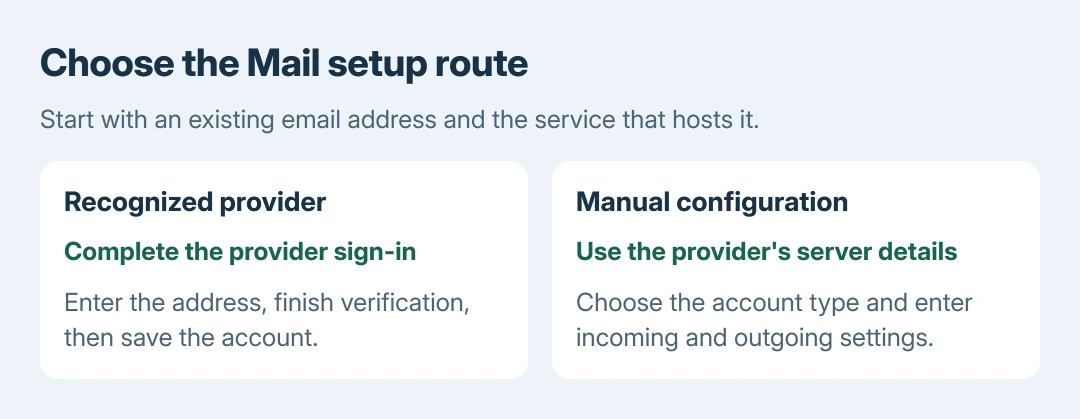
Adding email to an iPhone starts in Settings > Apps > Mail. Open Mail Accounts, select Add Account, then enter the address and follow the provider's sign-in prompts. This connects an existing mailbox to Apple's Mail app.
For a less common provider, have its incoming and outgoing server settings ready. Creating a new email address is a separate task that belongs with the provider.
Start with the account list in Settings
Open Settings, choose Apps, then Mail. Tap Mail Accounts and check whether the address is already listed. An account that is present but not receiving messages needs attention to that entry before another is added.
Apple documents the current account screen in its iPhone Mail account guide. On iOS 17 and earlier, Mail is directly in Settings rather than inside Apps.
Status: Apple's Mail setup and account instructions checked October 28, 2026, including the iOS 27 address-first screen. No email account was accessed or added.
Avoid a second entry for the same mailbox. The duplicate-message checks explain why two configured copies can make cleanup confusing.
Sign in through the matching email provider
- Tap Add Account and enter the complete email address.
- Continue through the sign-in prompts. If necessary, use choose from a list to select the service that hosts the mailbox.
- Complete the provider's password and verification steps. Use the email account's password, which can differ from the iPhone passcode or Apple Account password.
- Let Mail verify the account. Tap Next or Save when offered, and finish any requested confirmation.
Apple says common services can supply their settings automatically in its email setup instructions. The provider selection matters; a company address may use Microsoft Exchange despite having no Microsoft name after the @ sign.
For a managed work mailbox, use the service and enrollment method specified by the organization. Ask its administrator when sign-in requires approval or a management step. Guessing a different provider does not satisfy that requirement.
Enter server details only for a manual account
After entering the address and continuing, choose Add Other Account, then Mail Account when the service is not listed. Supply the requested name, address, password and account description.
Mail first attempts to discover the settings. If it cannot, obtain the provider's IMAP or POP choice and the server details for receiving messages and sending them. Enter the supplied values, then continue and save.
Apple states that an account with unverified or incorrect settings needs those details corrected. A server name copied from a different email service will not establish the right connection.
Our recommendation is to ask the provider which account type to use before choosing POP. Its storage and synchronization behavior can differ from IMAP, which matters when the same mailbox is used on several devices.
Confirm the mailbox can receive and send
Open Mail, return to Mailboxes, and select the new account's Inbox. Send a small message to that address from another account. Then reply, checking that the From address belongs to the newly added mailbox.
That comparison is ours: receiving checks one direction, while the reply checks the outgoing connection. Seeing an account name in Settings alone does not establish both.
An account that works only after opening Mail may have a separate background email-fetch issue. Check that behavior after setup succeeds, rather than adding the same account again.
If verification never finishes, confirm the credentials on the provider's sign-in page. Ask for its current Mail settings, or give a work administrator the error. Keep passwords and verification codes private.
The Short Version
Use Mail Accounts to add the address, complete the correct provider's sign-in, and save. Manual accounts need the provider's server details. Check one incoming message and one reply before treating setup as complete.

Isaac Smith is the founder and editor of PC Glance, a website that covers computers, laptops, and technology. He is a tech enthusiast and a computer geek who loves to share his insights and help his readers make smart choices when buying tech gadgets or laptops. He is always curious and updated about the latest tech trends.