
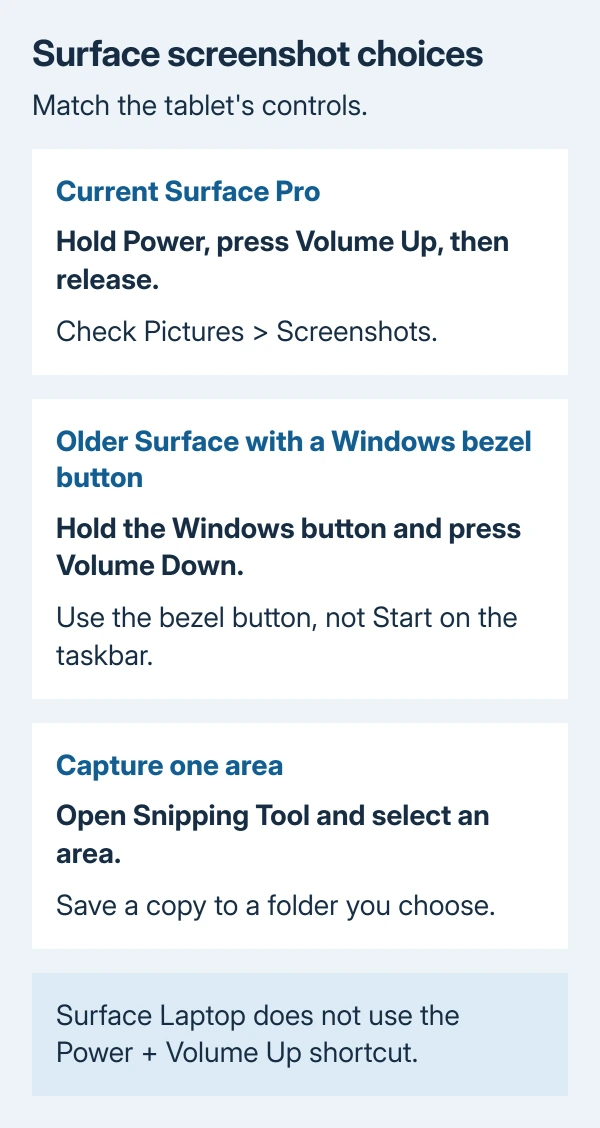
To screenshot on a Surface Pro without its keyboard, hold Power, press Volume Up, then release the buttons. Microsoft's Surface instructions use that combination to capture the screen and save it in Pictures > Screenshots.
An older Surface with a Windows-logo button on the display bezel uses a different combination. For a selected area instead of the whole display, open Snipping Tool with the touchscreen.
Capture the screen with the tablet's buttons
Bring the wanted page or app into view with Windows running. Close private messages or other content that should not appear in the capture. The hardware shortcut captures the screen without an attached Type Cover.
Microsoft documents holding Power and then pressing Volume Up in its Surface screenshot instructions. Release after the press; a screenshot does not require a prolonged restart hold.
Status: Microsoft's Surface capture and Snipping Tool instructions checked October 29, 2026. Older bezel-button models have a separate shortcut. No Surface was operated or tested.
Open File Explorer > Pictures > Screenshots to check the result. Inspect the newest image even if the screen briefly changed. Our check is to confirm that the saved picture actually contains the intended content.
Use the physical buttons on the tablet, not volume keys on an attached keyboard. Microsoft explicitly excludes Surface Laptop from this button shortcut, even though it shares the Surface name.
A Surface Duo also has different instructions. Its Power and Volume Down combination is not the current Surface Pro shortcut.
Use the Windows bezel button on an older Surface
Some older Surface Pro models have a Windows-logo touch button beside the display. That is a control on the tablet's bezel, separate from the Windows key on a keyboard.
For that older design, hold the Windows button and press Volume Down. Microsoft states in its 2014 Surface instructions that the display briefly dims and the capture saves inside Pictures.
Do not substitute the Start icon in the taskbar for the bezel button. A newer Surface without that physical control needs the current button shortcut or Snipping Tool. The button layout determines which instructions apply.
Select an area using the touchscreen
Open Start, search for Snipping Tool, and open the app. In the current Windows 11 app, choose still-image capture, select Rectangle as the snipping mode, then choose New.
In the classic Windows 10 tool, open Mode, choose the rectangular snip option, then select New.
Drag across the area to capture using touch. The image opens in Snipping Tool for review and markup. In the current Windows 11 app, select Save as, choose a filename and folder, then save the finished copy.
Microsoft says Snipping Tool also offers Window and Full screen capture modes. Rectangle is useful when the rest of the display contains information that should stay private.
With a working keyboard attached, Windows + Shift + S opens the capture overlay directly. The Windows screenshot methods cover additional keyboard choices for a whole screen or active window.
Find the saved image before repeating the capture
The Surface button method saves to Pictures > Screenshots. Open Pictures through File Explorer's navigation rather than guessing a full user-folder path.
The current Snipping Tool on Windows 11 can save captures automatically. Open See More > Settings to check automatic saving and the screenshot folder. Its setting can differ from the location used by the tablet buttons.
In the classic Windows 10 Snipping Tool, select Save Snip after capturing. In the Save As box, enter the filename, location and file type, then select Save.
A manually saved copy goes to the folder chosen in Save as. Open that copy before closing the tool or sharing the file, especially after cropping private details out of the original.
If the buttons do not produce a screenshot
Try the touchscreen Snipping Tool procedure. A successful capture there gives a working alternative and helps distinguish a button-shortcut problem from an app that cannot capture at all.
If only the keyboard shortcut fails, check whether ordinary typing works. A disconnected or faulty cover needs the Surface keyboard connection checks; the tablet's capture buttons do not depend on it.
If neither capture route works, contact Microsoft Surface support through the Surface app or Get Help. Provide the exact Surface model, Windows version and whether a screenshot file appears despite no visible response.
The Short Version
Match the shortcut to the tablet's buttons, then check the saved file. Older bezel-button models use Windows with Volume Down. Snipping Tool supplies a touchscreen route for an area selection and a chosen save location.

Isaac Smith is the founder and editor of PC Glance, a website that covers computers, laptops, and technology. He is a tech enthusiast and a computer geek who loves to share his insights and help his readers make smart choices when buying tech gadgets or laptops. He is always curious and updated about the latest tech trends.