

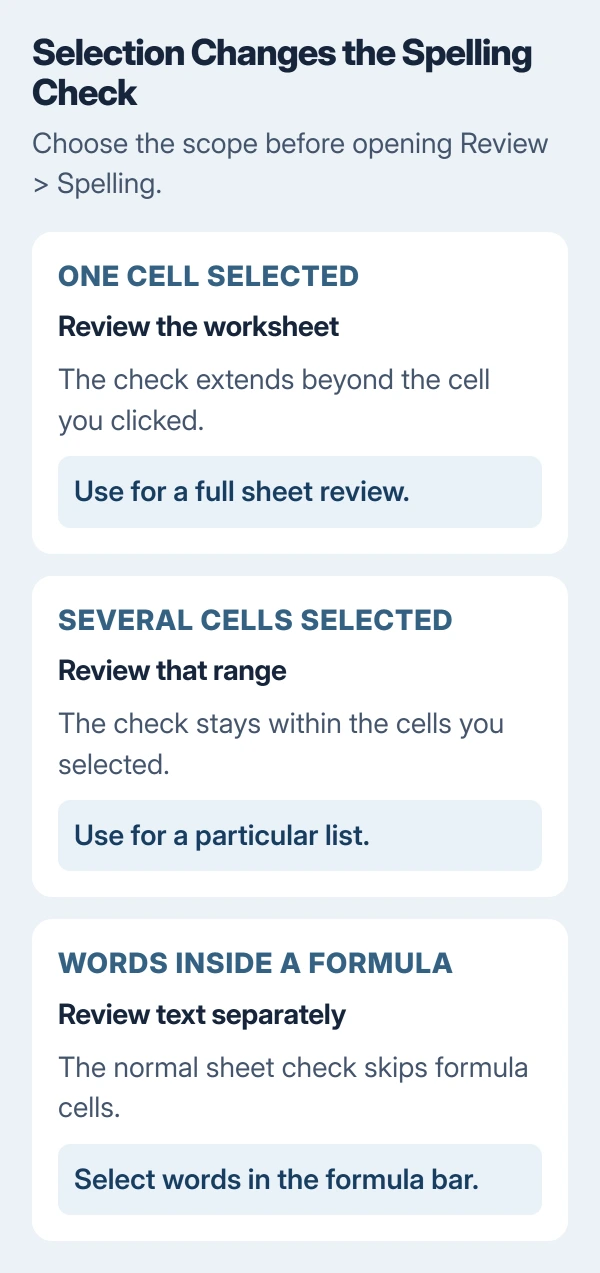
Spell check in Excel starts from Review > Spelling. On desktop Excel, F7 also starts it. The selection matters: one selected cell checks the worksheet, while a selected range limits the check to that range.
Missing red underlines do not mean the checker is broken. Excel's spelling review is a manual command, and cells containing formulas need separate attention.
Choose what Excel should check
Open the intended worksheet and finish editing the current cell. Microsoft's worksheet spelling instructions distinguish selecting one cell from selecting several.
Click one cell for the sheet, or select the specific range to review. A sheet check also covers text in comments, page headers, footers and graphics.
Status: Microsoft's Excel spelling guidance checked October 29, 2026. Desktop and browser routes were read from its support page. These steps were not run in Excel.
- Open Review and select Spelling, in the Proofing group where shown.
- Inspect each flagged word and the proposed replacement.
- Finish the check, then review any other worksheet that needs proofreading.
Microsoft states this menu route works in Windows, Mac and web versions. Use the menu if a keyboard shortcut controls something else on the computer or in the browser.
Accept only the changes the text needs
Choose a suggestion and select Change for the current occurrence. Change All applies that replacement to every occurrence covered by the command, so inspect names and product codes before choosing it.
Use Ignore Once to leave the current word alone, or Ignore All to skip its other occurrences. A correct specialist term does not need to become a different dictionary word just to satisfy the checker.
Microsoft's Office proofing guide documents these choices.
Microsoft says the Spelling dialog may not open when no error is detected or the word already exists in the dictionary.
Read important names, addresses and amounts yourself before sending the workbook. A correctly spelled word can still be the wrong entry; spelling review does not verify the record's facts.
Treat formula text and formula errors separately
The ordinary spelling pass skips cells containing formulas. To review words inside an expression, select those words in the formula bar and run Spelling.
A misspelled function can instead produce #NAME?. Microsoft's formula-error reference identifies unrecognized function or range names as causes of that error.
On desktop Excel, Formulas > Formula Auditing > Error Checking reviews calculation errors. Read the reported cause before changing the expression. That command checks different problems from the spelling of a customer name.
For a calculation showing #VALUE!, inspect the formula's text and number inputs. Running Spelling repeatedly will not convert an unsuitable input into the value the calculation needs.
Set the dictionary language in desktop Excel
In desktop Excel, choose the intended language from Dictionary language during the spelling check. Microsoft documents that control for Excel and Access.
A dictionary for the wrong language can reject the intended wording. Review the dictionary choice when ordinary words are being flagged throughout a range.
If Excel finds no error and the dialog stays closed, Microsoft suggests deliberately misspelling a word to open it. Use a temporary entry in a spare cell, change the dictionary, then remove that entry before saving.
A missing language can require an Office language pack. On a managed computer, ask the administrator to provide the required proofing tools instead of replacing the text with another language's suggestions.
Use AutoCorrect for recurring typing mistakes
Excel does not provide automatic spelling and grammar checking like Word. Microsoft's Office guide also distinguishes Excel's spelling review from a grammar check.
For a typo repeated while typing, Windows Excel offers File > Options > Proofing > AutoCorrect Options. These replacements also affect other Office apps that support AutoCorrect, so choose entries that should apply there too.
On the AutoCorrect tab, enable Replace text as you type. Enter the mistyped text in Replace and the intended text in With, then select Add > OK.
Microsoft's AutoCorrect instructions also explain how to select an unwanted replacement and choose Delete. Review those entries when Excel changes a valid name during typing.
For a shared status column with fixed choices, an Excel drop-down list can control the permitted wording. AutoCorrect is more appropriate for a personal typing mistake than for enforcing a shared list.
If a known typo in plain text still gets no response, send the Excel version, selected range and dictionary language to Microsoft Support. Include a small example without private records so the behavior can be checked.
The Short Version
Run Spelling with the intended selection, review replacements, and choose the correct dictionary. Check formula words separately. Use AutoCorrect for recurring typos, then proofread important entries before sharing the file.

Isaac Smith is the founder and editor of PC Glance, a website that covers computers, laptops, and technology. He is a tech enthusiast and a computer geek who loves to share his insights and help his readers make smart choices when buying tech gadgets or laptops. He is always curious and updated about the latest tech trends.