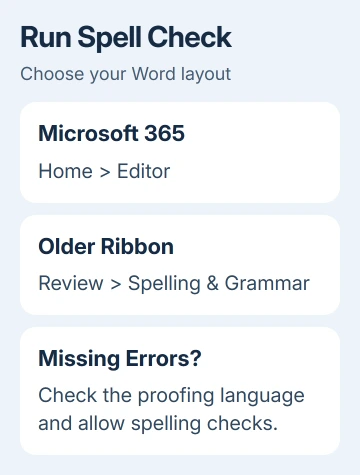
Microsoft Word spell check runs from Home > Editor, or Review > Spelling & Grammar in versions with the older ribbon. Open that tool to work through spelling suggestions for your document.
When obvious mistakes aren't flagged, check the text's proofing language and whether spell check is turned off for it.
Red spelling marks while you type and a full document review are separate controls. Word can still run a manual spelling check when its automatic marks are hidden, so missing marks alone don't mean the dictionary has stopped working.
In this guide
Run the spelling check for your version of Word
Click in the text of the document that needs proofreading. In Word for Microsoft 365, choose Home > Editor. Some ribbon layouts also offer Editor on Review.
The Editor pane groups possible problems into categories, including spelling. You can work through its suggestions without searching each page yourself.
Older desktop releases may use Review > Spelling & Grammar. On Windows, F7 also starts a check. If your laptop's top row controls brightness or sound, you may need Fn + F7 to run the check.
On Mac, open the same Review tab and choose the spelling tool your version shows. Option + Command + L is another spelling-review shortcut. Using the ribbon is easier when your keyboard's function-key behavior is unfamiliar.
Microsoft explains both automatic marks and a full review in its Office spelling instructions.
The tool highlights possible errors; you still choose which suggestion fits the sentence.
Start with the spelling category if the pane also shows grammar or style suggestions. Check names, part numbers and sentence meaning yourself, regardless of the Editor score.
If a document opens read-only, switch to an editing mode or ask its owner for permission before trying to apply corrections. A shared file can allow reading while keeping editing turned off.
Choose a correction without changing the meaning
Select a flagged word to see suggestions. Read the surrounding sentence, then choose the spelling you intended. Word updates the text, and the review moves on to another possible problem.
In an older Spelling & Grammar dialog, choose the suggested word and select Change. Use Change All only when you want that correction everywhere the word appears. A short name or abbreviation can have more than one meaning.
Ignore Once leaves that instance unchanged. Ignore All skips the repeated word for that review. Add to Dictionary tells Word to accept the spelling in future checks that use that dictionary.
I'd add a name to the dictionary only after checking its spelling against the original. Adding a misspelled company or client name teaches Word to accept it, so later checks won't catch it.
If Word flags a correctly spelled word because it belongs to another language, set the right proofing language before adding it to a dictionary. A whole paragraph of French shouldn't need an English dictionary full of exceptions.
The Excel spell-check procedure differs when the text is in a workbook. Word's document review and Excel's selection-based checking don't cover the same material.
Restore red spelling marks on Windows
Open File > Options > Proofing. Under the options for correcting spelling and grammar in Word, turn on Check spelling as you type. Click OK and return to the document.
In the same Proofing panel, check the document exceptions if mistakes remain hidden in this file. Clear Hide spelling errors in this document only when it's selected for the affected document.
Type a deliberately misspelled ordinary word in a spare sentence, such as speling, and see whether Word marks it. Remove the test afterward.
An ordinary word makes a better test than a name the dictionary might already accept.
If a new document marks the test but your original doesn't, check the original's text language and document exceptions next. Reinstalling Word is a large step for a setting carried by one document.
Automatic replacement is different again. AutoCorrect can change a typo as you type; spelling marks flag possible errors so you can decide what to change. Turning on one doesn't mean every other spelling feature is on.
Check the Mac and web controls separately
On Mac, open Word > Preferences > Spelling & Grammar. Under Spelling, turn on Check spelling as you type. Close the dialog and compare a short test sentence in your document.
Word for the web uses its own proofing controls. Select the affected text and choose Review > Editor > Set Proofing Language. Clear Don't check spelling or grammar if that option is selected, then confirm your choice.
The web spelling controls don't use the desktop File > Options panel.
Follow the web route when you're editing inside a browser, even on a Windows computer.
A browser's own spelling feature is separate from Word's Editor. Use the document's Review tab for this task rather than changing Chrome settings and expecting Word's proofing language to change with them.
If Editor can't be opened in a work or school account, tell the administrator which Word version and account you're using. Some writing features depend on your product and account. Check the text's proofing language separately.
Correct the language on text Word keeps skipping
Select the affected paragraph first. In Windows desktop Word, open Review > Language > Set Proofing Language. Choose the language and regional spelling you want, such as English (United States).
Clear the box labeled Do not check spelling or grammar.
For a whole document in one language, select all its text before making the change. For a mixed-language document, apply the right language to each passage instead.
On Mac, select the text and use Tools > Language to review its language and the option that turns off spelling and grammar checking. The language applied to selected text matters even if Word's menus are already in English.
To review skipped mistakes in Windows Word, use File > Options > Proofing > Recheck Document. Confirm the reset of ignored items, then run the review again. Word rechecks suggestions you skipped; it won't rewrite your document.
For a keyboard shortcut that won't run the review, the Word Ctrl+C and Ctrl+V language checks address a different input problem. Open the Review tab while you sort out the keyboard.
If a new document skips ordinary mistakes with checking on and the right dictionary, send Microsoft Support your operating system, Word build number and proofing language. Say whether Editor opens and what happened in the new blank file.
The Short Version
Run Home > Editor or Review > Spelling & Grammar, then accept only corrections that fit. For missed errors, enable automatic spelling, check document exceptions, and set the affected text's proofing language with checking allowed.
Checked November 11, 2026.