

Office 2013 proofing tools can stay unavailable when their 32-bit or 64-bit package doesn't match Office. Check File > Account > About Word, then match the proofing installer to Word, even on 64-bit Windows.
If the language already has a spelling-check icon, the package may be working and the document may have that text set to skip checking. A language marked Not installed needs the installation checks first.
In this guide
1. Read Word's bit version before replacing anything
Open Word 2013 and select File > Account > About Word. The window shows whether your installed Office is 32-bit or 64-bit. Write down that value along with the product version.
Don't use the Windows system information screen to choose the proofing package. A computer with 64-bit Windows can run 32-bit Office. That combination was the reason several owners installed the wrong tools.
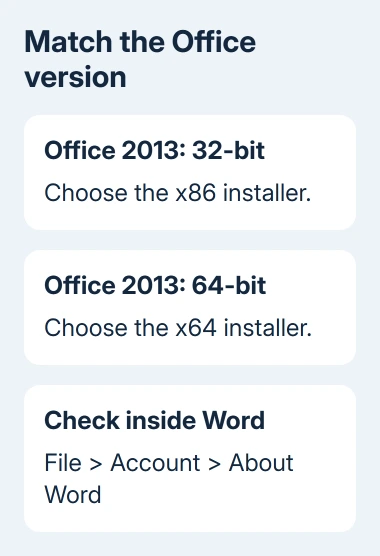
The filename ending x86.exe means 32-bit. The one ending x64.exe means 64-bit. Match that part to Word, then check the language part, such as el-gr for Greek or en-us for US English.
Several owners on Microsoft's forum restored proofing by replacing the 64-bit package with 32-bit tools to match Office. One thought they had bought 64-bit Office, so read About Word instead of relying on the purchase details.
If the installed proofing package already matches, note that result and examine the installed language. Switching between 32-bit and 64-bit packages again won't help if the tools are installed but the text has the wrong language setting.
2. Install the matching Office 2013 language tools
Save any open documents, then quit the Office apps, including Word, Excel and Outlook. Open Control Panel > Programs > Programs and Features and look for Microsoft Office Proofing Tools 2013 followed by the language.
If that entry is the wrong bit version, remove that proofing package. Keep the Office suite itself installed. Replacing one language component is a smaller change than reinstalling every Office application.
Use the official Office 2013 proofing-tools download. Select the language you need on the page, then choose the download whose x86 or x64 filename matches the value in About Word.
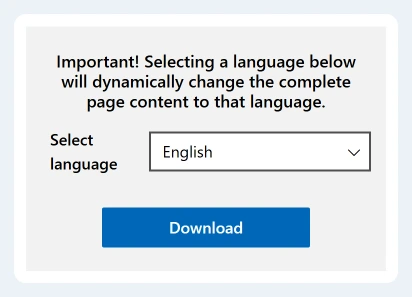
The language selector changes the page content, so check the title and filename again before saving the installer. An English package won't add Greek checking just because Word's document language is Greek.
Run the installer and finish its license and setup screens. Reopen Word after setup completes. The download instructions call for restarting open Office applications so the newly installed language tools become available.
One owner fixed the Greek package by right-clicking its installer and selecting Run as administrator. Another still had the fault afterward. Check the language and bit version before trying this.
On a work computer, ask IT to install the matching component if Windows requests administrator credentials you don't have. Give them the About Word value and language so they can target that component rather than reinstalling the suite.
3. Confirm that Word can use the installed dictionary
In a new empty file, write a sentence using the language you need. Include a deliberate spelling mistake that should have an obvious correction. You can check whether spelling works there without changing a long document.
Select the sentence, then choose Review > Language > Set Proofing Language. Find your language in the list. Word 2013 shows an ABC/checkmark icon beside languages with available spelling tools.
Choose your language. Leave Do not check spelling or grammar unchecked. Choose OK, then run Review > Spelling & Grammar or press F7. A laptop may need Fn+F7 if its top row normally controls sound or brightness.
Word should flag the mistake in the language you've selected. If it does, the dictionary is working; return to the original document's selected text instead of reinstalling the package again.
For text that keeps changing language after paste or typing, use the Word language-reset checks. That behavior follows text formatting rather than a missing installer component.
If the icon is missing and the language remains unavailable, continue with the installed-feature check. A package can appear in Programs and Features even when Word can't use its dictionary.
4. Restore proofing features omitted from setup
A customized Office 2013 installation can leave out a language's proofing components. One owner had working Swedish tools but no English checking because English proofing had been excluded under Office Shared Features.
For a setup that offers feature changes, open Programs and Features, select the installed Office product or Microsoft Office Proofing Tools Kit, then choose Change. Select Add or Remove Features and continue.
Expand Office Shared Features and the relevant Proofing Tools language entry. Choose Run from My Computer for the required component and let setup finish. The list of features depends on your Office product and the installer used.
Some installations offer repair choices instead. If Add or Remove Features is missing, ask the administrator for the language component that fits your installation. Uninstalling Office won't necessarily add that screen.
After setup, restart Word and check the sample sentence again. If the icon appears and spelling works, return to your document. If it remains absent, note what setup reported and keep your product details for the next step.
For a dictionary that works but automatic red marks are missing, follow the Word spelling controls. Those settings affect when errors appear, rather than adding a missing language package.
5. Stop repeating installation when the package is recognized
One later owner restored Greek checking through Set Proofing Language with checking enabled. They also chose Set As Default. That affects future documents and isn't needed for one selected passage.
For other owners, packages matching Office's bit version still didn't work. Another had an old third-party German checker from an earlier Office installation. These aren't reasons to delete unrelated proofing registry entries.
If you've used a separate spelling add-in, tell IT its name and which Office version it came from. Ask them to check whether that product still controls proofing, especially when only its language fails while others work.
The Office 2013 support-end date was April 11, 2023. For a lasting repair, ask your administrator about moving the documents and required languages to a supported Office version rather than buying another old language pack.
Send Word's version, its bit version, the installer filename and the language's status. Include the blank-document result. That helps IT tell whether Word can't use the dictionary or has been told to skip the text.
The Short Version
Match x86 or x64 to Office, not Windows. Install the required language's Office 2013 tools, restart the apps, then check the language icon and the selected text's proofing setting. Restore omitted setup features when that option exists.
Checked November 17, 2026.
 If you have any business, I can build it online






