
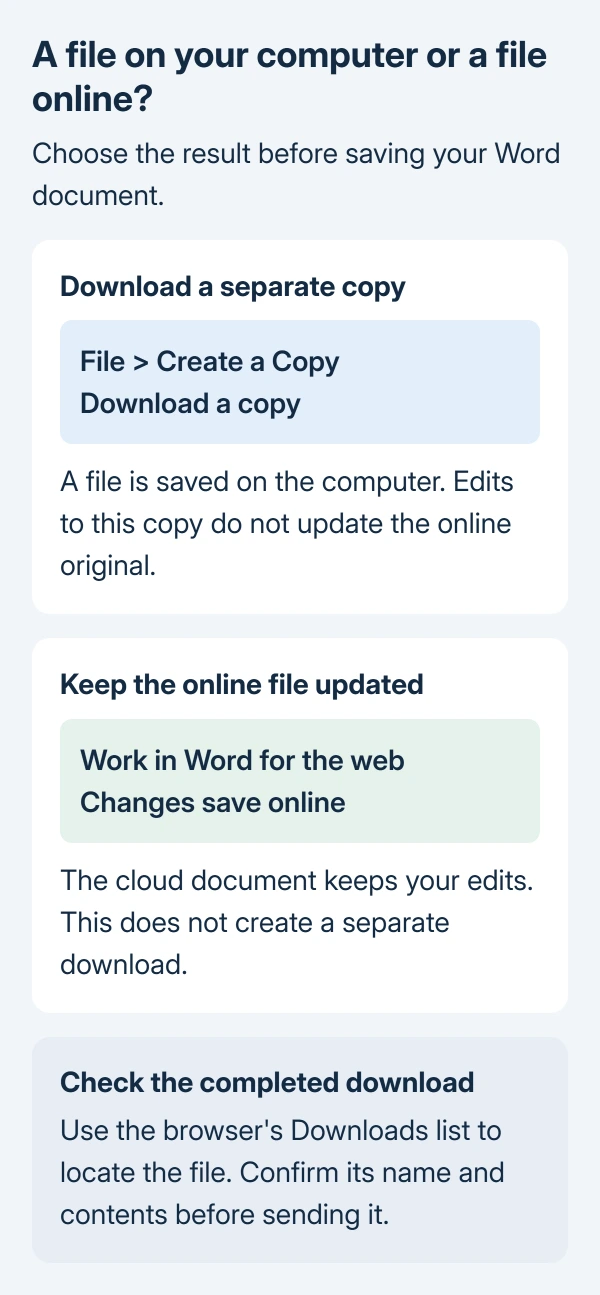
Downloading a Word document from Word for the web starts at File > Create a Copy > Download a copy. This puts a separate file on the computer.
Saving changes in the browser keeps the online document updated but does not create that downloaded copy.
Use Word's own File menu inside the document. The browser's command for saving a web page serves a different purpose.
Download from the open Word document
Open the intended document in Word for the web. Microsoft documents Create a Copy, followed by Download a copy, in its current Word download instructions.
Status: Word for the web download controls checked against Microsoft guidance October 29, 2026. No private document was opened or downloaded.
- Select Word's File menu.
- Choose Create a Copy, then Download a copy.
- Confirm the destination if asked.
- Locate the completed file in the browser's download list.
Microsoft identifies Downloads as the destination. A browser configured to use another folder, or to ask for a location each time, can put the file elsewhere.
Open the downloaded document and check its filename and recent content before attaching it to an email or moving it to a USB drive. That check confirms which copy is being sent.
For a PDF instead, use the Word PDF export controls. A browser page saved as HTML is not the Word document, and changing a filename's extension does not convert it.
Download directly from the OneDrive file list
An already identified file can be downloaded without opening Word. On the OneDrive website, point to the document, select Show more actions for this item (…), then choose Download.
This is Microsoft's alternate route to the same local-copy result. Check the document's name in the list first, especially when multiple drafts have similar titles.
Use this route when the document is visible in OneDrive but the open Word tab is confusing. If Download is absent from a shared file, check the permission case later in this guide.
Locate the file when the download seems to disappear
In Chrome, open More (three dots) > Downloads. Google says this list shows downloaded files; click the filename to open it. The recent download tray also offers Show in Folder when pointing to a file.
Chrome's download settings are under More > Settings > Downloads. Check the destination or enable its prompt to choose a location for each download.
A completed entry with the right name means the browser received a file. An incomplete or failed entry means the download still needs attention; retain its error message when asking for help.
Avoid repeatedly clicking Download before checking that list. Multiple copies make it harder to tell which file contains the work intended for sharing.
Keep downloaded edits separate from the cloud original
Microsoft states that changes made to the downloaded Word copy do not affect the original in OneDrive. The copy is a separate working file, rather than a second browser view of the shared document.
For example, editing a file saved in Downloads will not automatically put those edits into the Word document still open online. Uploading the revised file later is a separate step.
That differs from working inside a OneDrive folder managed by its desktop sync app. Microsoft says changes to files in that folder sync when an internet connection is available.
Check the saved location before deciding which behavior to expect. For an original that must remain untouched during desktop editing, create a separate Word file first.
Ask the owner when downloading is blocked
A shared document can allow reading while refusing downloads. Microsoft documents a Block download option for view-only sharing links in OneDrive for work or school and SharePoint.
With that restriction enabled, recipients lack download, print and copy controls. Opening the same link in another browser does not grant the missing permission.
Ask the sender or organization administrator for an approved downloadable copy or a link with the required access. A view-only document is not automatically broken because Download is unavailable.
If an authorized download still fails, contact the IT desk or Microsoft Support with the browser version, exact error and results from both Word and OneDrive. Describe the failure without including confidential document text.
The Short Version
Choose File > Create a Copy > Download a copy in Word for the web, then locate the file in the browser's downloads. Treat it as a separate copy. For a restricted shared document, request download access from its owner.

Isaac Smith is the founder and editor of PC Glance, a website that covers computers, laptops, and technology. He is a tech enthusiast and a computer geek who loves to share his insights and help his readers make smart choices when buying tech gadgets or laptops. He is always curious and updated about the latest tech trends.