
Making a custom ringtone on iPhone works through GarageBand: import audio, trim the part you want, then export it as a Ringtone. The tone can last up to 30 seconds. A protected song cannot be used, even when it plays in Music.
Use an audio file you created or an unprotected recording that GarageBand can import. Saving that file in Files is only the starting point; the ringtone export is what adds it as a usable alert sound.
Start with audio GarageBand can use
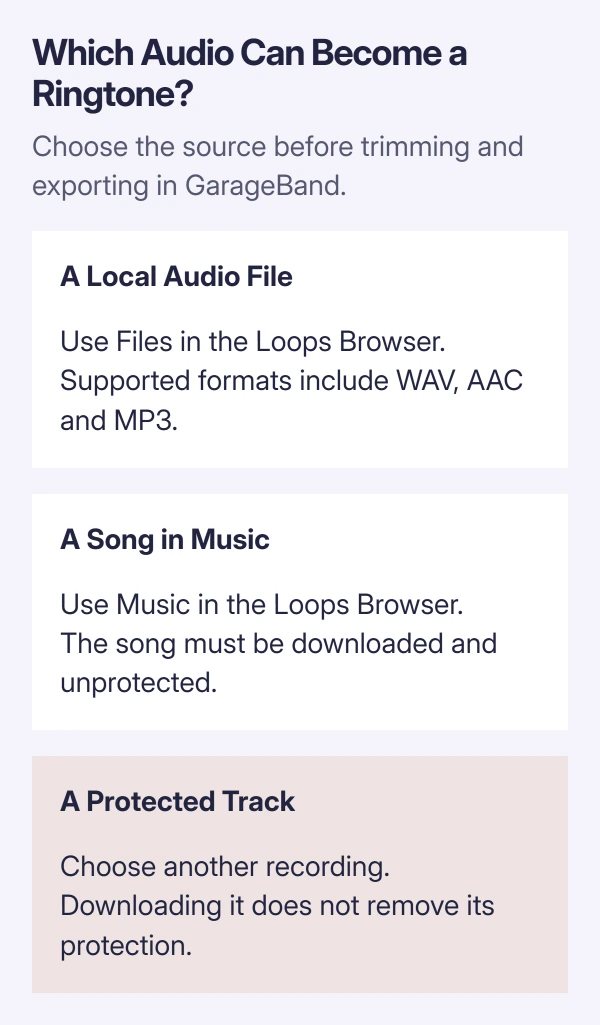
Install Apple's GarageBand from the App Store if it is not already on the iPhone. Apple's custom ringtone instructions support audio stored on the phone or in iCloud, and eligible downloaded songs from Music.
For a song that looks dim in GarageBand's Music browser, check whether it is downloaded. Apple identifies protection as the other reason it can be unavailable. Downloading a protected track does not remove that restriction.
Status: Apple's GarageBand import, editing and ringtone-export guides checked October 29, 2026. The 30-second limit is documented; no ringtone was created locally.
Apple says AIFF, WAV, Apple Loops, AAC and MP3 are supported in its audio import guide.
Use an audio file, rather than expecting a video to import as a ringtone.
Open a track and import the recording
- Touch and hold the GarageBand icon on the Home Screen, then choose Create New Audio Recording.
- Tap Tracks at the top to open the track workspace.
- Before importing a long file, open the Song Section control on the ruler's right edge. Tap the inspector beside the section name, enable Automatic, then tap Done.
- Select the track using its instrument icon on the left, then open Loops Browser at the top.
- Choose Files > Browse items from the Files app, then locate and tap the audio. For an eligible downloaded song in the music library, use Music instead.
- Touch and hold the audio entry in GarageBand's browser, then drag it into the track, starting at the far left.
The recording should now appear as an audio region in the track. Tap it in the browser first if a preview is needed to distinguish similarly named files.
The Automatic setting lets the section accommodate the imported file. Apple documents that control in its song-section guide.
Without enough section length, only the part that fits is imported. This matters when the wanted chorus or spoken phrase is later in a long recording; it can otherwise appear to be missing before trimming even starts.
Trim the wanted passage and remove the silent lead-in
Tap the audio region. Drag its left edge inward to remove unwanted opening audio, and its right edge inward to shorten the ending. Hold an edge to zoom for finer adjustment.
Apple's region-editing guide describes these handles. If the region is looped, tap it again and choose Trim before adjusting an edge.
After choosing the passage, drag the whole region back to the far left of the track. Trimming an opening and moving the result are separate actions: leaving empty track space first creates a delay before the sound begins.
Play the result and listen to its opening and ending. Stop editing when the wanted phrase is intact and starts promptly. GarageBand checks the maximum ringtone length during export, so the ruler's bar numbers need not be treated as seconds.
Export the project as a ringtone
Tap Navigation > My Songs to return to GarageBand's browser. The song must be exported through the ringtone option; keeping a GarageBand project alone does not assign a phone alert.
Apple states the export sequence in its sharing guide:
- Touch and hold the song in My Songs.
- Choose Share, then Ringtone.
- If a warning about the 30-second limit appears, choose Continue for automatic shortening or Cancel to adjust the passage yourself.
- Enter a recognizable name and tap Export. Address the same length warning here if it appears at this point.
Cancel is the better choice when the exact ending matters. Automatic shortening can meet the limit without preserving the ending you intended. That is an editing recommendation, not a claim about a file tested here.
After export finishes, tap Use sound as. Choose Standard Ringtone for the general call sound, Standard Text Tone for messages, or Assign to contact for one person's calls. Tap Done to leave it unassigned.
An existing contact assignment can also be selected through Contacts > person > Edit > Ringtone, as Apple's ringtone guide explains.
When the new sound does not behave as expected
A tone that was exported successfully but later changes back needs the iPhone ringtone reset checks. Creating another copy does not explain why an assignment changed.
If the phone never rings, use the Focus and incoming-call checks. A new audio file cannot make a silenced incoming call ring.
For an import or export error with a supported, unprotected file, give Apple Support the exact message and the GarageBand and iOS versions. Keep the original audio and project so the error can be reviewed without recreating the work.
The Short Version
Choose usable audio, import enough of it to reach the wanted passage, then trim and move that passage to the track's beginning. Export through Share > Ringtone and choose how the finished tone should be used.

Isaac Smith is the founder and editor of PC Glance, a website that covers computers, laptops, and technology. He is a tech enthusiast and a computer geek who loves to share his insights and help his readers make smart choices when buying tech gadgets or laptops. He is always curious and updated about the latest tech trends.