
An iPad can stop receiving iPhone calls, messages or photos without signing out of the Apple Account. Turn off the particular sharing feature causing the problem; the right setting depends on what is arriving on the tablet.
For unwanted ringing, start with Calls on Other Devices in the iPhone's Phone settings and disable the iPad. Preparing the tablet for a new owner is a separate job that needs a backup and erase.
Choose which connection should stop
Check what is actually arriving on the iPad. Calls relayed from the iPhone, Messages conversations and an iCloud photo library use separate controls. Changing one does not necessarily stop the others.
Apple says its iCloud sign-out options disable many services, including Find My and iCloud Backup. For a tablet you still use, change the unwanted feature first.
Status: Apple's iPad call, message, photo and sign-out instructions checked October 29, 2026. These controls stop different services. No account or device was changed.
Turning off Wi-Fi temporarily is not a lasting account change. When the device reconnects, enabled cloud services can resume. Use the relevant setting while both devices are available.
Stop iPhone calls from ringing on the iPad
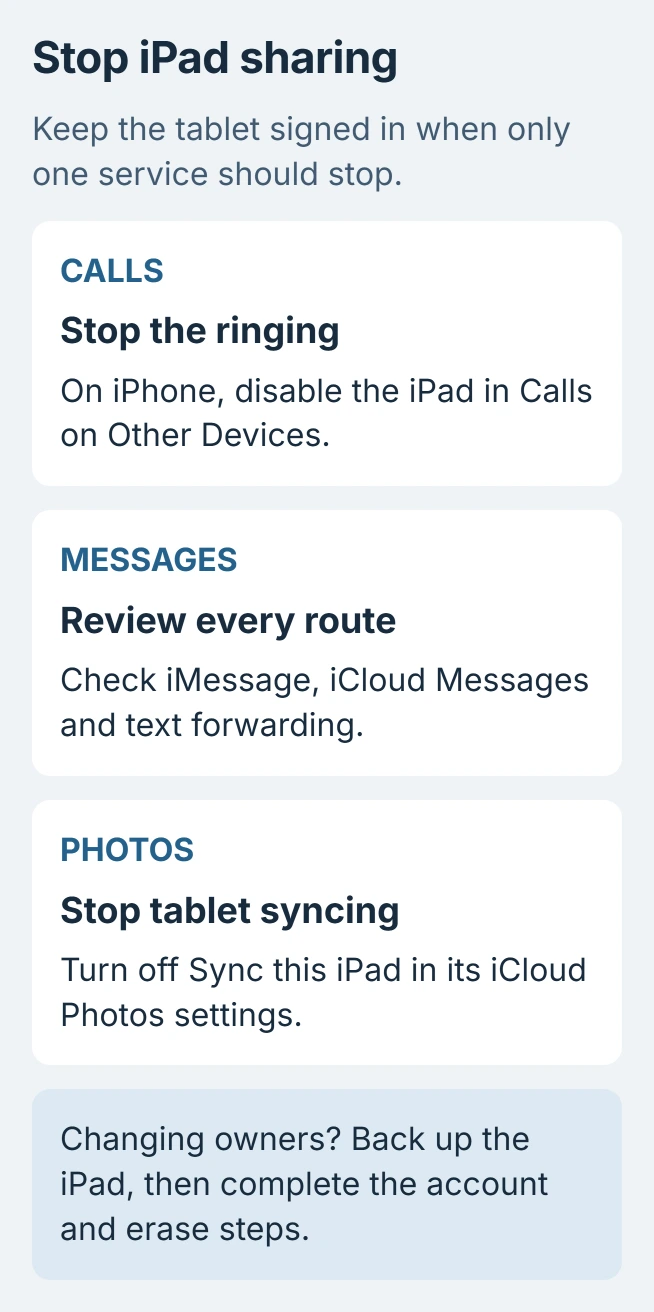
On the iPhone, open Settings > Apps > Phone > Calls on Other Devices. Turn off the iPad in that device list. Leave other devices enabled if they should still receive relayed calls.
Apple documents this device list in its iPad calling instructions. A later ordinary call to the iPhone should no longer ring through this connection on the disabled iPad.
FaceTime calls are a separate service. If those are the unwanted calls, check FaceTime on the iPad instead of repeatedly changing the iPhone's call-relay switch.
Stop conversations arriving through Messages
For a complete stop to iMessage on the tablet, open the iPad's Settings > Apps > Messages and turn iMessage off. Apple's Messages safety controls document that switch.
Also check Settings > your name > iCloud > Messages on the iPad. Tap See All if Messages is hidden in the app list, then switch off Use on this iPad to stop its iCloud conversation syncing.
On the iPhone, inspect Settings > Apps > Messages > Text Message Forwarding and disable the iPad if listed. Apple states that this list controls which devices can send and receive forwarded carrier texts.
That setting differs from forwarding one selected iPhone message to another person. A manually sent copy is not an ongoing device connection.
These changes do not promise to erase conversations already stored on the tablet. Before deleting old messages, confirm that iCloud syncing has stopped; deletion while it remains enabled can affect the other devices too.
Separate the iPad's photos without deleting the library
Download any original photos and videos that must remain on the iPad, with enough local storage for them. Then open Settings > your name > iCloud > Photos and turn off Sync this iPad.
Apple's single-device photo instructions explain the download or removal choice. Select Download Photos & Videos when retaining a local copy, and let that download finish.
Avoid the account-wide Turn Off and Delete Photos option. It starts removing the cloud library. That is different from stopping one tablet's syncing, as the iCloud photo deletion guide explains.
Afterward, new photo edits and deletions on the other synced devices should no longer update this iPad through iCloud Photos. Existing local copies can still be present.
Prepare a separate handover when the owner is changing
Make a current backup before removing the account or erasing the iPad. Do not manually clear synced contacts and photos as a way of preparing it for another person.
Follow Apple's sale and handover procedure. On current software, Settings > your name > Sign Out offers an erase choice and Sign Out But Don't Erase. The latter can leave personal information on the tablet.
For a handover, finish the documented erase, including any account-password prompts. Apple states that erasing the device does not delete the content stored in iCloud. Confirm that the iPad reaches setup before passing it on.
If a control is restricted or the account password is unavailable, contact Apple Support or the device administrator. Provide the iPadOS version and the exact blocked control. Organization-owned tablets can have enforced restrictions.
The Short Version
Disable call relay for ringing, review all three Messages connections for unwanted conversations, or turn off photo syncing on the iPad alone. A tablet changing owners needs backup and erasure, rather than a few sharing switches.

Isaac Smith is the founder and editor of PC Glance, a website that covers computers, laptops, and technology. He is a tech enthusiast and a computer geek who loves to share his insights and help his readers make smart choices when buying tech gadgets or laptops. He is always curious and updated about the latest tech trends.