

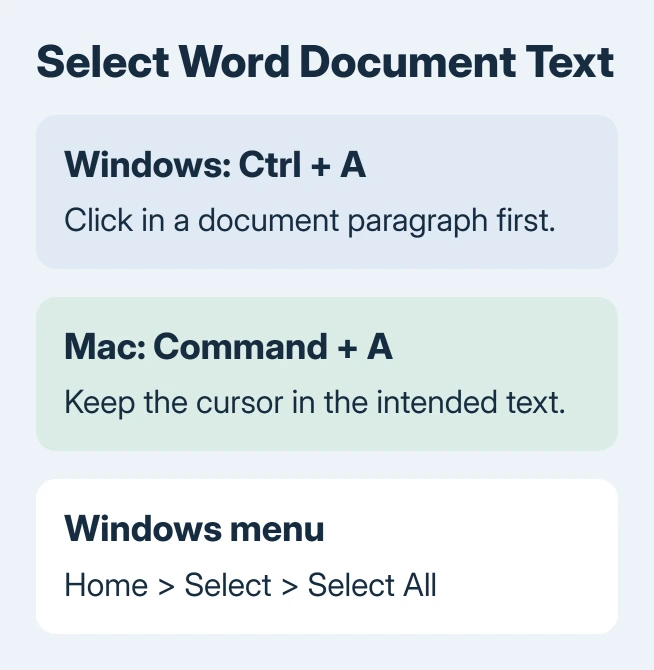
Selecting all in Word starts by clicking inside the document text and pressing Ctrl+A on Windows. The selected text is then ready for copying or formatting. On a Mac, Word uses Command+A for the same action.
Check the selection before continuing. A cursor in a search field or text box can make the shortcut apply somewhere other than the main document, and selecting text is different from selecting floating pictures.
Select the document text with the keyboard
Click in a normal paragraph of the document, then press Ctrl+A. The Word text-selection guide gives Microsoft's steps. The document text should show the selection highlight.
Release the keys before choosing the next command. For example, Ctrl+C copies the selection, while typing new text can replace it. Use Undo promptly if an unintended edit follows the selection.
Status: Word selection and separate Windows/Mac object-selection menus checked October 30, 2026. No document was opened or edited.
For an appearance change across a large file, save a separate Word copy first. Selecting everything does not itself change the words, but the following command may affect the entire selection.
Use the menu or the Mac shortcut
In Word for Windows, open Home > Select > Select All for the menu route. The menu offers a useful comparison if Ctrl+A does nothing, and it avoids using a keyboard combination.
For Word on Mac, press Command+A with the insertion point in the document. Microsoft says this selects document content in its Word keyboard reference.
If a search box becomes highlighted instead, click back into a paragraph before trying again. Inspect where the insertion point is rather than repeatedly pressing the shortcut in the same field.
For Word for the web, put focus inside the document and use Ctrl+A on Windows. Microsoft's web selection instructions confirm that shortcut for document content.
Choose object selection when pictures are the target
Text selection does not promise that every floating shape will show resize handles. Microsoft documents Home > Select > Selection Pane for Word for Windows.
In Word for Mac, select an object first, then choose Home > Arrange > Selection Pane. The pane lists the objects so you can select, show, hide or reorder them.
Microsoft's object-selection guide explains the different controls. Use the pane when stacked objects are difficult to reach with the pointer.
A text box is also an object with its own text. Click the intended paragraph when choosing words, or select the box as an object when moving the box itself. Check the visible highlight or handles before acting.
Apply the next command to the intended scope
For unwanted font styling, use the Word formatting-cleanup control only after reviewing the highlighted text. Clearing an entire document can remove emphasis that was intentional.
When a menu command and its shortcut both fail in an ordinary paragraph, try a separate blank document with a short sample. This comparison is ours; it checks whether the difficulty follows the original file.
If the plain sample works, ask the document owner about its content and editing restrictions. If it fails there too, give Microsoft Support the Word edition, operating system and the exact command that does nothing.
The Short Version
Click in the document and use Ctrl+A on Windows or Command+A on Mac. Home > Select > Select All is the Windows menu alternative. Use object controls for floating shapes, and check the selected area before copying or changing it.

Isaac Smith is the founder and editor of PC Glance, a website that covers computers, laptops, and technology. He is a tech enthusiast and a computer geek who loves to share his insights and help his readers make smart choices when buying tech gadgets or laptops. He is always curious and updated about the latest tech trends.