
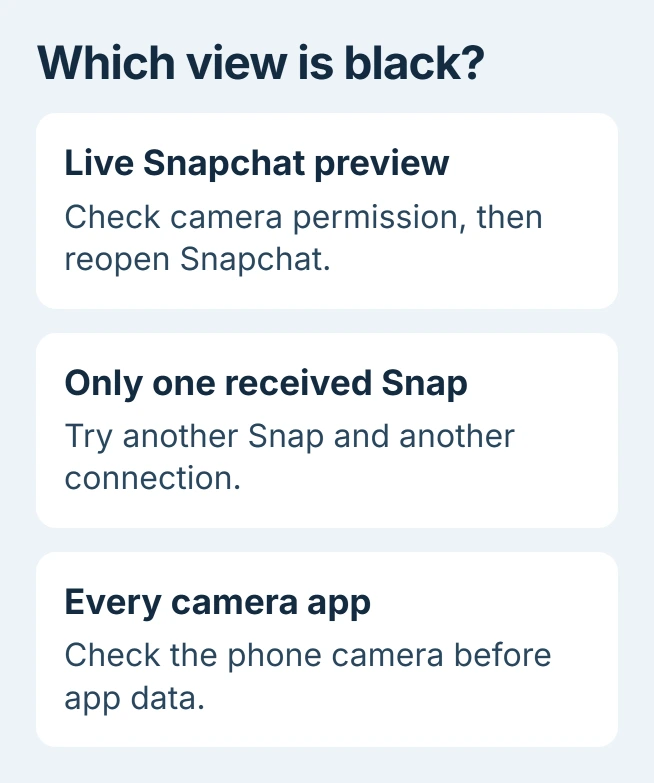
Snapchat's black screen can mean its camera preview is blocked even though chats still load. Check the app's camera permission, then reopen it. If the phone's own Camera app is black too, the problem extends beyond Snapchat.
A received Snap that opens as a black image is a different symptom. First establish whether the live view is missing or only one piece of content will not load.
Compare the live camera with a received Snap
Open Snapchat's camera and try its front-facing and rear-facing views. Then try those cameras in the phone's Camera app. Our comparison checks whether the failure follows one app, one camera, or the whole phone.
If the normal camera works, continue with Snapchat's permissions. On an iPhone where both apps fail, use the phone camera checks before changing Snapchat's stored data.
Status: Snapchat's camera and cache instructions, plus Apple and Google permission controls, checked October 30, 2026. These are documented checks; no Snapchat fault was reproduced.
For one received item, open another Snap and compare Wi-Fi with cellular data. Snapchat's camera troubleshooting advice includes changing the connection.
When other content loads normally, ask the sender whether their saved original is also black. That result determines whether there is a usable image to retrieve; camera permission cannot recreate missing picture content.
Restore Snapchat's camera permission
On iPhone, open Settings > Privacy & Security > Camera and enable Snapchat. Apple documents which apps appear in this hardware-access list: those that have requested camera permission.
If Snapchat is absent, open its camera once and respond to any permission request. Reopen the app after changing access and check whether a moving preview appears. An allowed permission alone does not prove the preview works.
On Android, go to Settings > Apps > Snapchat > Permissions > Camera. Choose Allow only while using the app, then retry the preview. Tap See all apps first if Snapchat is not in the initial list.
Google's steps for Android app permissions also cover unused-app permissions being removed. Check the current permission even if Snapchat worked previously.
Google says camera access also has a device-wide control. On phones using its Settings layout, open Security & privacy > Privacy > Privacy controls and check Camera access. Other Android manufacturers can arrange this differently.
Update the app and restart the failed session
Install Snapchat's available update from the App Store on iPhone or Play Store on Android. Close Snapchat completely and open it again. Snapchat lists both actions in its camera help, followed by restarting the phone.
Try the ordinary camera view before adding a Lens. If that view works but one Lens fails, report the affected Lens rather than treating every camera as broken. Include whether the front and rear views behave differently.
An Android app that closes instead of showing a preview needs the app crash troubleshooting steps. That symptom can prevent a camera check from completing at all.
Clear Snapchat's cache if the preview still fails
Snapchat documents an in-app cache clear for troubleshooting and states that it preserves Memories, Snaps and Chats. Use that specific control.
Open Snapchat's account screen, tap the settings gear, then choose My Privacy & Data under App & Privacy. On iPhone, select Clear Cache under Manage My Data, then confirm with Clear.
On Android, the same section uses Clear Data > Clear Cache > Clear. This is Snapchat's own menu, separate from Android's app-storage controls. Reopen the camera afterward to see whether the preview returns.
If it stays black with working permission and a working phone camera, contact Snapchat Support. Provide the phone model, app version, affected camera and whether received Snaps load. A failed phone camera also needs the device maker's help.
The Short Version
For a black preview, check permission, refresh Snapchat and try its cache control. For a black received Snap, compare other content and connections. A camera that fails in every app needs phone troubleshooting.

Isaac Smith is the founder and editor of PC Glance, a website that covers computers, laptops, and technology. He is a tech enthusiast and a computer geek who loves to share his insights and help his readers make smart choices when buying tech gadgets or laptops. He is always curious and updated about the latest tech trends.