
An unsupported-accessory warning on an iPad can mean a damaged connection, debris or an incompatible device. Disconnect the accessory, verify its support for the exact iPad model, then reconnect with the iPad unlocked.
An unlock request is a different message from an unsupported-accessory warning. Identify which one appears before changing the iPad's security settings or buying another cable.
Read the warning before changing settings
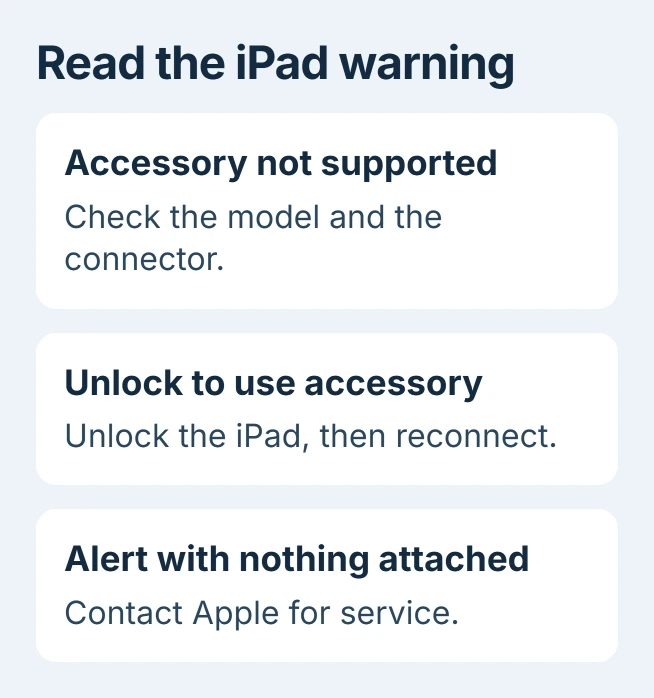
Apple says the unsupported-accessory alert can involve accessory damage, certification, compatibility, or a dirty or damaged device port. A warning cannot distinguish those causes by itself.
Disconnect the accessory and check its model list. A plug fitting into the iPad does not establish support for that device or the function being attempted. Ask the accessory maker if its compatibility list is unclear.
Status: Apple's accessory-alert, wired-access and USB-C documentation checked October 30, 2026. The unsupported warning is separate from unlock permission. No accessory was tested.
For a keyboard case, match its full name to the iPad generation. The iPad keyboard connection guide separates Bluetooth pairing from Apple's Smart Connector cases and wired USB models.
Disconnect, unlock and reconnect for an access request
Apple documents that wired accessories normally need an unlocked device when first connected. If the iPad did not recognize the accessory, unplug it, unlock the iPad and connect it again.
Its wired-access instructions now place the setting at Settings > Privacy & Security > Wired Accessories. Available choices differ between USB-C and Lightning models.
USB-C iPads offer options to ask about each accessory or only new ones, as well as automatic access while unlocked. Lightning models have fewer choices. A supervised school or work iPad can have this setting controlled by its administrator.
Apple states that storage accessories always require unlocking before use. Selecting broader automatic access is therefore not a general repair for a drive that fails to appear.
If the drive connects but Files freezes while opening it, continue with the iPad Files app checks. That is a different stage from the iPad refusing the attached accessory.
Inspect the connector and try a compatible replacement
Look for a damaged plug, bent connector or visible debris before reconnecting. Stop using a damaged cable. Apple's alert guidance includes checking both the accessory connector and the iPad's port.
Follow Apple's cleaning precautions: disconnect power and accessories, avoid moisture in openings and wipe accessible surfaces with a soft, lint-free cloth. Do not spray cleaner into the port.
Our next comparison is a known-working accessory of the same compatible type. If that works on the iPad, concentrate on the original accessory and cable. If several compatible accessories fail, have the iPad connection checked.
For USB-C equipment, also verify the required connection standard. Apple's iPad USB-C guide lists supported device categories and identifies which iPad Pro models offer Thunderbolt and USB 4.
Do not assume a Thunderbolt-only device works on every USB-C iPad. Check the accessory's stated fallback support and the iPad's specifications before spending money on an adapter.
Check the required iPadOS version before service
Some accessories require newer iPad software. Check Settings > General > Software Update and compare the available version with the accessory maker's requirements. An update cannot change an incompatible physical connection.
If the warning appears with every accessory detached, Apple directs owners toward service. Contact Apple Support and report that specific condition. It deserves a different response from a warning triggered by one identifiable cable.
For a warning tied to one accessory, give its maker the model, iPad generation, software version and replacement-test result. Those details help establish compatibility or a repair need without erasing the iPad.
The Short Version
Match the accessory to the iPad, inspect the connection and distinguish unsupported hardware from an unlock request. Compare with a compatible working accessory. A warning that persists with nothing connected belongs with Apple Support.

Isaac Smith is the founder and editor of PC Glance, a website that covers computers, laptops, and technology. He is a tech enthusiast and a computer geek who loves to share his insights and help his readers make smart choices when buying tech gadgets or laptops. He is always curious and updated about the latest tech trends.