
Resetting a Surface Pro can reinstall Windows while keeping personal files, or erase the device for a new owner. In Windows 11, start at Settings > System > Recovery > Reset PC and choose the option that matches that goal.
If Windows cannot reach recovery, use a Surface recovery image on a USB drive instead. That route erases the Surface, so it needs a different decision from a reset that offers Keep my files.
Decide what can be removed before starting
Copy accessible personal files to another device or storage location and check that the copies open. Have app installers, license details and the BitLocker recovery key available before entering recovery.
Microsoft says the Keep my files option preserves personal files in its Surface reset guide. Installed software is removed, and changed settings return to defaults.
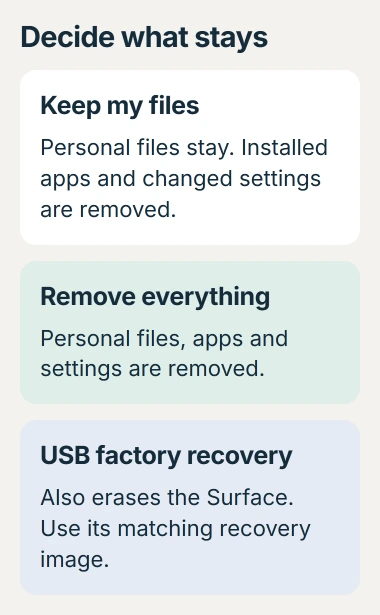
Status: Microsoft's Surface reset and USB recovery procedures checked October 30, 2026. USB factory recovery erases personal files. No Surface or recovery drive was operated.
Choose Remove everything when personal files should be deleted too. For a device being sold or given away, review the drive-cleaning option. Microsoft describes it as making deleted files harder to recover.
A reset is not a repair for every hardware fault. A Surface keyboard that fails in UEFI needs its connection or hardware assessed before assuming that Windows is the cause.
Run the reset from Windows or the sign-in screen
In Windows 11, open Settings > System > Recovery and select Reset PC beside Reset this PC. In Windows 10, open Settings > Update & Security > Recovery and choose Get started under the reset heading.
Select the file-retention option that matches the plan, then review Cloud download versus Local reinstall. Microsoft recommends Cloud download for Surface; it needs an internet connection and downloads the Windows files.
If the desktop is unavailable but the sign-in screen works, hold Shift while selecting Power > Restart there. In recovery, choose Troubleshoot > Reset this PC.
Read the final removal summary before starting. Keep the Surface connected to power and let the process finish. Microsoft's general reset guidance warns that the display can stay black during reset.
Do not force a restart just because the screen temporarily goes dark. If an error appears or recovery loops afterward, record its wording before choosing another operation.
Build a Surface USB drive if reset cannot run
Use another working Windows PC and Microsoft's Surface USB recovery instructions. Download the image matched to the Surface's serial number, choosing the newest offered image.
Prepare a 32 GB or larger USB drive with nothing needed on it. Creating the recovery drive erases that USB's contents. This is separate from the later step that erases the Surface.
Search Windows for Recovery Drive and open it. Turn off its system-files backup option, select the intended USB and create the drive. Then copy the downloaded recovery ZIP's extracted contents onto it, replacing files when asked.
Microsoft documents FAT32 as the required format; the tool prepares the USB partitions. Copying the ZIP file itself onto an ordinary USB stick does not complete this preparation.
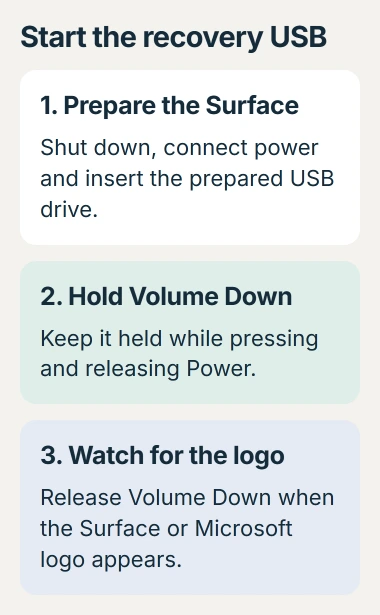
Start the prepared USB and read the erase choice
With the Surface off and connected to power, insert the prepared drive. Hold Volume Down, press and release Power, and release Volume Down when the Microsoft or Surface logo appears.
Choose the requested language and keyboard layout. Select Recover from a drive, sometimes inside Troubleshoot, then review the removal and drive-cleaning choices before confirming Recover.
This factory recovery deletes personal files. If the only copy of needed data is still on the Surface, stop and seek recovery advice before confirming the erase.
If USB startup fails, use the boot-order checks in Microsoft's USB instructions. Ask Surface support about the exact model and recovery image instead of downloading an image meant for a different device.
Check Windows before restoring all the apps
After setup, install the available Windows and Surface updates. Our first check is the original problem: confirm basic operation before restoring the same collection of apps and settings.
Microsoft states in its Automatic Repair guidance that a Surface returning to that repair screen after reset needs service. Repeated erases are not the next useful step.
For a work-owned Surface, give the result to its administrator. For a personal device, contact Surface support with the serial number, error and recovery method used.
The Short Version
Keep a backup and decide whether files should stay. Use Reset this PC when recovery is available, or prepare the correct Surface USB image when it is not. USB recovery erases the device; repeated startup failure needs support.

Isaac Smith is the founder and editor of PC Glance, a website that covers computers, laptops, and technology. He is a tech enthusiast and a computer geek who loves to share his insights and help his readers make smart choices when buying tech gadgets or laptops. He is always curious and updated about the latest tech trends.