

Mail merge from Excel to Word turns each selected spreadsheet row into a personalized letter. Prepare the names and addresses in Excel, then connect that file through Word's Mailings tab and insert fields where the details should appear.
Use desktop Word for this workflow. The example here creates letters for review and printing, with one recipient per row; it does not send email automatically.
Prepare the recipient sheet before opening Word
Put field names in the first row, such as FirstName, LastName, Address, City and PostalCode. Keep each recipient's details together on one row, with separate columns for values the letter needs separately.
Microsoft says to finish spreadsheet changes before connecting it in Word. Its Excel mail-merge preparation guide also recommends keeping the merge data together on the first sheet.
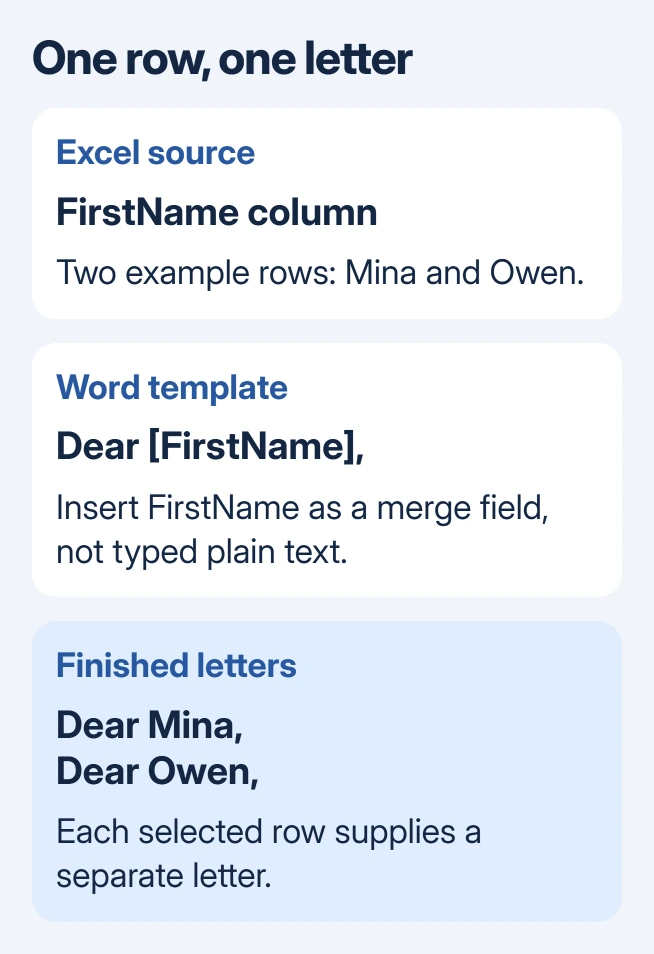
Status: Microsoft's Excel-source and Word letter-merge instructions checked October 31, 2026. Windows and Mac controls differ. Names are invented; no mailing was created or sent.
Keep postal codes as Text before entering or importing them, so leading zeros survive. Changing the format later does not recreate digits already lost. The Excel identifier-preservation checks cover that distinction.
Save the workbook as an .xlsx file on the computer and close it. Use an actual saved file as the source, not a web address for an online spreadsheet. Remove unintended blank rows from the recipient range.
Connect the letter to the correct worksheet
Create a blank document in desktop Word. To reuse an existing letter, first save a separate Word copy so its original text remains available.
Choose Mailings > Start Mail Merge > Letters. Type the wording that every recipient should receive, leaving the places for names and addresses ready for fields.
Then choose Mailings > Select Recipients > Use an Existing List and open the Excel workbook. On Windows, the Select Table dialog identifies the worksheet. Choose the recipient sheet and confirm its first row contains column headers.
On Mac, Microsoft's source instructions describe an Open Workbook dialog. Select the required sheet; leave Cell Range empty to use that sheet, or enter the specific range containing the intended recipients.
Use Edit Recipient List on Windows to inspect and deselect unwanted records. Mac offers recipient filtering controls. Check the displayed people before proceeding; selecting a workbook does not prove the correct sheet was chosen.
Insert real fields where each detail belongs
Place the cursor after the letter's greeting, then use Mailings > Insert Merge Field to select FirstName, or the equivalent header in the actual workbook. Add the greeting's punctuation as ordinary text.
Repeat at each place that needs a spreadsheet value. The field list should contain the headers created in Excel. If the expected field is absent, check the selected sheet and header row before rebuilding the letter.
Microsoft documents Insert Merge Field for personalized letters. Typing a field's name as normal text will not connect that text to the spreadsheet.
For an address, put each needed field on its intended line, or use Address Block with its field-matching controls. Inspect any automatic address block carefully when the workbook uses unusual column names.
Preview several recipients before producing the letters
Select Mailings > Preview Results, then move through records with the arrow controls. Names and addresses should replace the field placeholders, while the shared letter text stays the same.
Include a long name, a postal code beginning with zero and any accented text in the review. A short, ordinary first record can conceal formatting problems.
If the wrong value appears, turn Preview Results off and correct the field or source selection. For missing recipients, review the selected records or range. Do not manually repair every preview when the same source error affects them all.
Finish into an editable document
Choose Mailings > Finish & Merge > Edit Individual Documents to produce the letters for inspection. Select the intended records in the finishing dialog and confirm. Review the resulting pages before printing or sharing them.
Save the generated letters and the original merge document as separate files. Microsoft states that the merge document keeps its mailing-list connection, so retain it for future merges as well as saving the finished output.
For persistently incorrect output, send Microsoft Support an invented-data sample and the installed Word version. One early-2026 special-character report has no confirmed repair; its proposed Office rollback remains unverified.
The Short Version
Prepare one recipient per Excel row, connect the saved workbook in desktop Word, and insert merge fields. Review varied records, then create an editable set of letters before sending anything to a printer or recipient.

Isaac Smith is the founder and editor of PC Glance, a website that covers computers, laptops, and technology. He is a tech enthusiast and a computer geek who loves to share his insights and help his readers make smart choices when buying tech gadgets or laptops. He is always curious and updated about the latest tech trends.