
An iPhone GPS problem can come from blocked satellite signals or an app that cannot use precise location. Start outdoors with the map open, then check that app's permission if its position stays wrong.
A blue dot that is inaccurate everywhere needs different attention from Maps freezing only when the screen locks. Comparing those situations helps avoid resets that do not address the fault.
Compare the position outdoors
Stop somewhere safe outdoors and open Maps. Give it several minutes to locate satellites, with a clear view in different directions. Apple says walls, tall buildings and vehicle roofs can interfere with reception.
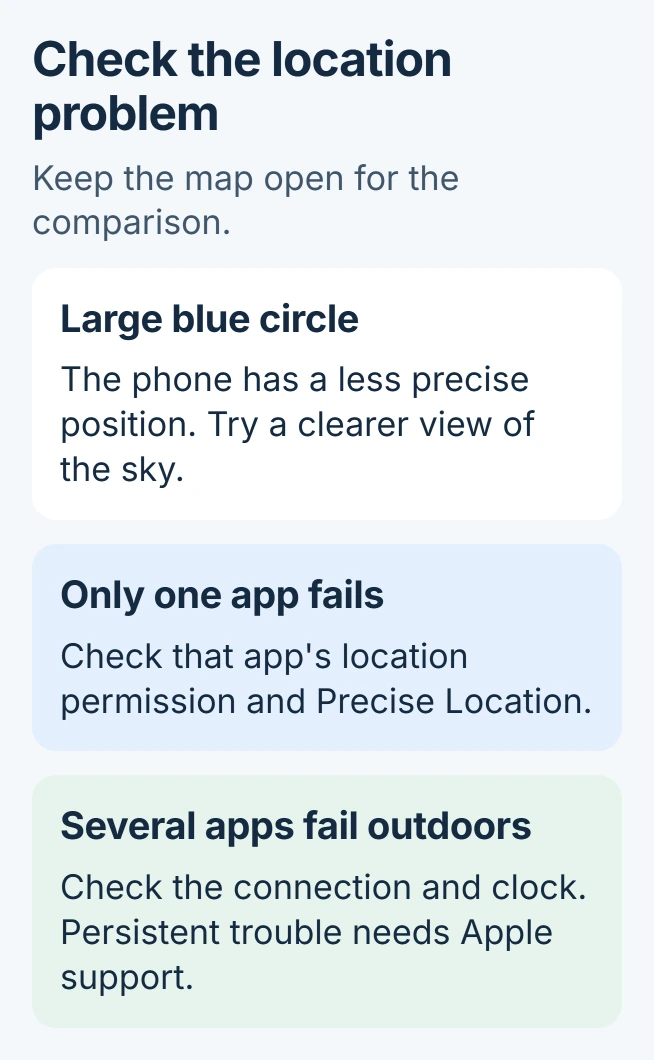
Watch the circle around the blue location marker. Apple's GPS accuracy explanation says a smaller circle means a more precise position. An improvement outdoors points toward reception conditions.
Status: GPS reception and app permissions checked against Apple support on October 31, 2026. These checks do not establish whether an iPhone's GPS hardware is damaged.
Keep the screen awake for this comparison. If positioning works while Maps is visible but freezes after locking, use the Maps background-navigation guide for that separate symptom.
Compare the location with another map app already installed, using it in the same place. Agreement between apps matters more than whether one briefly displays a dot. A dot can be approximate while satellite reception improves.
Give the affected app precise location access
Open Settings > Privacy & Security > Location Services. Enable the main switch, then select Maps. Choose its option starting While Using, then enable Precise Location.
Apple documents the per-app choices in its location-permission instructions. Other apps can offer different access options. Choose the permission that allows the app to locate you during the activity being tested.
Reopen the app and request your current position again. If the location is now accurate, the permission change addressed that app's access. A different app can still have its own restriction.
A weather widget showing an old city needs its widget-location setting checked. A saved city or home address can be wrong even when the phone knows its current position.
Restore the connection and check the clock
Apple states that Maps needs an active connection for its online services. Confirm a working Wi-Fi or cellular connection, then check Settings > General > Date & Time. Enable Set Automatically when available.
Location Services combines several signals, including GPS and nearby networks. A map that cannot load streets or calculate an online route does not, by itself, prove satellite reception has failed.
Close Maps and open it again after checking those settings. Apple's Maps troubleshooting page also recommends restarting the iPhone when its current position remains unavailable.
After restarting, repeat the outdoor comparison before changing anything else. That makes it easier to tell whether the restart helped.
Reset location permissions only when the problem persists
For continuing location trouble across apps, Apple provides Settings > General > Transfer or Reset iPhone > Reset > Reset Location & Privacy. This returns location and privacy permissions to their defaults.
Apps will need permission again afterward, including permissions unrelated to navigation. Expect fresh access prompts. This is a permission reset, not a command to erase the phone or repair a GPS component.
Open the affected app, grant the required access and repeat the same position check. If only that app still fails while another works, contact its developer with the app version and the behavior observed.
When the position remains wrong across apps
Contact Apple Support if several apps remain inaccurate outdoors with suitable permissions and a working connection. Provide the iPhone model, iOS version and whether the trouble began after damage, repair or a software change.
Describe whether the marker is absent, stationary or displaced. Those are different symptoms. Keep using a reliable navigation alternative until the phone's position agrees with the surroundings; follow road signs over an incorrect route.
The Short Version
Check the position outdoors, compare apps and correct the affected app's access. Verify the connection and clock before restarting or resetting permissions. Persistent failure across apps needs an Apple assessment.

Isaac Smith is the founder and editor of PC Glance, a website that covers computers, laptops, and technology. He is a tech enthusiast and a computer geek who loves to share his insights and help his readers make smart choices when buying tech gadgets or laptops. He is always curious and updated about the latest tech trends.