
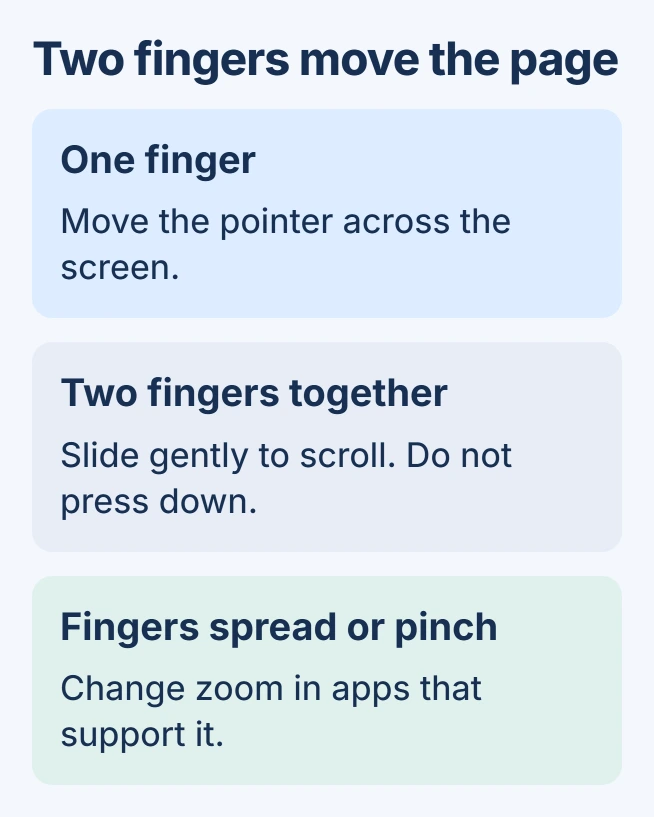
Scrolling on a MacBook uses two fingers moving together across the trackpad. One finger moves the pointer instead. Rest two fingertips on the surface and slide them without pressing down; the page should move while the pointer stays put.
The direction depends on the Mac's Natural scrolling setting. Keyboard shortcuts and a visible scroll bar offer alternatives when a gesture is awkward or the trackpad is unavailable.
Move the page with two fingers
Open a document or webpage longer than its window. Position the pointer over the content, then slide two fingers vertically on the trackpad. Apple documents the gesture in its Multi-Touch guide.
Keep the distance between the fingers steady. Spreading or pinching them requests zoom in supported apps, while a two-finger click can open a shortcut menu. Scrolling does not require a click.
Status: MacBook scrolling controls checked against Apple documentation on November 1, 2026. These instructions cover the built-in trackpad; no Mac was operated for this guide.
Start with a slow movement so the direction is obvious. With Natural scrolling enabled, sliding upward moves the content upward, revealing a later part of the page. Sliding downward brings earlier content into view.
If a menu opens instead, lift both fingers and try again without pressing. A persistent secondary-click problem on a Mac trackpad needs different checks from learning the scroll gesture.
Reverse the direction when it feels backward
Choose Apple menu > System Settings > Trackpad, then open Scroll & Zoom. Change Natural scrolling and try the same webpage again. On older macOS releases, the settings app is named System Preferences.
Apple says Natural scrolling makes the content follow the fingers' direction. Turn it off to reverse that relationship. This changes which way the page moves, rather than enabling a missing scroll gesture.
On a remotely controlled Mac with no attached pointing device, missing Mouse or Trackpad settings have a separate explanation. A MacBook's built-in trackpad normally supplies that settings page.
Use the keyboard for pages and document ends
Click the document or reading area first. Apple lists these combinations in its Mac shortcut reference:
| Keys | Action |
|---|---|
| Fn + Down Arrow | Scroll one page forward |
| Fn + Up Arrow | Scroll one page back |
| Fn + Left Arrow | Go to the document's beginning |
| Fn + Right Arrow | Go to the document's end |
An app can handle keys differently, especially while a text field has focus. If a shortcut edits text or does nothing, click outside that field and retry in the document. The app's Help menu can identify its own navigation keys.
Keep the scroll bar visible
In System Settings > Appearance, find Show scroll bars and choose Always. Apple's Appearance settings explain when the bars appear.
Drag the scroll bar's thumb to move through a long document. A window whose contents already fit has nothing to scroll, even with Always selected. Custom controls inside some apps can behave differently.
This is also a useful check: if dragging the bar works but the gesture does not, the document can scroll. Check the trackpad's scrolling control next.
When two fingers still do nothing
Open System Settings > Accessibility > Pointer Control > Trackpad Options. Enable Use trackpad for scrolling. Apple states that this accessibility option can turn scrolling off.
The same panel offers Scroll speed. Adjust that when scrolling works but travels too far or too slowly. The ordinary Trackpad Tracking speed setting controls pointer movement instead.
Try a long page in a second app before seeking repair. Contact the developer if only its app cannot scroll. For gestures failing across apps with scrolling enabled, give Apple Support the Mac model and macOS version.
The Short Version
Slide two fingers without clicking and choose the Natural scrolling direction you prefer. Fn and the arrow keys provide another route. When the gesture fails, compare scroll-bar dragging and check the accessibility scrolling switch.

Isaac Smith is the founder and editor of PC Glance, a website that covers computers, laptops, and technology. He is a tech enthusiast and a computer geek who loves to share his insights and help his readers make smart choices when buying tech gadgets or laptops. He is always curious and updated about the latest tech trends.