

You open System Settings on your Mac to turn off natural scrolling, and Mouse and Trackpad are gone from the sidebar. A search for Mouse finds no scrolling switch. It looks like Apple quietly removed the switch.
I would check what is actually connected to the Mac first. The Mac mini owner behind the Ask Different question ran it with no mouse attached, through a remote desktop app, and an accepted answer explained exactly what was going on.
The question has 1,108 views since late May.
Why the settings disappear
Apple's Mouse settings guide notes that its settings only show while a mouse is connected. Trackpad settings work the same way.
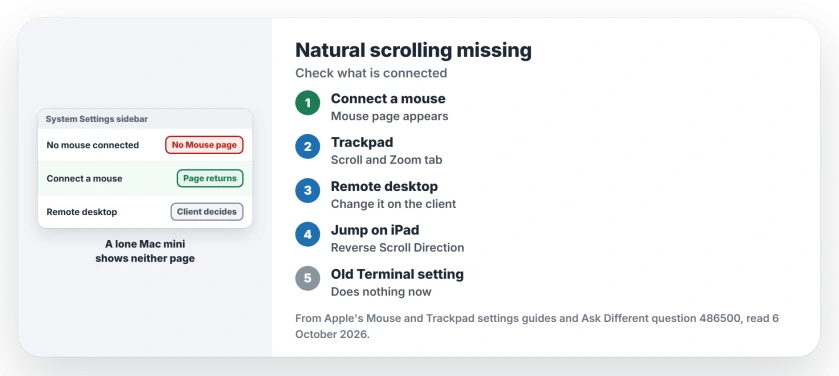
Status: checked 6 October 2026. Mouse and Trackpad vanished from System Settings on a Mac mini with nothing connected. Scrolling followed the remote client's setting, as the owner confirmed.
The accepted answer put it simply: "Mouse and/or Trackpad do appear in the left sidebar if you have a device connected". No device, no settings page.
1. Connect a mouse or trackpad
Plug in or pair any mouse briefly. The Mouse page returns to the sidebar, and natural scrolling sits on it.
Trackpads keep it on Scroll and Zoom. Apple describes the setting as moving "the contents of a window in the same direction as your fingers".
2. On a remote desktop, change it on the other device
The owner controlled the Mac mini with Jump Desktop. The answer's tests showed that "it is the Natural Scrolling setting of the Jump client which determines what happens on the server".
Confirmed by an owner: they tried two iPads, one with natural scrolling and one without. In their words: "The behavior consistently followed the System Preferences of the connecting iPad".
3. In the Jump app on an iPad or iPhone
The answer also found the switch inside Jump's own app on iOS and iPadOS, where the route is Settings, Mouse and Gestures, then Reverse Scroll Direction.
Ours: with any remote desktop app, I would try the scrolling setting on the device in your hands first.
What did not help
One member first thought Apple had removed the option, and suggested an old Terminal setting. The accepted answer's author tested it: "Setting com.apple.swipescrolldirection doesn't do anything Sequoia and (I assume) Tahoe".
Another member with a Magic Mouse connected still had the switch in place. Ours: that matches Apple's note, since a connected mouse brings the page back.
Is natural scrolling gone in macOS Tahoe?
No. It is still in the Mouse and Trackpad settings on Tahoe, as long as one of those is connected. A lone Mac mini has neither.
If your Bluetooth mouse will not connect at all after Tahoe, a Bluetooth keyboard and mouse after Tahoe covers that. For a pointer that freezes, see the mouse freezing on Tahoe.
The Short Version
- Mouse and Trackpad settings only appear when one is connected.
- Natural scrolling lives on those pages.
- Connect any mouse or trackpad to reach the switch.
- Over a remote desktop, the client device's setting decides.
- Jump on an iPad has its own Reverse Scroll Direction switch.
- The old Terminal setting did nothing on recent macOS.
Where to Next
Connect a mouse to the Mac now and open System Settings again; if you control it remotely, change natural scrolling on the device you hold.
Which remote desktop app do you use? Name it in the comments.

Isaac Smith is the founder and editor of PC Glance, a website that covers computers, laptops, and technology. He is a tech enthusiast and a computer geek who loves to share his insights and help his readers make smart choices when buying tech gadgets or laptops. He is always curious and updated about the latest tech trends.