
A OneDrive folder can be shared from its Share button on the website. Select the folder, enter the recipients and choose Can view or Can edit before sending. Edit access also permits changes to the folder's contents, including deletion.
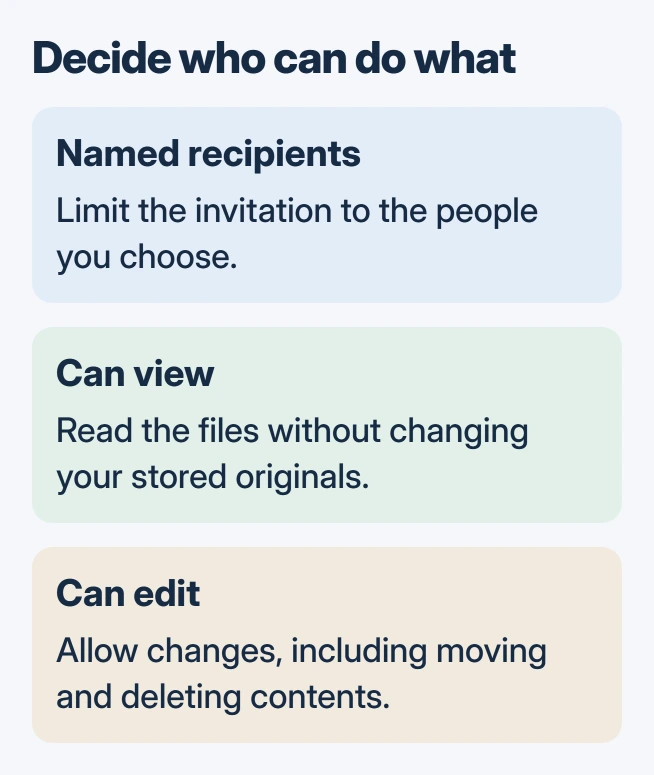
Use named recipients when access should stay with particular people. An Anyone link can be forwarded to others who were never on the original invitation.
Choose the folder and its recipients
Sign in at onedrive.com using the folder owner's account. Select the circle beside that folder, then choose Share. Check its contents first; put only the files intended for these recipients in the shared folder.
Microsoft documents the selection and invitation controls in its OneDrive sharing instructions. Sharing starts from the cloud item, so confirm the expected files appear online.
Status: OneDrive's web sharing, guest access and permission controls checked November 1, 2026. No folder, invitation or account access was changed.
Type the recipient names or email addresses into the sharing box. For work or school accounts, open the settings gear and choose Specific people when that is the intended audience. Apply the link settings before sending.
If the web folder lacks recent files from the computer, resolve the OneDrive upload problem first. A sharing invitation cannot provide a file that has not reached that folder.
Give view or edit access deliberately
Use the pencil or permission control beside the recipients to choose Can view or Can edit. Some dialogs show Allow editing instead; clear that option for viewing. Add a message if helpful, then select Send.
Microsoft says folder editing permits recipients to move, rename and delete accessible contents as well as edit them. Choose viewing for a reference folder whose originals should remain under your control.
Viewing does not by itself mean downloading is blocked. A recipient may retain a copy. Check any available download restriction separately rather than treating view permission as a promise that files cannot leave OneDrive.
For a link intended for a wider audience, use Copy link after checking its audience and permission settings. Send that sharing link, rather than copying the address of your own signed-in folder view.
Does the recipient need a Microsoft account?
With a personal Microsoft account, Microsoft's guest-sharing guidance requires a Microsoft account for a specific-person invitation.
For work or school sharing, an external recipient without a Microsoft account may instead verify their email with a one-time code. The organization's configuration and selected link type determine the available route.
Have the recipient open the invitation and complete any sign-in or email-code check. Confirm they can open an intended file with the chosen permission; opening it as the owner does not check their access.
An unavailable Anyone option can be an organization restriction. Contact the administrator when the required sharing audience is blocked; choosing a different browser does not change that policy.
Review or remove the permission afterward
Select the folder online, open its Information or Details pane and choose Manage access. Inspect both shared links and the people granted access. Remove the relevant link or person's permission when sharing should end.
Microsoft states that permissions can be changed through those controls in its collaboration instructions. Removing one link does not remove a separate grant you leave active.
The computer's OneDrive sync settings decide what is kept locally. Use Manage access for another person's permission; stopping local syncing does not revoke their invitation.
For a continuing access failure, give the OneDrive support team or your IT department the error, account type and recipient address. Share file contents only through an appropriate private support channel.
The Short Version
Select the folder online, specify the audience, choose viewing or editing, and send the invitation. Confirm access as the recipient, then use Manage access to review or revoke it later.

Isaac Smith is the founder and editor of PC Glance, a website that covers computers, laptops, and technology. He is a tech enthusiast and a computer geek who loves to share his insights and help his readers make smart choices when buying tech gadgets or laptops. He is always curious and updated about the latest tech trends.